Auto Sync Documentation
Complete guide to installing, configuring, and using Auto Sync to orchestrate Sync with Central across your workshared Revit models.
Supported Revit Versions
- Revit 2022
- Revit 2023
- Revit 2024
- Revit 2025
- Revit 2026
- Revit 2027
Installation
Make sure all running instances of Autodesk Revit are closed before starting the installation.
.exe file and follow the installation wizard. Select which Revit versions to install for and accept the licence agreement and privacy policy.After updating, reopen Revit and check About Auto Sync in the tray menu. The current release shows 2.0.7. If it still shows an older version, close every Revit session and install the current download for the Revit year you are using, then reopen Revit.
Install the update over your existing Auto Sync installation. Version 2.0.7 preserves existing activation and offline-licence bindings while improving machine identification across supported Revit versions. A paid seat covers one activated PC, including its supported Revit versions. Keep your saved licence files when updating; you do not need to deactivate first.
Quick Start Guide
Choose a sync mode, then configure the shared folder if you are using Auto Sync with a team.
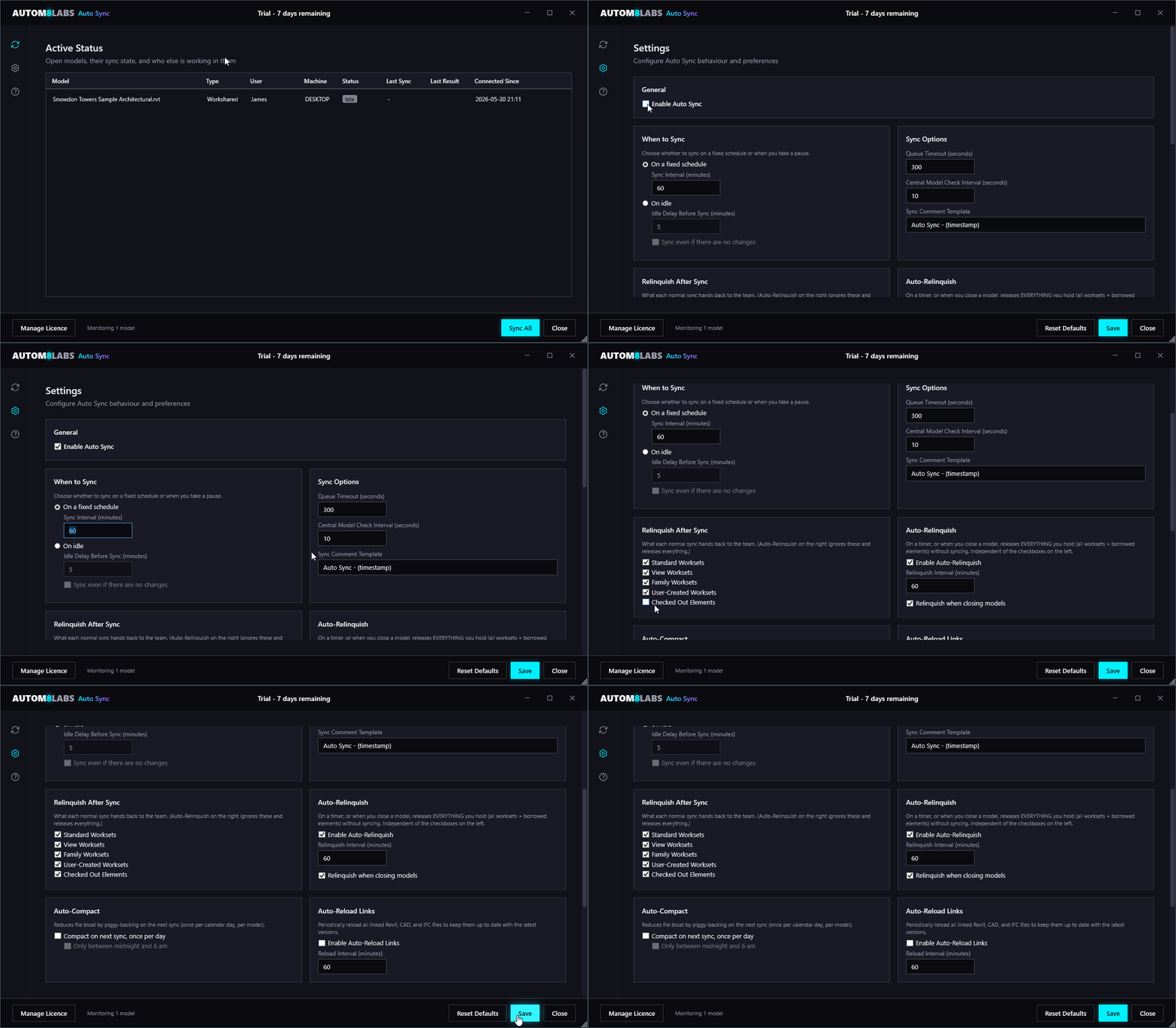
1. Confirm the Tray Icon is Active
After installing, the Auto Sync icon appears in your system tray (bottom-right of the Windows taskbar). The colour tells you the current state:
- Teal - idle / monitoring, all clear
- Blue - sync in progress
- Amber - queued, waiting for clear path
- Red - last sync failed
2. Choose a Sync Mode
Right-click the tray icon → Settings. Pick one of two modes:
- Scheduled Sync - sync at a fixed interval (15 / 30 / 60 / 120 minutes)
- Sync on Idle - sync after a configurable period of inactivity (2 / 5 / 10 / 15 / 30 minutes)
3. Connect Your Team
For cross-PC queueing and team status, install 2.0.7 on every participating PC and set Settings → Team Status → Shared Team Folder to the same physical network folder. Each user needs read/write access to the session and queue data. A mapped drive must resolve to the same location on every PC. This folder stores coordination data; it does not move your Revit model out of ACC or BIM 360.
Open Sync History → Status and use Refresh connections to check the team list. With no shared folder configured, coordination covers your Revit sessions on this PC only.
4. Start Syncing
Select your model and Revit session in the Status tab, then choose Sync selected, or let your chosen automatic mode run. Waiting requests show their queue position and start when their turn is available.
Use Sync selected in the dashboard to sync one model. The tray menu's Sync Now queues all tracked models across your Revit sessions on this PC. Auto Sync still checks for contention and queues if necessary.
Intelligent Sync Queue
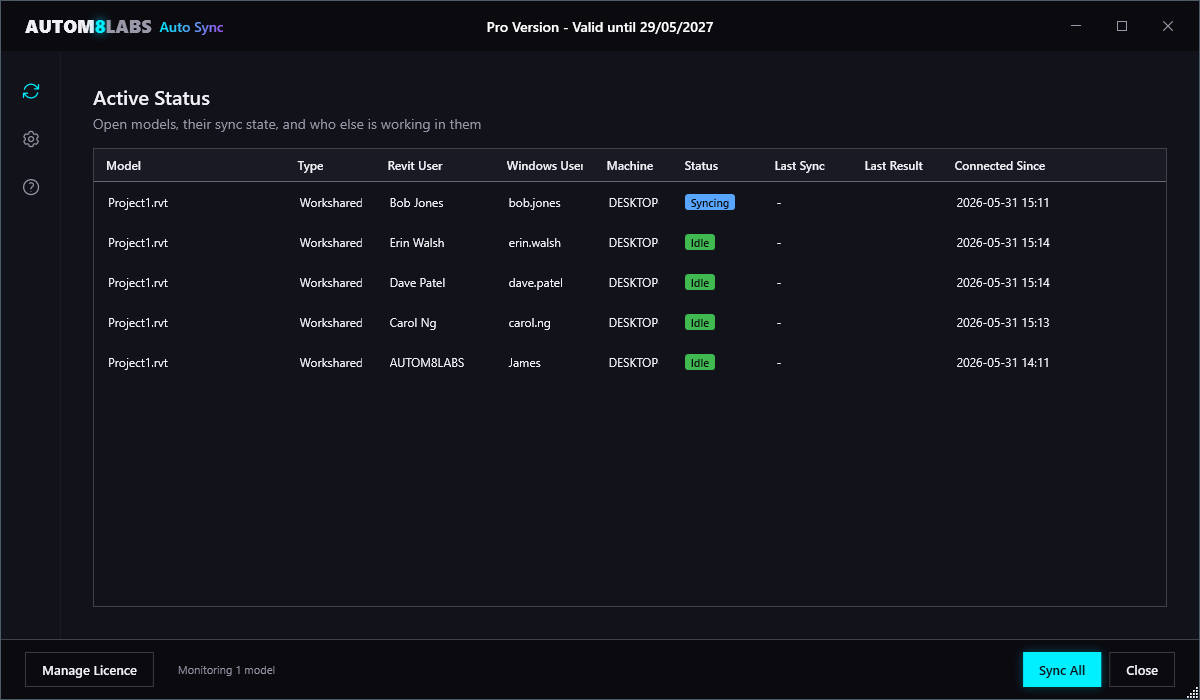
Auto Sync 2.0.7 uses a shared queue for each model. When another participating user is syncing, your request waits and starts automatically after their sync finishes. The dashboard shows your queue position. You can cancel a waiting request; an active Revit sync is allowed to finish.
Team Queue Setup
Install 2.0.7 on every participating PC and configure the same physical shared Team Status Folder. The queue supports file-based and cloud workshared models. Revit's native Synchronize with Central stays under Revit's control. Auto Sync observes its result without cancelling or replaying the command; native syncs are outside the Auto Sync queue.
Older clients and users without Auto Sync cannot join this queue. Revit's own contention handling remains the fallback for those syncs and native Revit commands. If a configured shared folder becomes unavailable, Auto Sync waits instead of creating a separate queue. Use Refresh connections after restoring access.
Confirmation Before Queued Sync
Ask before each sync (Yes / No) is enabled by default. Choosing No, closing the prompt or leaving it unanswered for 60 seconds cancels that request. Choosing Yes rejoins the queue; a waiting prompt does not hold the team's turn. Each user controls this setting; administrator policy does not override it.
Confirmation approves the whole-model operation, including current changes when syncing. It does not exclude temporary edits. A waiting or confirming request can be cancelled; an active Revit sync is allowed to finish. Revit warnings that need a decision remain visible.
Recovering an Interrupted Queue
Waiting tickets expire after two minutes without a heartbeat. Once shared-folder writes succeed, periodic maintenance also clears an active owner when Auto Sync can prove that its Revit process on this PC has exited. Loss of a heartbeat alone does not prove that a remote sync has stopped.
For an uncertain remote owner, an approved administrator can use Recover model queue after confirming that the owner has stopped syncing. Recovery checks that the owner has not changed and that the active lock can be obtained. Do not delete the queue folder while someone may still be syncing.
Queue Timeout
By default, Auto Sync waits up to 5 minutes for a clear sync path before giving up and logging a timeout. Adjust this in Settings → Queue Timeout.
Scheduled Sync
Set a fixed interval and Auto Sync handles the rest. Your model syncs automatically at regular intervals without any manual intervention.
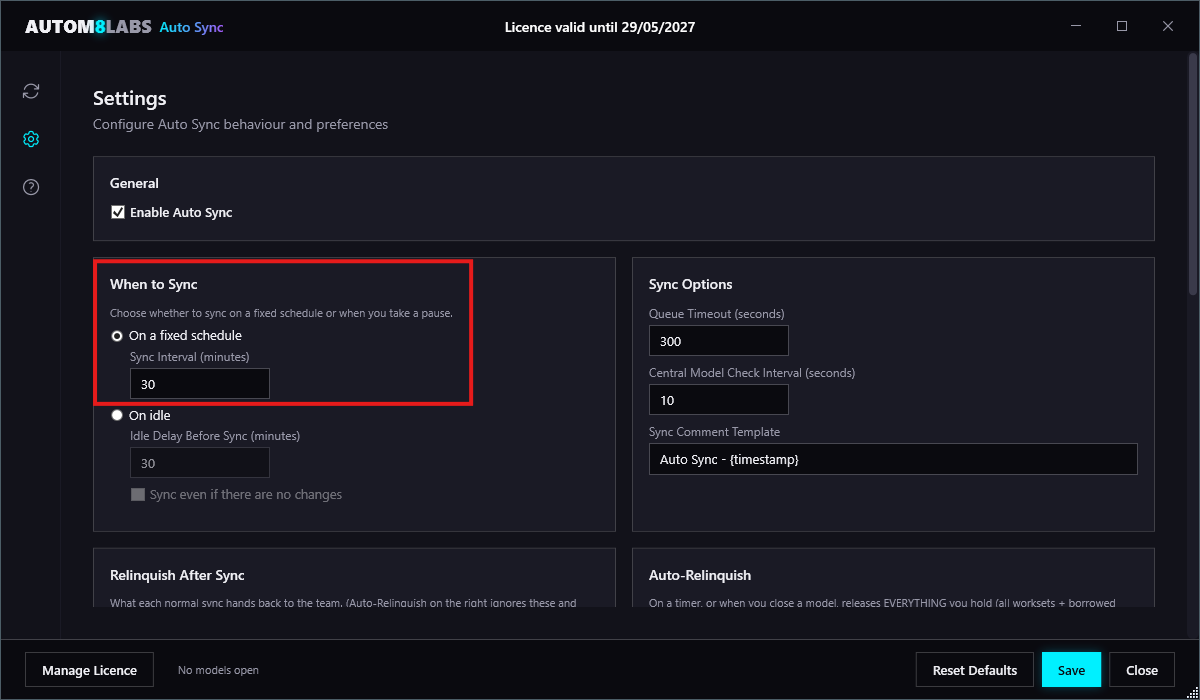
- Configurable schedule, set to any number of minutes
- Each open model syncs on its own independent schedule
- Auto Sync skips syncs if the model has not been modified since the last sync
- Pause and resume scheduling at any time from the tray menu
Sync on Idle
Sync on Idle waits for you to stop working, then syncs after a configurable idle delay.
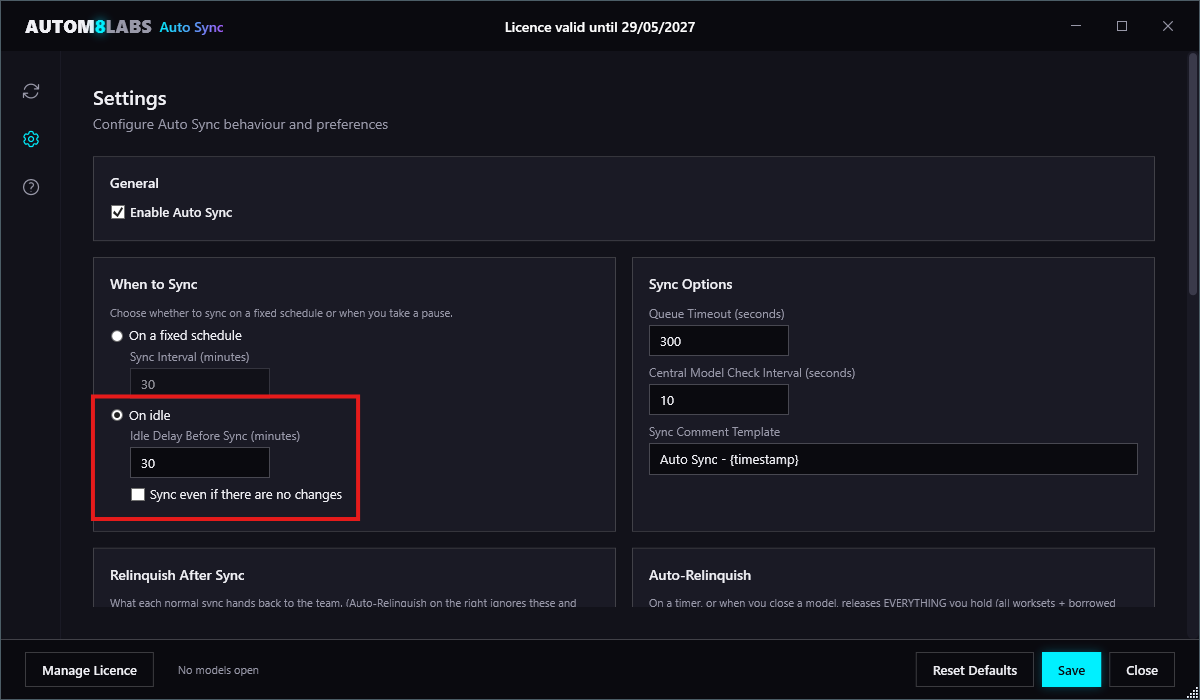
- Configurable idle delay, set to any number of minutes
- Tracks user activity via Revit's
Idlingevent and document change events - Optionally syncs even if no changes were made since the last sync
- Resets after each idle sync so the next sync only fires after a fresh idle period
Multi-Model Support
Auto Sync tracks every open workshared model independently. Within each Revit session, sync operations run sequentially. Across participating sessions, each central model has its own queue, so different central models can sync independently.
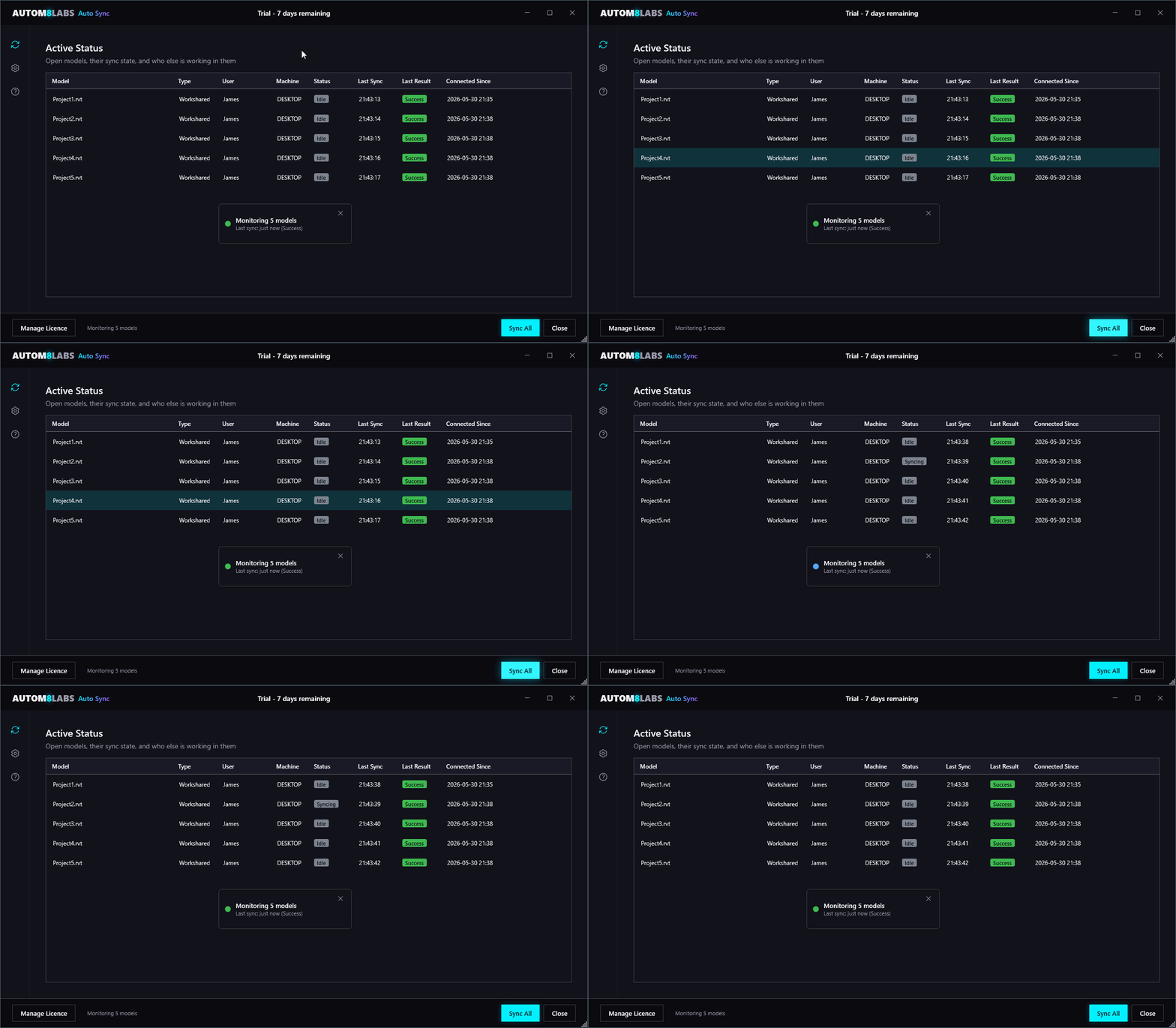
- Automatic detection when workshared models open or close
- Independent scheduling per model
- Sequential sync execution to prevent overlapping operations
- Status tracking per model: idle, queued, syncing, error
- Supports both file-server and cloud-hosted workshared models
Multi-Instance Coordination
When you run multiple Revit instances at once (common when working across versions or large projects), Auto Sync coordinates between them automatically.
- A single system tray icon is shared across all instances - no tray clutter
- Tray ownership is managed via a named Mutex - if the owning instance closes, another instance takes over automatically
- Each instance writes its session status periodically, and the tray owner aggregates and displays the combined status
- The status overlay shows models from all instances together
Status & Sync Controls
Open Sync History from the tray and select the Status tab. Each row identifies a model, user, machine and Revit session. Select a current row belonging to your Windows user on this PC to enable its sync controls. Teammates on other PCs are shown for visibility; these buttons do not send them sync commands.
| Control | What it does |
|---|---|
| Sync selected | Queues only the selected model in the selected Revit session. This is the dashboard footer button outside Settings. |
| Sync selected session | Queues the tracked models in the selected Revit session. |
| Sync all on this PC | Queues tracked models across your Revit sessions under the same Windows login on this PC. |
| Cancel selected request | Removes a waiting request for the selected model. A sync already running is allowed to finish. |
| Recover model queue | For an approved administrator: clears an abandoned active queue entry after confirming its owner has stopped syncing. Preserves waiting requests; it does not repair the Revit model or interrupt an active sync. |
| Refresh connections | Checks session and team status again and reloads saved settings and administrator policy. |
| Compact view | Opens a smaller window with model selection and sync controls. |
A selected model's sync button is disabled while its request is queued or syncing. Repeated requests are combined. Stale or unavailable sessions cannot be controlled.
Columns automatically fit their widest heading or cell. Use the bottom scrollbar to reach columns beyond the window, or drag a column divider to adjust its width. Your own sessions appear first, followed by teammates.
Reading the Status Columns
- Queue position shows a waiting session's place in that model's queue. It is not an estimated completion time.
- Last success is the most recent successful sync reported by that model/session.
- Last attempt result records that session's latest outcome. A failed or cancelled attempt does not replace its last-success time.
- A successful sync sends that user's changes to central. Other users receive those changes when they reload latest or complete their own sync; a success does not mean every open session has received the update.
Refresh Connections
Use Status → Refresh connections if a teammate or Revit session is missing, or after restoring access to the shared folder. Auto Sync publishes this session's current status and checks local and shared session records again. Team discovery also runs automatically about every 10 seconds.
This action refreshes the status list and reloads saved settings and administrator policy. It does not perform Sync with Central or Reload Latest, and it cannot restore an unavailable network connection. Save any settings edits you want to keep before refreshing.
If a teammate still does not appear, check that their model is open, that they are running 2.0.7, and that their Shared Team Folder points to the same accessible location. The connection message explains whether Auto Sync is using this PC only or has a shared-folder access problem.
For support, send the relevant files from %LocalAppData%\AUTOM8LABS\AutoSync\Log\ on both affected PCs, the approximate incident time and time zone, Revit and Auto Sync versions, which sync control each person used, and screenshots of the Status tab and Shared Team Folder setting.
Session Files and Temporary Disconnections
Session status uses a stable JSON file, with retries during brief shared-folder interruptions. Auto Sync attempts to remove its own presence file when the session ends. It removes old, valid presence records only when both the file modification time and recorded heartbeat are more than seven days old; queue, policy and sync-history files are retained.
A temporarily unreadable session can remain visible as unavailable for up to 30 minutes. It is excluded from the active-user count and cannot receive commands. The dashboard reuses the automatic status snapshots and updates changed rows to reduce work while the window stays open.
Compact View
In the Status tab, choose Compact view. The smaller window uses the same branding and controls as the dashboard and adjusts its height to the information shown.
- Select a model and Revit session from the dropdown, then choose Sync model.
- While your request waits, its queue position is shown and Cancel request replaces the sync action. An active sync is allowed to finish.
- Read the selected session's status below the model name. Hover over it for the last-success time. Teammates on other PCs remain view-only.
- Status refreshes automatically. For a manual refresh, open the dashboard and choose Refresh connections.
- Use the top-right expand icon (Open dashboard) to return to the full window. Minimise and close controls sit beside it.
- With no workshared models listed, the window explains that you need to open one instead of displaying an empty dropdown.
These controls describe the downloadable 2.0.7 release. Compact view changes the window layout; the separate Auto-Compact feature below reduces model file size.
Admin Console (Remote Sync, Relinquish & Close)
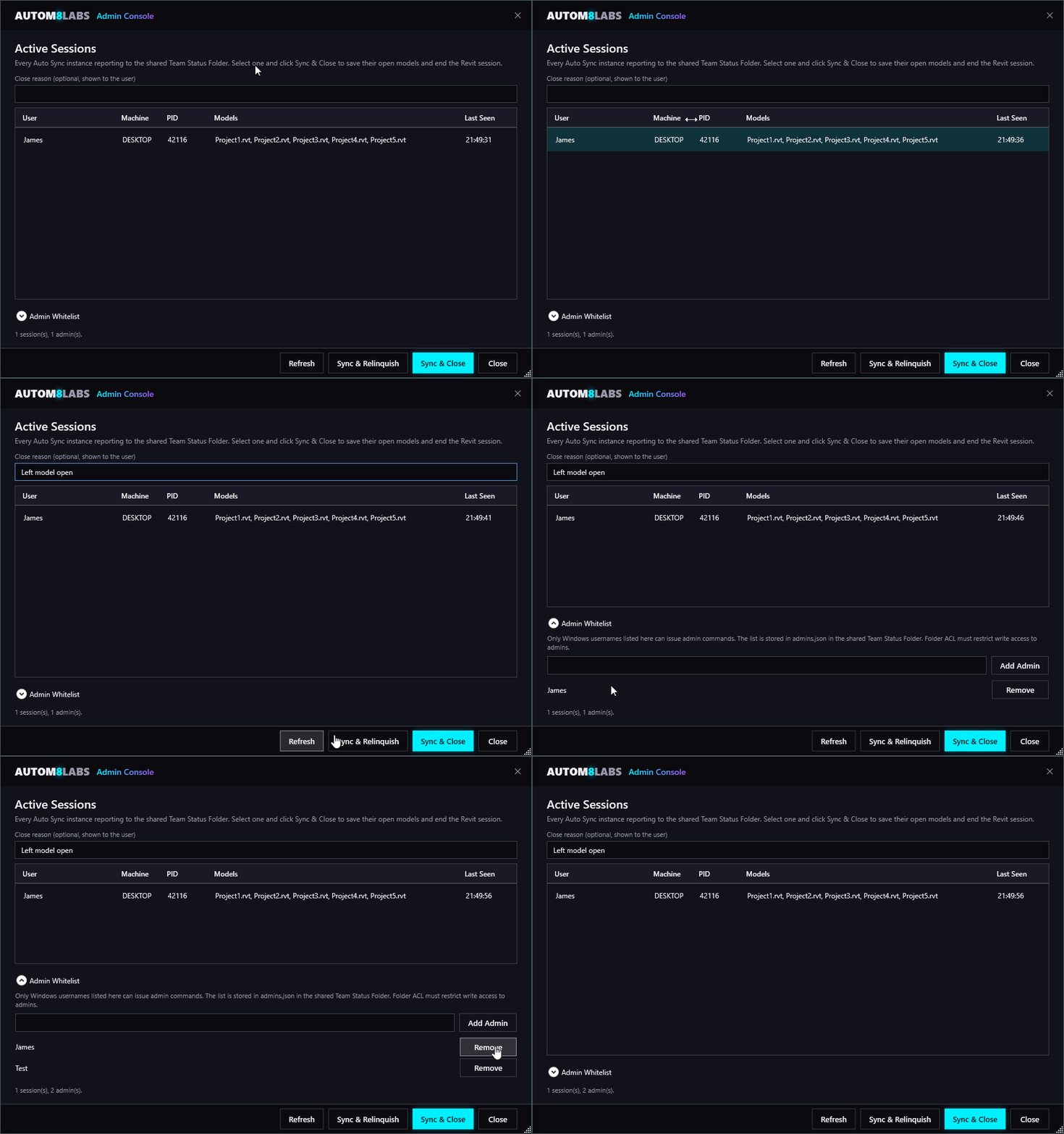
The Admin Console shows active Revit sessions reporting to your shared Team Status Folder. Select the model directly in the session table before using Sync & Relinquish or Relinquish Only. Each open model has its own row, alongside its user, machine and Revit session. These actions target that model and session, join its normal queue, and report the actual outcome. Sync & Close applies to the whole selected Revit session, including its other open documents. The console cannot send a remote command to its own session; another Revit session on the same PC can be targeted.
With confirmBeforeSync enabled, the person at the target PC must approve a selected-model sync or relinquish request. An unanswered prompt cancels after 60 seconds, so these actions are not unattended. Relinquish Only releases eligible unchanged items; new or modified unsynced items can remain owned.
Set Up the First Administrator
- Install Auto Sync 2.0.7 on participating PCs. In Settings → Team Status → Shared Team Folder, select the same shared network folder and save. A UNC path such as
\\SERVER\TEAM\AutoSyncavoids differences in drive mappings. This folder holds coordination data; your Revit models stay in their existing location. - On the administrator's PC, open PowerShell and run
[Environment]::UserName. Use the returned Windows username, without a domain prefix. This is not the Autodesk/Revit username or email address. - Have IT create
admins.jsonin the shared folder with the content below, replacing the example login. Save as plain UTF-8 JSON, with the filename exactlyadmins.json, notadmins.json.txt. The first administrator must be added to this file before the console becomes visible.
{ "admins": ["YOUR_BIM_ADMIN_LOGIN"] }In Auto Sync, choose Refresh connections, then close and reopen the dashboard. The Admin Console sidebar button becomes visible to the listed user. You can also right-click the Auto Sync icon beside the Windows clock and select Admin Console; this menu checks your admin status each time it opens.
Being a Windows administrator or running Revit as administrator does not by itself grant Auto Sync admin access. Your Windows username must be listed in the shared admins.json.
Add Another Administrator or PC
Open Admin Whitelist in the console and use Add Admin with the person's Windows username. They also need permission to update the admin files described below. After they refresh connections and open their own Admin Console, their PC's signing key appears as pending. On an already approved admin PC, check the pending user's name and machine, then choose Approve.
The first admin PC to open the console creates the signing registry, admin-keys.json. Later admin PCs need approval before their signed remote commands are accepted, including another PC used by an existing administrator. Use the console's Remove action to remove an administrator and revoke their associated keys. The console prevents removing yourself when you are the last listed administrator.
When approval is complete, the console shows This computer is approved. If it shows a pending approval or signing warning, resolve that message before issuing commands. Preserve the existing signing files during an update; do not delete them to clear a warning.
Access and Folder Permissions
- IT must restrict changes to
admins.json,admin-settings.jsonandadmin-keys.jsonto authorised administrators. Protect these files from deletion or replacement through permissions inherited from their parent folder as well as from direct edits. - Ordinary users need read access to these admin files and read/write access to session, queue and command/result data. Making the entire shared folder read-only prevents coordination from working.
- Selected-model sync and relinquish commands require an approved signing key and a current administrator entry in
admins.json. Receiving PCs check both before accepting the command. Legacy command paths retain their compatibility rules; a PC that has already trusted a signing registry rejects a username-only fallback if that registry disappears.
Remote Command Behaviour
Selected-model actions follow the confirmation and queue behaviour described above. Acceptance means the request was received, not that the model has finished syncing or relinquishing.
- The target receives a warning before execution, with a default delay of 30 seconds. Sync & Close attempts to sync workshared models and save local documents before closing; failures are reported.
- Commands expire after five minutes if they have not been picked up. Duplicate requests are filtered by command ID.
- Accepted, completed, rejected or failed results are reported to the issuing admin, and accepted commands are recorded in the Sync Log.
acceptAdminCommandscontrols whether the receiving session accepts remote commands;adminCloseWarningSecondssets the warning delay. These can be enforced through the managed settings below.
Centrally Managed Settings
Use admins.json to identify administrators and restrict who can change workflow settings. Use admin-settings.json to specify the actual values everyone must use. These are separate files in the same shared Team Status Folder.
Start with Set Up the First Administrator above. With admins.json present, users who are not listed cannot change workflow settings or select a different team folder through Auto Sync. Enable Auto Sync and Ask before each sync always remain personal choices. Tray, notification, overlay and log-retention preferences remain available unless explicitly locked by policy.
Set Common Values for the Team
Have an administrator create or edit admin-settings.json in the shared folder. Include only the settings you want to enforce. For example:
{
  "syncIntervalMinutes": 30,
  "queueTimeoutSeconds": 300,
  "relinquishOptions": { "checkedOutElements": true }
}- Recognised workflow settings included in this file apply to everyone, including administrators, and are locked in the Settings interface. The personal
enabledandconfirmBeforeSyncsettings are excluded from policy overrides. To change an enforced value, edit the policy file. - Changing Settings on an administrator's PC only changes that PC's saved preferences. It does not update the shared policy or other users' preferences.
- Settings omitted from the policy retain each user's saved value or the default. The presence of
admins.jsonstill prevents non-admins from changing workflow settings; it does not automatically give everyone identical values. - Removing an override restores the saved personal value after a successful policy refresh, subject to any machine policy. Admin restrictions continue while
admins.jsonremains present.
Pin the Shared Folder on Each PC
For a managed deployment, IT should create %ProgramData%\AUTOM8LABS\AutoSync\admin-settings.json on every participating PC. This machine policy is separate from the file in the shared folder. Protect it from ordinary-user edits, deletion and replacement, and set the shared folder using JSON-escaped backslashes:
{ "teamStatusFolder": "\\\\SERVER\\TEAM\\AutoSync" }Replace SERVER and TEAM with your actual server and share. Machine policy takes precedence over shared policy and personal settings. Pinning the folder prevents changing a local preferences file to bypass the shared configuration.
Apply and Check the Setup
Save the files, then choose Refresh connections in each open Revit session, or restart Revit. Close and reopen the dashboard after changing administrator membership so its sidebar updates. A failed policy refresh keeps the last working configuration; if policy cannot be loaded at first startup, unattended automation stays off until access is restored.
Check one listed administrator and one ordinary user: the administrator should see the Admin Console, while the ordinary user's workflow settings are locked and permitted personal preferences remain available. Check that enforced values match the shared policy. A local folder can demonstrate the interface on one PC; testing coordination between PCs requires the shared network folder.
Auto-Relinquish
Automatically relinquishes borrowed elements and worksets on a schedule - without syncing. Keeps models unlocked for other team members when you step away or forget to relinquish manually.
- Configurable interval (default: 60 minutes)
- Optionally relinquish on document close
- Trigger manually from the tray menu - Relinquish Now
- Respects your relinquish settings (which worksets and elements to release)
- Runs via Revit's ExternalEvent pattern for thread safety
Configurable Relinquish Options
- Standard Worksets
- View Worksets
- Family Worksets
- User-Created Worksets
- Checked Out Elements
Auto-Compact
Compaction reduces the central model's file size and can increase sync time. The every-sync and once-per-day options are both off by default for new settings; existing saved choices are retained.
For a shared team policy, open Admin Console → Team sync settings, choose Compact central on every Auto Sync sync and select Save team sync settings. Team members must restart Revit after a policy change. This applies to syncs performed by Auto Sync; native Revit sync remains under Revit's control.
The separate once-per-day option requests compaction during the next eligible sync, at most once per calendar day per model while that Revit session remains open.
- Enable Compact on next sync, once per day in Settings
- Optionally restrict it to midnight through 6 am using Only between midnight and 6 am
- Use Compact Now in the tray for a manual compact across your sessions on this PC. This manual action skips cloud models; cloud compaction is requested during sync
- Tracks space saved across compactions in analytics
- Runs via Revit's ExternalEvent pattern for thread safety
Auto-Reload Links
Periodically reloads all linked Revit and CAD files in open documents to keep them in sync with the latest version on the server or network.
- Configurable interval in minutes (default: 60 minutes)
- Trigger manually from the tray menu - Reload Links Now
- Reloads Revit links (
RevitLinkType) and CAD links (CADLinkType)
System Tray Icon
A persistent system tray icon provides at-a-glance status and quick access to all features. The icon colour changes to reflect the current state.
| Status | Colour | Meaning |
|---|---|---|
| Idle / Monitoring | Teal | All clear - monitoring active |
| Syncing | Blue | Sync in progress |
| Queued | Amber | Waiting for clear path |
| Error | Red | Last sync failed |
Tray Context Menu
- Status line showing the number of monitored models
- Sync Now - queue tracked models across your Revit sessions on this PC. Use the dashboard's Sync selected for one model
- Relinquish Now - release borrowed elements across your Revit sessions on this PC without syncing
- Compact Now - compact eligible models across your Revit sessions on this PC; skips cloud models
- Reload Links Now - reload linked files across your Revit sessions on this PC
- Pause / Resume Monitoring - pause or resume scheduled sync and central monitoring in the Revit session that owns the tray icon. This does not pause Sync on Idle or the independent automation features
- Sync History - open the dashboard
- Settings - open the settings dialog
- Manage Licence
- Admin Console - only shown to users in the shared
admins.jsonwhitelist - Show / Hide Status Overlay
- About Auto Sync
- Quit - hide the tray icon (add-in stays loaded)
Desktop Notifications
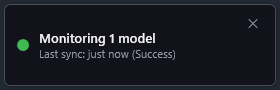
Auto Sync popups use a coloured status dot: green for success or already up to date, red for failure, amber for queued requests or warnings, and blue for information. Sync-result messages use plain text without tick, cross or hourglass prefixes. Long model names wrap; longer messages can be scrolled.
Popups do not take keyboard focus. They dismiss automatically, pause while hovered and can be closed with X. Control them with Show Desktop Notifications in Settings. These are Auto Sync windows: they do not appear in Windows Notification Center or follow Windows Do Not Disturb/Focus Assist. Sync results remain in Sync History.
- Sync success with duration - wording adapts: workshared models show "synced", non-workshared/local files show "saved"
- "Already up to date" confirmation when manual Sync Now is triggered against an unmodified model
- Sync failure with error summary
- Queue status when waiting for another user
- Team activity alerts (user opened model, user crashed, duplicate sessions)
- Admin command warning when a remote sync-and-close is incoming
Status Overlay
A small floating overlay window shows real-time sync status directly within Revit. It displays model status, team activity, and can be toggled on or off from the tray menu or settings. The overlay updates live as models are opened, synced, or closed.
Sync Log & Analytics
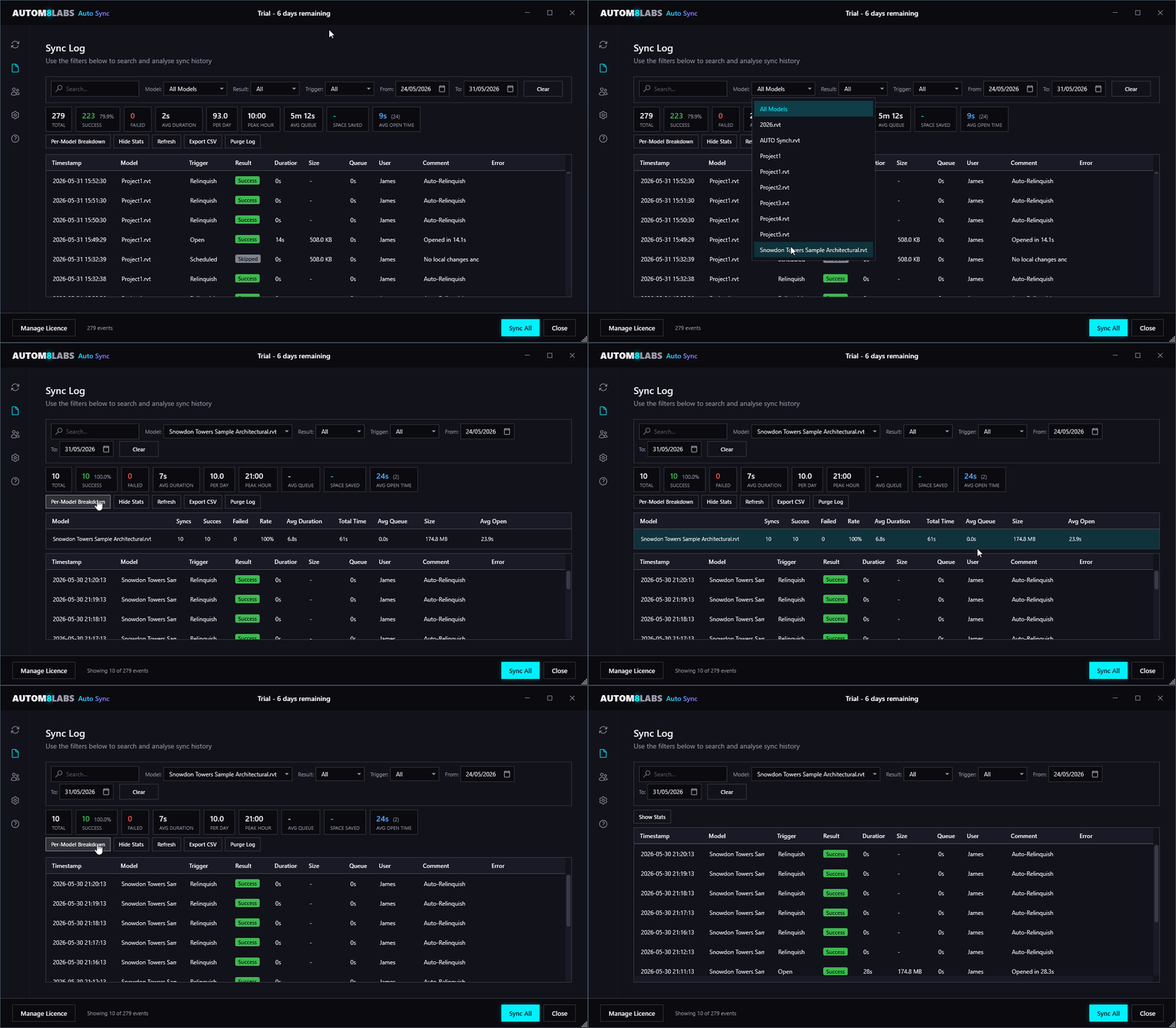
Every sync, relinquish, compact and reload Auto Sync performs is recorded to a local history, and that history powers an at-a-glance analytics breakdown. Both live in one place: the Sync Log tab of the Sync History window (tray icon → Sync History).
History is stored per machine at %LocalAppData%\AUTOM8LABS\AutoSync\Log\ and is the single source of truth for everything below.
Event Log
A sortable, colour-coded record of every operation. Each entry captures:
- Timestamp, model name & path, and the user who triggered it
- Trigger - Manual, Scheduled, Queued, User-Initiated, Relinquish, Compact, Reload Links, or Open
- Result - Success, Failed, Cancelled, or Skipped (colour-coded)
- Duration and queue wait time
- Sync comment, and the error message if it failed
- File size before/after (so compaction savings are visible)
- Cloud model flag (ACC / BIM 360)
Filter the grid by model, result, trigger, date range, or free-text search, and sort on any column.
Retention: keep history for 7, 30, or 90 days, or unlimited (Settings → Logging). Entries older than the retention window are purged automatically on startup.
Analytics
The top of the Sync Log tab summarises the history into live metrics - no setup, it's computed from the records above:
- Success rate, average sync duration, and cumulative time spent syncing
- Daily sync frequency and peak sync hour
- Queue wait statistics (average and maximum)
- Per-model breakdown - sync count, success rate, duration, file size, and average open time, with the slowest model flagged
- Disk space recovered through compaction
- Extremes - longest sync, most-failed model, and fastest model
Settings
All settings are accessible from the Settings tab in the dashboard (or via the tray menu) and are persisted to %AppData%\AUTOM8LABS\AutoSync\settings.json.
| Setting | Default | Description |
|---|---|---|
| Enable Auto Sync | On | Enable scheduled and idle-triggered syncing. Other automation features have their own switches |
| Ask before each sync (Yes / No) | On | Personal confirmation choice; administrators cannot lock it |
| Sync Interval | 30 minutes | How often to automatically sync each model (scheduled mode) |
| Queue Timeout | 5 minutes | How long to wait for a clear path before giving up |
| Central Check Interval | 10 seconds | How often to poll the central model status |
| Sync Comment Template | Auto Sync - {timestamp} | Comment applied to each sync |
| Show Tray Icon | On | Show/hide the system tray icon |
| Show Desktop Notifications | On | Toast notifications for sync results |
| Show Status Overlay | Off | Floating overlay showing model status |
| Log Retention | 30 days | How long to keep sync history |
| Enable Sync on Idle | Off | Sync when user goes idle instead of on a fixed schedule |
| Idle Sync Delay | 5 minutes | How long user must be idle before triggering sync |
| Sync on Idle Even if No Changes | Off | Sync even when no changes detected since last sync |
| Enable Auto-Relinquish | Off | Periodically relinquish borrowed elements |
| Relinquish Interval | 60 minutes | How often to auto-relinquish |
| Relinquish on Close | On | Relinquish borrowed elements when closing a document |
| Compact central on every Auto Sync sync | Off | Requests compaction on each Auto Sync sync; administrators can publish it through Team sync settings |
| Enable Auto-Compact | Off | Compact on the next eligible sync, once per day per model in that Revit session |
| Compact at Night Only | Off | Restrict automatic compaction to midnight through 6 am |
| Enable Auto-Reload Links | Off | Periodically reload linked files |
| Reload Links Interval | 60 minutes | How often to auto-reload links |
| Shared Team Folder | (empty) | Shared network folder for cross-PC session status and per-model queue data |
| Enable Idle Timer | Off | Sync and close an unattended Revit session after the idle timeout |
| Idle Timeout | 120 minutes | Idle period before the enabled Idle Timer closes Revit |
| Warning Before Exit | 5 minutes | Warning before the Idle Timer closes Revit |
| Accept Admin Commands | On | Allow remote sync-and-close commands from admins in admins.json |
| Admin Close Warning | 30 seconds | Warning toast shown on the target machine before a remote close fires |
Custom Sync Comments
Configure a sync comment template that is applied to every automatic sync. Default: Auto Sync - {timestamp}. Makes it easy to identify automated syncs in the Revit sync history.
File Locations
| Item | Path |
|---|---|
| Settings | %AppData%\AUTOM8LABS\AutoSync\settings.json |
| Sync Logs | %LocalAppData%\AUTOM8LABS\AutoSync\Log\ |
| Session Data | %AppData%\AUTOM8LABS\AutoSync\Sessions\ |
| Admin Whitelist (shared) | {TeamStatusFolder}\admins.json |
| Admin Commands (shared) | {TeamStatusFolder}\command-{Machine}-{Pid}-{Guid}.json |
| Admin Results (shared) | {TeamStatusFolder}\result-{Guid}.json |
How It Works
Sync Collision Prevention
The shared queue admits one participating session per central model and holds its turn until the sync completes. Different models have independent queues. Repeated requests for the same model and session do not create extra syncs. File-based central checks and Revit's contention handling provide additional protection.
Thread Safety
All Revit API calls must execute on Revit's main thread. Auto Sync's monitoring, scheduling, and team activity services run on background threads, but all actual Revit operations (sync, relinquish, compact, reload links) are executed via the ExternalEvent pattern - the only safe way to call the Revit API from background threads.
Frequently Asked Questions
For a review session, turn off Enable Auto Sync and save before working. Check the separate Auto-Relinquish, Auto-Reload Links and Idle Timer options as well. Pause Monitoring only pauses scheduled sync and central monitoring in the tray-owning session; it does not pause Sync on Idle, other sessions or independent automation. Cancel any waiting sync request separately. An active sync is allowed to finish.
With every participant on 2.0.7 and using the same shared Team Status Folder, requests for the same model enter a shared queue. One participating session syncs at a time, the next starts automatically, and waiting users see their queue position. Native Revit sync commands, users on older versions and users without Auto Sync remain outside this queue.
Scheduled sync skips unmodified models. To stop scheduled and idle-triggered syncing during a long edit, turn off Enable Auto Sync and save. Cancel any waiting request separately; an active sync is allowed to finish. Auto-Relinquish, Auto-Reload Links and Idle Timer have their own switches. Pause Monitoring alone does not pause Sync on Idle.
Yes. Auto Sync supports file-based and cloud workshared models. For cloud models, participating users share queue and status data through the same shared Team Status Folder. Use 2.0.7 on all participating PCs. Teammates receive model changes after their own reload or sync.
For shared queue ordering and cross-PC session status, every participant needs Auto Sync 2.0.7 and the same shared Team Status Folder. File-based activity detection and Revit contention handling can still help when other users do not have Auto Sync, but those users cannot be placed in the shared queue.
Changelog
Licencing updates, administrator approval and clearer session controls.
- Licencing updates
- Fixes administrator signing-key persistence and verification, with a clear approved-computer status
- Lets administrators select a model directly in the session table; Sync & Close still applies to the whole selected session
- Automatically fits Active Status columns to their widest text, with horizontal scrolling and manual resizing
- Adds a shared setting to compact central on every Auto Sync sync; compaction options default to off for new settings
- Keeps Enable Auto Sync and Ask before each sync as personal choices under managed settings
- Shows your sessions first and simplifies the compact model selector and button spacing
Native Revit sync compatibility, shared-folder recovery and a simpler interface.
- Leaves native Synchronize with Central under Revit's control without cancellation or replay
- Improves expired waiting-ticket cleanup and recovery for proven stopped local owners, with guarded administrator recovery for uncertain remote owners
- Reduces repeated network polling and unnecessary dashboard row updates while the window is open
- Retries presence-file access, retains temporarily unavailable users separately from active users, and removes valid presence files older than seven days
- Simplifies Confirm Operation and uses coloured status dots with plain-text notification messages
- Moves the compact window's last-success time to a tooltip and removes its redundant refresh button; automatic refresh and dashboard Refresh connections remain available
Dashboard stability, confirmation and selected-model administrator actions.
- Preserves model selection during status refresh and keeps cached status visible with its age during shared-folder interruptions
- Keeps dashboard, compact view and confirmation windows responsive independently of Revit's work thread
- Separates shared status publication from local heartbeat updates and reduces repeated network warning messages
- Improves queue admission, brief lock retries, cancellation and timeout reporting
- Adds confirmation before queued sync or relinquish, with a 60-second unanswered timeout
- Adds signed administrator Sync & Relinquish and Relinquish Only for a selected model and session
- Leaves Revit decisions visible and records more complete diagnostic details
- Unifies dialog branding, severity symbols and settings layouts; dismissing the idle warning with X or Escape keeps Revit open
Shared queue, session controls and clearer sync status.
- Choose a specific model or Revit session to sync, or explicitly sync all sessions on this PC
- Improved user detection and a Refresh connections action without restarting Revit
- Repeated requests are combined, sync buttons disable immediately, and waiting requests can be cancelled
- A shared per-model queue coordinates participating users and automatically starts the next waiting sync
- Queue position and waiting status are visible for each session
- A compact view matches the dashboard styling, adapts to its contents and keeps model selection, status and sync controls accessible on smaller screens
- Each session shows its own actual result and last successful sync time
- Administrator policies apply from the first load and protect workflow settings while leaving personal display preferences available
Sync queue reliability release.
- A sync that has to wait for a busy central model now always runs as soon as the model is free, so your changes reach the team without waiting for the next scheduled sync
- Scheduled syncs now run only when you have changes of your own to send, so team members running Auto Sync no longer trigger each other's syncs when nobody is editing
- Borrowed elements are now released after every sync by default, matching Revit's own Sync Now, so teammates are not left locked out of elements you have finished with
- Queue wait times in Sync History now show the full time spent waiting
- A change to the central model check interval now applies as soon as you save settings, and the two settings measured in seconds have sensible minimums
- The notification icon now repairs itself if it goes missing after a reinstall
Installer update. No changes to Auto Sync itself.
- The installer window now fits smaller screens and high display scaling, with the licence agreement and checkboxes always reachable
- Unattended installation for IT deployment tools
Unattended sync reliability release.
- Message boxes raised by Revit during a sync are now dismissed automatically and recorded in the sync log, so a scheduled or idle-triggered sync can never stall on a popup while nobody is at the machine
- Warnings are still handled through Revit's own failure handling, and real errors still fail the sync honestly
Reliability and security release for multi-seat deployments.
- Stability hardening for large multi-seat deployments
- Auto-Relinquish and Auto-Reload Links settings now apply immediately to open models, including interval changes
- Idle Timeout now releases all element and workset ownership before closing, so an unattended close is never blocked by a Revit prompt
Initial release.
- Intelligent sync queue with two-layer collision detection
- Two sync modes: Scheduled and Sync on Idle
- Multi-model support with independent per-model scheduling
- System tray icon with live colour-coded status
- Status overlay window docked inside Revit
- Team activity monitoring via
.slogparsing + cross-instance session coordinator - Multi-instance coordination with shared tray ownership
- Admin Console with cross-machine Sync & Close
- Auto-Relinquish, Auto-Compact, Auto-Reload Links
- Sync analytics dashboard with per-model breakdown
- Sync history with configurable retention