MCP Connector for 3ds Max Documentation
Complete guide to installing, configuring, and using MCP Connector for 3ds Max - 268 MCP tools across 19 categories, including the 25 read-only free tools, driven by Claude Desktop, ChatGPT Desktop, Cursor, or Claude Code.
Supported 3ds Max Versions
- 3ds Max 2022
- 3ds Max 2023
- 3ds Max 2024
- 3ds Max 2025
- 3ds Max 2026
- 3ds Max 2027
AI Applications
- Claude Desktop
- ChatGPT Desktop
- Cursor
- Claude Code
- VS Code (GitHub Copilot agent mode)
- Visual Studio 2022 17.14+ / 2026 (GitHub Copilot)
- GitHub Copilot CLI
- Grok Build (xAI CLI)
Installation
Close 3ds Max before running the installer.
.exe file and follow the wizard, accepting the licence agreement and privacy policy. The connector installs to the 3ds Max plug-in bundle folder.The AUTOM8LABS Macros
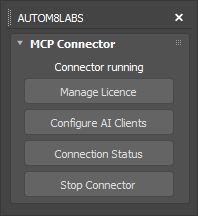
The connector starts with 3ds Max, so there is nothing to switch on for normal use. Five macros are registered under the AUTOM8LABS category. Find them in Customize > Customize User Interface, filter the category to AUTOM8LABS, and drag any of them onto a toolbar or assign a shortcut.
- MCP Connector - open or close the dockable MCP Connector panel
- MCP Connector Status - whether the connector is running, and which AI clients are configured
- MCP Connector Licence - activate or deactivate your licence, and see how many licences are in use
- MCP Connector Setup - re-run AI client configuration, for example after installing a new client
- MCP Connector Stop - stop the connector for this session
Showing the MCP Connector panel again
The panel opens by itself the first time each 3ds Max release runs the connector. To bring it back after closing it, run this in the MAXScript Listener (F11, or the mini listener at the bottom left):
macros.run "AUTOM8LABS" "MCPConnectorPanel"
The macro is a toggle - run it again to hide the panel. For one-click access, drag the MCP Connector button onto a toolbar via Customize User Interface as above.
Configuration
The connector configures supported AI clients when 3ds Max starts. Open 3ds Max once after installing, then restart your AI app. To configure a newly installed client or repair its entry, run the MCP Connector Setup macro.
Claude Desktop
Configuration is written to:
%APPDATA%\Claude\claude_desktop_config.json
The Store build reads its configuration from a sandboxed copy inside the package folder, not from %APPDATA%\Claude. The connector detects this and writes to both locations, so a Store install is configured correctly either way.
ChatGPT / Codex
ChatGPT Desktop reads MCP servers from the Codex configuration file, which it shares with the Codex CLI:
%USERPROFILE%\.codex\config.toml
Use the connector in ChatGPT Desktop's Work area. Fully quit and reopen the app after configuring, then ask it to ping 3ds Max. If the connection is unavailable in an older conversation, start a new Work conversation.
Cursor
%USERPROFILE%\.cursor\mcp.json
GitHub Copilot
The config files for VS Code, Visual Studio, and the Copilot CLI are located at:
%APPDATA%\Code\User\mcp.json
%USERPROFILE%\.mcp.json
%USERPROFILE%\.copilot\mcp-config.json
Grok Build
Toggle Enable MCP and the connector writes its entry into xAI's Grok Build CLI configuration automatically. The config file is located at:
%USERPROFILE%\.grok\config.toml
Grok Build also reads Claude Code's and Cursor's MCP config, so if you have already configured either of those the connector shows up in Grok Build with no extra step.
Manual configuration
For any other MCP client, point it at the Bridge executable. The server key is AUTOM8LABS_3dsMax:
{
  "mcpServers": {
    "AUTOM8LABS_3dsMax": {
      "command": "C:\\ProgramData\\Autodesk\\ApplicationPlugins\\AUTOM8LABS.MCPConnector3dsMax.bundle\\Contents\\Bridge\\MCPConnector3dsMax.Bridge.exe",
      "args": []
    }
  }
}
Restart your AI client after any configuration change so it picks up the new server.
Claude Desktop Settings
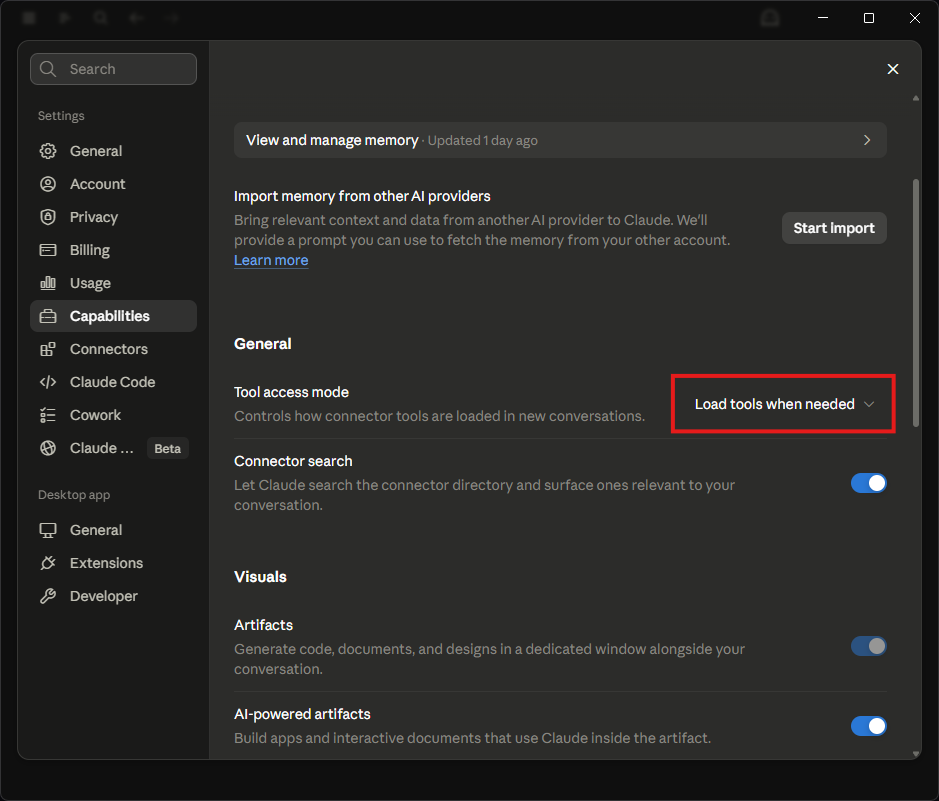
MCP Connector for 3ds Max exposes 268 tools. In Claude Desktop, enable Load tools when needed so tools are loaded on demand rather than all at once.
Use Chat, not Cowork
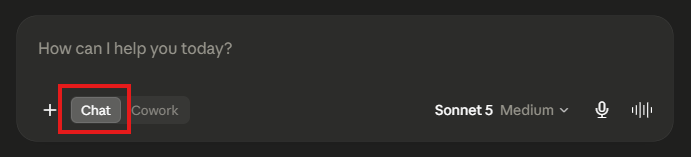
Claude Desktop has a mode selector at the bottom of the message box: Chat and Cowork. MCP connectors run in Chat conversations. In Cowork, your 3ds Max requests will not reach the connector and Claude behaves as if 3ds Max is not connected - even though the connector is configured correctly. Before you start, check the selector is set to Chat.
Note this is the opposite way round to ChatGPT Desktop, where the 3ds Max tools are available in Work rather than regular Chat.
Local AI Setup
Connect a local AI model to 3ds Max through an MCP-compatible app. These steps are for Windows, on the same computer as 3ds Max.
1. Prepare 3ds Max
- Install MCP Connector for 3ds Max and open a sample scene.
- The connector starts with 3ds Max. Check MCP Connector Status under the AUTOM8LABS macros, and keep 3ds Max open.
- In your AI app, download or select a local model that supports tool calling.
2. Configure your app
Use this entry for 3ds Max 2022 to 2027.
{
  "mcpServers": {
    "AUTOM8LABS_3dsMax": {
      "command": "C:\\ProgramData\\Autodesk\\ApplicationPlugins\\AUTOM8LABS.MCPConnector3dsMax.bundle\\Contents\\Bridge\\MCPConnector3dsMax.Bridge.exe"
    }
  }
}
For separate fields, use AUTOM8LABS_3dsMax as the name, stdio as the transport, and the command path with single backslashes and no quotes. Leave Arguments blank for this example.
Edit an existing connector entry rather than adding a duplicate. Keep its arguments, environment and tool settings. In an existing JSON file, add only AUTOM8LABS_3dsMax inside mcpServers, preserving other entries.
Choose your app below. Connection tested means registration, tool discovery and reconnection were checked using the Revit connector. These 3ds Max steps use the same app settings; they have not been tested end to end with every app and model.
- Open Settings > Agent Skills once to create the configuration file.
- Click the app version number > Open storage. Open
plugins/anythingllm_mcp_servers.jsonand add the entry. - Return to Agent Skills and click Refresh. Check the connector is running.
- Start your test prompt with
@agent.
- Open MCP connections and look for
AUTOM8LABS_3dsMax, including paused entries. - Use that connection if present. Otherwise, add one using the name and command above.
- Enable the connection and choose your local model.
- Open Settings > MCP > MCP Servers > Add > Import from JSON.
- Paste the JSON, enable the server and check its tools appear.
- Open Work > your Agent's menu > Edit > MCP and enable the connector for that Agent.
- Select your local model and start a conversation with that Agent.
- Open Settings > MCP Servers > Add MCP Server.
- Select STDIO and enter the name and command above.
- Save, then enable the server. A green indicator confirms it is active.
- In the right sidebar, open Program > Install > Edit mcp.json.
- Add the connector inside
mcpServersand save. - Check the connector is available and enabled for your chat.
- Sign in to your local installation. Open MCP settings > Import JSON.
- Paste the JSON. The import applies immediately.
- Enable the connector and MCP tool use for your chat.
These steps apply to 2026.9.11. Other versions may differ. See Unsloth's current guide.
3. Test the connection
With your sample scene open, ask:
Use the 3ds Max connector to tell me the active scene name and 3ds Max version. Do not change anything.
In AnythingLLM, prefix this with @agent. Confirm a connector tool runs and the answer matches your open scene.
Tool loading and model limits
If available, enable tool selection or on-demand loading and start with a few read-only tools. Large tool lists can exceed a local model's context. A larger context setting alone does not guarantee reliable tool use.
Operator Skill
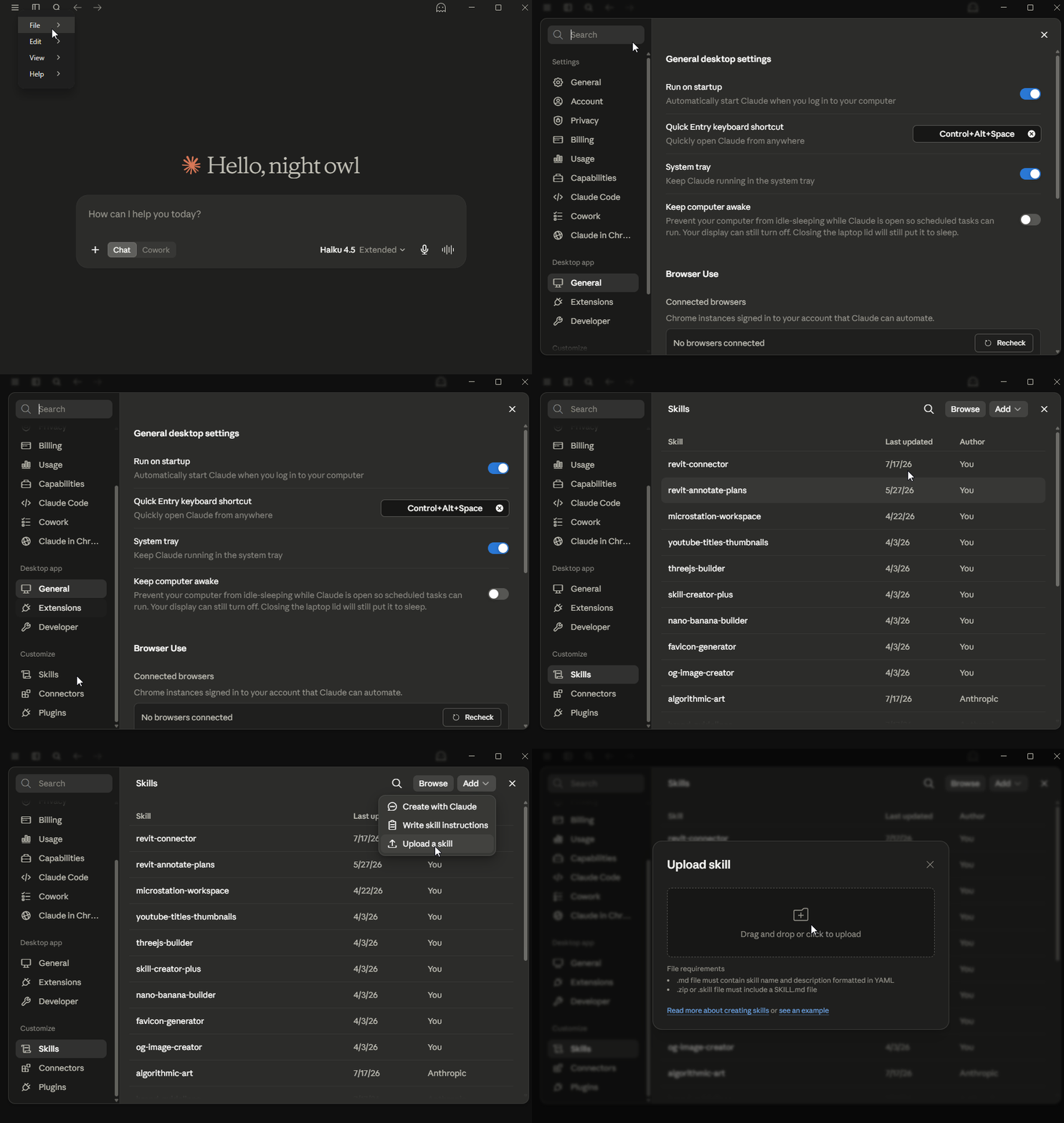
MCP Connector for 3ds Max ships with a free operator skill - a plain text playbook Claude reads before touching your scene. It teaches Claude to use the connector efficiently: read in bulk instead of one object at a time, verify answers with counts, batch edits in one call, and say so instead of guessing when something cannot be done. The result is fewer calls, fewer dead chats, and far less of your usage allowance burned on a single question.
Install in Claude Desktop:
- Download the skill: 3dsmax-connector.zip
- In Claude Desktop, go to Settings > Skills > Add > Upload a skill and select the zip.
- That is it - Claude picks the skill up automatically in new chats. If you ever find it has not, mention it in your prompt, for example "Follow the 3dsmax-connector skill".
Using Claude Code or Cursor instead? Install steps for both are in the mcp-connector-skills repository, which also hosts free skills for the rest of the MCP Connector family.
Power BI Dashboard
A free browser dashboard and Power BI report for tool-use records. MCP Connector Pro is required to record audit logs.
Tool Use Audit dashboard
Review AI-assisted work in 3ds Max using a browser dashboard or Power BI.
Requires: MCP Connector for 3ds Max Pro 1.6.0+ and administrator rights to enable logging.
Download: Tool Use Audit v1.0.0 (.zip)
1. Enable logging
Logging is off by default. On each computer, open Registry Editor as administrator. Create this key if needed, then set its values:
HKEY_LOCAL_MACHINE\SOFTWARE\AUTOM8LABS\MCPConnector3dsMax
| Value name | Type and setting |
|---|---|
AuditLog | DWORD (32-bit): 1 |
AuditLogFolder | String (REG_SZ): your log folder, e.g. C:\AuditLogs |
Create the log folder and give 3ds Max users write access. For multiple computers, use a network share. Restart 3ds Max.
2. Open a dashboard
Extract the ZIP to C:\AuditDashboard or another short path. Keep its files and folders together.
- Open
audit-dashboard.htmlin Chrome or Edge. - Select Open audit folder, choose your
AuditLogFolderand allow read access.
The dashboard reads files locally and refreshes automatically.
- Open
AUTOM8LABS Connector Audit.pbipin Power BI Desktop for Windows (September 2026 or later). - Under Transform data > Edit parameters, set AuditLogFolder to your log folder.
- Select OK > Apply changes > Refresh.
Select Refresh whenever you want the latest records.
3. Check logging works
Ask your AI assistant to run get_scene_info in your open 3ds Max scene. Wait around 30 seconds, then check for the call. Select Refresh in Power BI.
Time, user, computer, host and release, scene, AI app, tool, read/write type and outcome, plus the first 300 characters of its arguments. Chat messages, full tool results and bridge-only connection calls are excluded.
Write means the tool can change a scene; it does not prove a change occurred. Optional: set AuditReason (DWORD) to 1 in the same registry key, then restart 3ds Max, to request a short explanation from the AI.
CSV files are saved under %LOCALAPPDATA%\AUTOM8LABS\MCPConnector3dsMax\Audit, then copied into month folders under AuditLogFolder every 30 seconds and when 3ds Max closes. Failed copies retry automatically for files updated within the last seven days.
Local copies are kept for 90 days. Files in your chosen folder are not automatically deleted. See the included README for more detail.
Want your company branding? Contact us.
Tool Reference
MCP Connector for 3ds Max adds its full tool set, grouped by category below, including a read-only free tier that works without a licence. Every tool name shown is the exact identifier exposed to your AI client. The Edition column shows whether a tool is available in the free edition or needs a Pro licence - on a free install, Pro tools are not listed at all. Under each description is an example prompt showing how to ask for it in natural language - click any prompt to copy it, paste it into your AI client, and adjust the names and numbers to suit your scene.
Animation
The time range and transform keyframes.
| Tool | Example prompt | Edition |
|---|---|---|
| Add a weighted target to a constraint already on a track, with the updated target list reported. | ||
add_constraint_target | Make the camera also look at the second actor at thirty percent | Pro |
| Key an object's position, rotation and scale at given frames. | ||
animate_transform | Move the camera from the entrance to the courtyard over 100 frames | Pro |
| Assign an animation controller to any track: position, orientation, look-at, path and link constraints, script and expression controllers, noise, TCB, list controllers and spring dynamics. | ||
assign_controller | Make the drone follow the path spline | Pro |
| Delete all keys from named objects. | ||
delete_animation | Clear the animation off the camera | Pro |
| Edit keys on any track: list, delete, move, scale timing around a pivot, bake procedural motion into plain keys, set tangent types, and set loop behaviour. | ||
edit_keyframes | Bake the noise motion to keys every two frames and loop it | Pro |
| Frame range, frame rate, current frame and which objects are animated. | ||
get_animation_info | What is animated in this scene? | Free |
| Inspect the controllers on an object's tracks: classes, key counts, script text, constraint targets with weights, and loop behaviour. | ||
get_controller_info | What controllers are on the camera? | Pro |
| List the parameter wires on an object with their expressions and drivers, plus the tracks that could be wired. | ||
get_wired_parameters | Show the wiring on the gear object | Pro |
| Set one property on a track's controller - a noise frequency, a look-at axis, a script controller's code. | ||
set_controller_property | Set the noise frequency on the tree sway to 0.2 | Pro |
| Move the time slider to a frame, including subframes, and evaluate the scene. Creates no keys. | ||
set_current_frame | Go to frame 48 | Pro |
| Set the animation start, end and frame rate. | ||
set_time_range | Set the timeline to 0 to 250 at 25 fps | Pro |
| Remove the parameter wire from a track, or every wire on the object, restoring plain animatable controllers. | ||
unwire_parameters | Unwire the door rotation | Pro |
| Wire one object's track to drive another's, optionally through an expression of the source value, one-way or bidirectional. | ||
wire_parameters | Wire the slider's X position to drive the roof opening angle times two | Pro |
Corona
Work a Corona scene end to end - lights, LightMix, tone mapping, proxies, the frame buffer, resumable renders and Cosmos assets. Needs Corona installed.
| Tool | Example prompt | Edition |
|---|---|---|
| Bring back the Corona frame buffer, or one of its channels, as an image the AI can look at, during an interactive render too. It never starts, stops or changes a render. | ||
capture_corona_vfb | Show me the Corona frame buffer as it is now | Pro |
| Start, refresh or stop Corona interactive rendering, or show and hide the frame buffer. A running render is only stopped when you say so. | ||
control_corona_render | Start an interactive Corona render from the active camera | Pro |
| Turn a Corona proxy into editable mesh geometry at the current frame. The proxy, its file and its material are kept. | ||
convert_corona_proxy_to_mesh | Convert the tree proxy to an editable mesh and keep the proxy | Pro |
| Save or load the frame buffer post-processing settings as a file, so a look can be reused on another scene. | ||
corona_post_settings | Save the current Corona post settings to the project folder | Pro |
| Create a Corona sphere, rectangle, disk or cylinder light with its intensity given in lumens, candela or radiance. | ||
create_corona_light | Add a 3000 lumen Corona rectangle light above the table | Pro |
| Write an object out as a Corona proxy file and place the proxy, keeping the original geometry, transform and material. An animated range can be included. | ||
create_corona_proxy | Make a Corona proxy from the oak tree and save it next to the scene | Pro |
| Report whether Corona is idle, rendering or rendering interactively, whether a frame buffer is available, and the statistics of the last render. | ||
get_corona_render_state | Is Corona still rendering? | Pro |
| List the Chaos Cosmos importers running on this computer, so assets go to this 3ds Max session and the right renderer. | ||
get_cosmos_importers | Which Cosmos importer belongs to this 3ds Max? | Pro |
| Import a Cosmos model or material you have already downloaded, through Corona. Returns a receipt to check. Nothing is bought or downloaded. | ||
import_corona_cosmos_asset | Import the European olive from Cosmos into this Corona scene | Pro |
| Check a Cosmos import receipt: whether the import finished, and which objects and materials it brought in. | ||
inspect_corona_cosmos_import | Did the olive tree import finish? | Pro |
| Read the LightMix groups of a rendered frame with their intensity, colour and on or off state, ready for an adjustment. | ||
inspect_corona_lightmix | What LightMix groups does this render have? | Pro |
| Read a Corona proxy: its file and whether it is found, its material, animation and viewport display settings. | ||
inspect_corona_proxy | Is the proxy file for the planting still found? | Pro |
| Read the tone mapping stack of the renderer or of one camera, operator by operator, in order. | ||
inspect_corona_tone_mapping | Show me the tone mapping on the main camera | Pro |
| Place a Corona proxy from an existing proxy file. The file is not changed, and the material is assigned separately. | ||
load_corona_proxy | Load the car proxy file into the scene | Pro |
| Carry on a Corona render from the kept frame buffer or a saved render file, once you confirm the scene and camera are unchanged. | ||
resume_corona_render | Resume the render from the CXR I saved yesterday | Pro |
| Save the Corona frame buffer to a new render file that can be resumed later. An existing file is never overwritten. | ||
save_corona_cxr | Save this render as a CXR so I can resume it later | Pro |
| Adjust LightMix intensity, tint or on and off state on a finished render, without baking anything into the scene lights. Needs Corona 15 or newer. | ||
set_corona_lightmix | Halve the window light group and warm the lamps | Pro |
| Edit or add tone mapping operators, such as exposure or white balance, on the renderer or on one camera, as one undo step. | ||
set_corona_tone_mapping | Lift exposure by half a stop and set white balance to 6200 K | Pro |
| Create named light groups and the LightMix render element, without touching existing render elements or light values. | ||
setup_corona_lightmix | Set up LightMix with one group for daylight and one for the lamps | Pro |
Creation
Bring new things into the scene - primitives, splines, text, cameras, lights, daylight, reference images and helpers.
| Tool | Example prompt | Edition |
|---|---|---|
| Clone objects as copies, instances or references, with a count and offset. | ||
clone_objects | Make 5 instances of Column001 spaced 3000mm apart in X | Pro |
| Create a targeted or free camera at a position, with an optional field of view. | ||
create_camera | Put a camera at the south west corner looking at the tower | Pro |
| Build a cabinet or wardrobe carcass from width, depth and height: sides, top, bottom, back, a recessed plinth, shelves at typed heights and doors hinged at their outer edge, with material IDs set and the pivot at the base. | ||
create_carcass | Build a 1200 x 600 x 2200 wardrobe carcass with shelves at 600 and 1200 and two doors | Pro |
| Fill a rectangle or any closed outline with boards or tiles: length, width, thickness, joint gap, stagger and run direction, clipped to the outline and built as one mesh. | ||
create_floor_boards | Lay 120 x 15 cm decking boards across the terrace outline with a 5 mm gap and half-bond stagger | Pro |
| Build a FloorGenerator floor on a copy of a rectangle or closed outline, using the standard patterns, with board sizes in scene units. Needs FloorGenerator installed. | ||
create_floor_generator | Lay a plank floor over the living room outline with 120 mm boards | Pro |
| Generate a floor plan from named rectangular rooms: spline outlines, a text label and snap marker per room, and optional extruded walls with shared walls built once. | ||
create_floor_plan | Lay out a plan with a 5 by 4 metre kitchen and a 6 by 4 metre living room with 2.5 metre walls | Pro |
| Create a point or dummy helper - the usual parent for a rig or an array. | ||
create_helper | Add a dummy at the centre of the selection | Pro |
| Create an omni, spot or directional light with intensity and colour. | ||
create_light | Add a warm spot light above the entrance | Pro |
| Create a box, sphere, cylinder, cone, torus, plane, teapot, tube or pyramid at a position, with size and segment control. | ||
create_primitive | Create a 2000 by 1000 by 400 box called Plinth at the origin | Pro |
| Place a photo or drawing as a correctly proportioned reference plane at a real-world width - frozen, full colour, excluded from renders. The anchor for modelling from a photo. | ||
create_reference_image | Place the front elevation photo as a 12 metre wide reference at the origin | Pro |
| Create a spline through a list of points, open or closed. | ||
create_spline | Draw a closed spline through those four corner points | Pro |
| Create a text shape at a size and position. | ||
create_text_shape | Add text reading NORTH at 250mm high in front of the model | Pro |
| Read a FloorGenerator floor: its settings, its outline and whether it is shared, ready for an edit. | ||
inspect_floor_generator | What board size does the hall floor use? | Pro |
| Physically based daylight in one call: a sun positioner at a compass azimuth and altitude, a physical sky environment and matching exposure, correct in renders. | ||
setup_sun | Set up warm afternoon sun from the south west | Pro |
| Preview, then change a FloorGenerator floor: board dimensions, seed or UVs, as one undo step. | ||
update_floor_generator | Make the hall floor boards 150 mm wide | Pro |
Files
Scene files and assets - save, import, merge, convert, and keep textures linked.
| Tool | Example prompt | Edition |
|---|---|---|
| Check, start or stop the local asset intake that receives packages sent from the asset launcher into a library folder on this machine. Received packages are indexed, never imported automatically. | ||
configure_fab_bridge | Start receiving assets into D:\Assets\Library | Pro |
| Write the scene, or just the selection, to another format - FBX, OBJ, STL, 3DS, glTF or DWG - taken from the file extension. | ||
convert_scene_to_format | Write the selection out as an FBX | Pro |
| Queue up to a hundred jobs over saved scenes - resave copies, missing previews, a render per camera - without touching the scenes themselves. | ||
create_scene_job_queue | Queue a preview render for every scene in the archive folder | Pro |
| Download one Cosmos asset and its dependencies through the installed Cosmos service; poll the download status before placing it. | ||
download_cosmos_asset | Download the olive tree asset I picked | Pro |
| Inspect one Cosmos asset by id: name, description, tags, previews, revisions, download size and import readiness. | ||
get_cosmos_asset | Tell me about the Cosmos olive tree asset before I download it | Pro |
| Check a Cosmos download's availability, import readiness and byte progress. Read only. | ||
get_cosmos_download_status | Is the olive tree ready to place yet? | Pro |
| Check the installed Cosmos service: version, online state, asset directory and active downloads. | ||
get_cosmos_status | Is Chaos Cosmos available on this machine? | Pro |
| Inspect an indexed asset package's mesh choices, texture-map candidates and previews before importing it. | ||
get_fab_asset | What meshes and maps are in the downloaded bench package? | Pro |
| Scene file name, path and whether there are unsaved changes. | ||
get_file_info | Has this scene got unsaved changes? | Free |
| Batch-import every model file in a folder - .max files merge; FBX, OBJ, glTF, USD, DWG and more import - laid out on a spaced grid, with optional PBR materials built from sibling textures. | ||
import_asset_folder | Import the furniture folder and lay the pieces out in a grid | Pro |
| Import one indexed mesh or merge a MAX package with its materials, returning the created object names ready for scattering. | ||
import_fab_asset | Import the high-resolution mesh from the bench package | Pro |
| Import a file into the current scene. | ||
import_file | Import that OBJ into the scene | Pro |
| Index one downloaded asset package into a local catalogue: mesh files, previews and texture-map candidates. No scene changes. | ||
index_fab_asset | Index the bench package I just downloaded | Pro |
| List the objects inside a .max file without opening it, plus its size and modified date - then merge just the ones you want. | ||
inspect_scene_file | What is inside archive_site_v2.max? | Pro |
| See how each queued job ended, and cancel what is still waiting. | ||
inspect_scene_job_queue | How is the preview queue getting on? | Pro |
| List the Chaos Cosmos assets already downloaded on this machine: models, materials and HDRI skies. | ||
list_cosmos_assets | Which Cosmos trees do I have downloaded? | Pro |
| List texture and asset paths referenced by the scene that are missing on disk. | ||
list_missing_assets | Are any textures missing? | Pro |
| Merge another scene file into this one - the whole file, or only the objects you name (see inspect_scene_file). | ||
merge_scene_file | Merge the site model into this scene | Pro |
| Bring a prepared package into the scene you choose: preview, rename clashes, match units, and take everything back out if anything fails. | ||
merge_scene_transfer | Merge the lobby furniture package into this scene | Pro |
| Create a portable scene package in a new folder: a MAX copy or VRSCENE, dependencies with collision-safe relative paths, a preview and a SHA-256 manifest, optionally zipped. | ||
package_scene | Package this scene with all its textures into D:\Handover\Villa | Pro |
| Import a Chaos Cosmos asset by name or ID with its textures, materials and scale, at a position and rotation. | ||
place_cosmos_asset | Place Maple Tree 001 at the corner of the terrace | Pro |
| Package chosen objects with their hierarchy, materials and files into a new folder, ready to move into another scene. | ||
prepare_scene_transfer | Package the lobby furniture to move into the main scene | Pro |
| Return a labelled image grid of up to 12 Cosmos assets to compare with a reference image, without downloading anything. | ||
preview_cosmos_assets | Show me previews of the five closest trees to my reference photo | Pro |
| Return a labelled contact sheet of 1 to 12 indexed asset packages for comparison against a reference image. | ||
preview_fab_assets | Preview the indexed bench and chair packages side by side | Pro |
| Find the scene's missing texture files under folders you name and relink them, reporting repathed, resolvable and still missing. | ||
relink_assets | The textures moved - relink them from the project assets folder | Pro |
| Run the next queued job in a separate 3ds Max in the background, so the session you are working in stays free. | ||
run_scene_job_queue | Run the next job in the preview queue | Pro |
| Save the scene, or save it as a new file. | ||
save_scene | Save this as a new file called tower_v02.max | Pro |
| Search the Cosmos catalogue, including assets not yet downloaded, by text and category, returning ids, tags, previews and availability. | ||
search_cosmos_assets | Search Cosmos for Mediterranean trees | Pro |
| Search downloaded, indexed asset packages by name and tags in the local catalogue. | ||
search_fab_assets | Which indexed packages have benches? | Pro |
| Search a folder of .max files for objects by name without opening any of them. | ||
search_scene_files | Which scene files contain an object called Reception Desk? | Pro |
| Verify a scene package against its manifest and dependency inventory, optionally reopening it in a separate 3ds Max Batch process and rendering a test frame. | ||
verify_scene_package | Verify the handover package in D:\Handover\Villa and reopen it to check nothing is missing | Pro |
Geometry
Turn linework into solids and combine geometry - sweeps, extrusions, lathes, booleans and merges.
| Tool | Example prompt | Edition |
|---|---|---|
| Apply a displacement map with amount, tiling and shift, through the active renderer's own displacement modifier where it has one. | ||
apply_displacement | Displace the stone wall with the height map at 20 mm | Pro |
| Merge named objects into a single editable poly - the first name survives and keeps its material and pivot. | ||
attach_objects | Merge all the balustrade parts into one object | Pro |
| Union, subtract or intersect objects; the operands are consumed and the result is an editable poly. Engine compound (default), modifier (the 3ds Max 2024+ Boolean modifier) or voxel (its volume method, which survives mesh errors). | ||
boolean_objects | Cut the window openings out of the front wall using the opening boxes | Pro |
| Close every open border with a Cap Holes modifier and report the open edges before and after. | ||
cap_borders | Cap the holes in the imported staircase | Pro |
| Extrude a rule-selected set of faces by a typed amount along their normals, as a group, by local normal or by polygon; a negative amount sinks them. | ||
extrude_faces | Extrude the top faces of the plinth up by 150 mm | Pro |
| Extrude splines by a height - a closed spline becomes a capped solid, an open one a surface, and the result says which. | ||
extrude_spline | Extrude the floor plate outline up 3.5 metres | Pro |
| Inset faces by polygon or as a group, repeatable, with the option to delete the rim so neighbouring panels are separated by an equal gap. | ||
inset_faces | Inset the door fronts by 1 mm twice and delete the rim so there is a 2 mm gap between them | Pro |
| Revolve a profile spline around an axis into a turned solid - columns, balusters, bowls, bottles - with min, centre or max axis alignment. | ||
lathe_spline | Lathe this half profile into a vase about its left edge | Pro |
| Clean up straight-segment splines: remove doubled points and close small gaps within a tolerance. Preview first; curved splines are left alone. | ||
repair_splines | Close the gaps in the imported site outlines | Pro |
| Sweep a built-in section (bar, angle, channel, tee, wide flange, tube, pipe, cylinder, half or quarter round) along splines, keeping the spline editable. | ||
sweep_profile | Sweep a 40 x 20 mm bar section along the handrail spline | Pro |
| Give splines a solid round or rectangular profile - skirtings, rails, mullions, kerbs and pipework straight from imported linework. Reversible. | ||
sweep_spline | Turn the kerb lines into 125 wide by 255 high kerbs | Pro |
Layers
Organise the scene into layers.
| Tool | Example prompt | Edition |
|---|---|---|
| Create a layer, optionally making it current. | ||
create_layer | Create a layer called Facade and make it current | Pro |
| Delete every layer with nothing on it, reporting what went. | ||
delete_empty_layers | Clean up the empty layers | Pro |
| List layers with node counts and hidden, frozen and current state. | ||
list_layers | What layers are in this scene and which is current? | Free |
| Move named objects onto an existing layer. | ||
move_to_layer | Move everything selected onto the Facade layer | Pro |
| Rename a scene layer while keeping its objects, hierarchy and properties. | ||
rename_layer | Rename the layer Layer01 to Facade | Pro |
| Move a layer under a parent layer, or back to the root, with cycle checks; objects stay where they are. | ||
set_layer_parent | Put the Furniture layer under Interior | Pro |
| Set a layer hidden, frozen or current. | ||
set_layer_properties | Freeze the Site layer | Pro |
Materials
Create, assign and configure materials, presets, textures and mapping.
| Tool | Example prompt | Edition |
|---|---|---|
| Add a UVW map modifier with a projection type and tiling. | ||
add_uvw_map | Add a box UVW map to the selection tiled twice in U | Pro |
| Load an image into a map slot (base colour, roughness, metalness, bump, cutout) of a Physical Material or a V-Ray material. | ||
apply_bitmap_texture | Put that texture file into the base colour of Concrete | Pro |
| Add an occlusion-based dirt layer into a V-Ray material's diffuse, darkening corners and contact areas, with a downward bias for rain streaks. | ||
apply_dirt | Add dirt to the concrete material | Pro |
| Load an image into a V-Ray material slot (diffuse, reflection, glossiness, roughness, bump, refraction, displacement) with tiling and multiplier. | ||
apply_vray_texture | Put the travertine texture in the floor material's diffuse, tiled 4 by 4 | Pro |
| Assign a material to named objects. | ||
assign_material | Assign Concrete to every object named Wall* | Pro |
| Make an independent copy of a material graph, optionally swapping texture files, so a variant never alters the original. | ||
clone_material_variant | Make a red variant of the fabric material with the new texture | Pro |
| Find objects carrying identical copies of one material and point them all at a single one. Preview first; anything that differs is left alone. | ||
consolidate_materials | Merge the duplicate copies of the glass material | Pro |
| Build a fully wired PBR material from a folder of textures - channels detected from the file names, highest resolution preferred, Physical Material or V-Ray output - and assign it in one call. | ||
create_material_from_textures | Make a material from the OakFloor texture folder and put it on the floor | Pro |
| Tuned Physical Material presets - glass, mirror, metals, plastic, ceramic, rubber, concrete, wood, fabric, emissive - with optional tint and immediate assignment. | ||
create_material_preset | Give the shopfront glazing a lightly tinted glass material | Pro |
| Create a MultiTexture map from a set of images in a material base colour, so each board or tile gets its own image. Needs MultiTexture installed. | ||
create_multi_texture | Put these eight oak plank images on the floor material as a MultiTexture | Pro |
| Build a native V-Ray or Corona physical material from explicit PBR maps, matched to the current renderer, and assign it or place it in an editor slot. | ||
create_pbr_material | Make a V-Ray material from the oak floor texture set and assign it to Floor | Pro |
| Create a physical material with base colour, metalness, roughness, transparency and emission, optionally placed in an editor slot. | ||
create_physical_material | Create a dark matt concrete material and put it in slot 1 | Pro |
| Create a V-Ray material with diffuse, reflection, glossiness, metalness, IOR, refraction, fog colour, Fresnel and a rounded-edges radius, optionally assigned to objects. | ||
create_vray_material | Make a white painted steel V-Ray material with 4 mm rounded edges and assign it to the columns | Pro |
| Read a material's class and properties: Physical Material values, V-Ray material values (diffuse, reflection, glossiness, IOR, Fresnel, refraction, fog), the map slots that carry a texture, and the sub-materials of a Multi/Sub-Object material. | ||
get_material_properties | Show me the properties of the Concrete material | Free |
| Browse the materials and maps in the scene, the editor slots, the current library or a library file on disk, without assigning anything. | ||
inspect_material_library | What materials are in the studio library file? | Pro |
| Read a whole material graph: sub-materials, shared maps, values, texture paths and missing files. | ||
inspect_material_network | Show me the full graph of the brick material | Pro |
| Read a MultiTexture map: its images in order, missing files, weights and settings. | ||
inspect_multi_texture | Which images does the floor MultiTexture use? | Pro |
| List scene materials with class and how many objects use each. | ||
list_materials | What materials are in this scene? | Free |
| Deal out colour-shifted variants of a material across named objects so clones do not all look identical. | ||
randomize_materials | Give the 40 chairs four slightly different versions of the fabric material | Pro |
| Swap every use of one material for another across the scene or on named objects, including Multi/Sub-Object slots, reporting exactly what changed. | ||
replace_material | Replace the placeholder concrete with the new brushed metal everywhere | Pro |
| Save chosen materials, or the scene or editor set, as a material library file. An existing file is replaced only when you ask, and a backup is kept. | ||
save_material_library | Save the facade materials as a library file | Pro |
| Set a single property on a material. | ||
set_material_property | Set the roughness of Concrete to 0.8 | Pro |
| Put a material into a Multi/Sub-Object slot by material ID, growing the slot list when the ID is new or wrapping a plain material into a multi first. | ||
set_sub_material | Put the glass material into ID 3 of the window material | Pro |
| Preview, then change a MultiTexture map: its settings or its image list, as one undo step. | ||
update_multi_texture | Raise the hue variation on the floor MultiTexture a little | Pro |
| Create an OSL shader map from source code or an .osl file, compiled live by the host, optionally plugged straight into a material slot with its inputs reported. | ||
write_osl_shader | Write an OSL checker shader and plug it into the floor's base colour | Pro |
Mesh
Audit and repair geometry - normals, polygon reduction, welding, smoothing and edge finishing.
| Tool | Example prompt | Edition |
|---|---|---|
| Read-only mesh health audit: degenerate faces, isolated vertices, open edges and inside-out normals, ranked worst first. Changes nothing. | ||
audit_mesh | Check the mesh health of everything in the scene | Free |
| Soften hard edges with a small bevel above an angle threshold - the finishing pass that stops renders reading as computer made. | ||
chamfer_edges | Chamfer the hard edges on the joinery at 2mm before rendering | Pro |
| Cap open borders, weld coincident vertices, remove isolated and redundant collinear vertices, and report what each pass changed. | ||
clean_mesh | Clean up the imported furniture meshes | Pro |
| Set the crease value on edges chosen by rule: all, borders, by angle, material boundaries, smoothing boundaries or the current selection, so subdivision keeps them. | ||
crease_edges | Crease the hard edges on the glass sheet so TurboSmooth keeps them | Pro |
| Edit individual vertices in world space: read positions, move with soft falloff, set exact positions, or conform vertices onto another object or a spline - the way scans and reference geometry become clean topology. | ||
edit_vertices | Pull the terrain vertices under the building flat onto the slab | Pro |
| The production edge finish in one call: a small chamfer on real corners, smoothing across it, collapsed, with the chamfered edges creased. | ||
finish_edges | Finish the edges of the kitchen carcass with a 2 mm chamfer | Pro |
| Correct normal direction with a Normal modifier - auto mode measures each mesh and flips only the ones that are inside out. | ||
fix_normals | Fix the inside-out normals on the imported model | Pro |
| Flip chosen base-mesh faces from an inspection, in one undo step with the modifier stack preserved. | ||
flip_mesh_faces | Flip the faces inspect_mesh flagged as inward on the shell | Pro |
| Inspect base polygons or evaluated triangles, vertices, topology issues and face winding, returning component indices and an inspection token. Read only. | ||
inspect_mesh | Inspect the shell mesh for flipped faces and open edges | Pro |
| Reduce polygon count with ProOptimizer, keeping a chosen percentage of vertices, with real before and after face counts. | ||
optimize_mesh | Reduce the trees to 30 percent of their vertices but protect the UVs | Pro |
| Highlight base-mesh faces or vertices by index from an inspection, preserving the modifier stack. | ||
select_mesh_components | Select the open-edge vertices inspect_mesh found on the shell | Pro |
| Set material IDs on faces chosen by rule (all, by normal direction, element, height or face ids), or number every element in turn. | ||
set_material_ids | Give the top faces of the worktop material ID 3 | Pro |
| Rebuild smoothing groups by face angle so curved surfaces stop rendering faceted. | ||
smooth_mesh | Smooth the imported column shafts at 40 degrees | Pro |
| Weld vertices within a distance threshold, closing the split seams imported geometry usually arrives with. | ||
weld_vertices | Weld the vertices on the facade panels at 1mm | Pro |
Model Library
Turn a folder of your own 3ds Max models into a searchable library - index it, find a match by words or against a reference image, preview the candidates and load the one you choose.
| Tool | Example prompt | Edition |
|---|---|---|
| Save a description, tags and a confidence note against a library model, so the next search finds it by what it is. | ||
annotate_model_library | Tag that model as a mid-century oak armchair | Pro |
| Attach a rendered preview image to a library model that has none, without editing the model. | ||
attach_model_library_preview | Use this render as the preview for the new lamp model | Pro |
| Build or refresh a catalogue of a folder of .max models and their preview images, without opening a single file. | ||
index_model_library | Index my furniture folder as a model library | Pro |
| Read colour, layout and edge features from the library preview images, so models can be ranked against a reference picture. | ||
index_model_library_visuals | Prepare the furniture library for image matching | Pro |
| Preview what a library model contains, then merge it into the scene with name clashes renamed. The source file is not changed. | ||
load_model_library_asset | Load the chosen armchair into the scene | Pro |
| Show up to twelve library models side by side as a labelled contact sheet, from their existing previews. | ||
preview_model_library | Show me the top six sofa candidates side by side | Pro |
| Rank library previews against a reference image, or a crop of one, by colour, layout and edges. The score measures appearance, not what the object is. | ||
rank_model_library | Which library chairs look most like the one in this photo? | Pro |
| Search the library by file name and by the descriptions and tags saved for each model. | ||
search_model_library | Find oak dining chairs in my model library | Pro |
Modification
Transform and organise what is already there.
| Tool | Example prompt | Edition |
|---|---|---|
| Align objects to a target object, per axis. | ||
align_objects | Align the selected objects to Column001 in X and Y only | Pro |
| Preview, then apply a set of property changes read with inspect_properties. Values are read back, and put back if anything fails. | ||
apply_property_patch | Set the camera f-stop to 5.6 and the ISO to 200 | Pro |
| Delete named objects. | ||
delete_objects | Delete Box001 and Box002 | Pro |
| Group named objects under a group name. | ||
group_objects | Group the selected panels as Facade_Bay_01 | Pro |
| Hide or unhide objects by name or pattern, or unhide everything. | ||
hide_objects | Hide everything on the Site layer | Pro |
| Hide everything except the named objects so a screenshot shows only them; mode end unhides everything again. | ||
isolate_objects | Isolate the staircase so we can look at it on its own | Pro |
| Link objects as children of a parent so the assembly moves, rotates and scales together; a link that would make a loop is refused. | ||
link_objects | Link the tap and the sink to the worktop | Pro |
| Mirror objects about an axis, optionally cloning and offsetting. | ||
mirror_objects | Mirror the selection about X and keep a copy | Pro |
| Move objects by a relative offset or to an absolute position. | ||
move_objects | Move the selection 1500mm up in Z | Pro |
| Rename objects explicitly, or in bulk with a prefix or suffix. | ||
rename_objects | Rename everything selected with the prefix FAC_ | Pro |
| Swap a set of objects for a chosen one, keeping each position, pivot, parent, name and layer. Preview first, as instances or as copies. | ||
replace_objects | Replace all the placeholder chairs with the new chair model | Pro |
| Reset XForm: bake rotation and scale into the geometry, collapse, and put the pivot at the base, centre or top without moving anything. | ||
reset_transform | Reset the transforms on the mirrored doors and put their pivots at the base | Pro |
| Rotate objects by Euler angles, relative or absolute. | ||
rotate_objects | Rotate Column001 by 45 degrees about Z | Pro |
| Scale objects uniformly or per axis, relative or absolute. | ||
scale_objects | Scale the selection to 150 percent | Pro |
| Set wire colour, renderable, shadow casting and receiving, and frozen state. | ||
set_object_properties | Make the selection non-renderable and freeze it | Pro |
| Ungroup named groups. | ||
ungroup_objects | Ungroup Facade_Bay_01 | Pro |
| Unlink objects from their parent, keeping their world position. | ||
unlink_objects | Unlink the water from the pool base | Pro |
Modifiers
Work the modifier stack - add, configure, remove and collapse.
| Tool | Example prompt | Edition |
|---|---|---|
| Add a modifier by friendly name with properties: bend, twist, taper, shell, turbosmooth, edit poly, UVW map, noise, symmetry, lattice, smooth, relax, push, skew, chamfer, slice, normal, FFD (2x2, 3x3, 4x4, box, cylinder), quadify, mesh cleaner, normalize spline, UVW xform and clear, vertex weld, cap holes, spline chamfer, boolean, array, displace, meshsmooth, OpenSubdiv, subdivide, spherify, xform, edit mesh, edit spline, morpher, skin wrap, weighted normals, mirror, extrude, lathe, sweep, stretch. | ||
add_modifier | Add a shell modifier 20mm thick to the selected surfaces | Pro |
| Collapse the modifier stack to editable geometry. | ||
collapse_stack | Collapse the stack on everything selected | Pro |
| List the modifier stack on an object, in order. | ||
list_modifiers | What modifiers are on Box001? | Free |
| Mirror half a model with a Symmetry modifier on any combination of planes, the plane placed and rotated by typed values; weld off by default, optional collapse and manual seam weld. | ||
mirror_geometry | Mirror the left half of the chair across X | Pro |
| Remove a modifier from the stack by index. | ||
remove_modifier | Remove the second modifier from the selection | Pro |
| Set one property on one modifier in the stack, addressed by index. | ||
set_modifier_property | Set the turbosmooth iterations on Box001 to 2 | Pro |
| Cut objects with a world-aligned plane at a typed position: refine, split, or remove one side, with capping. | ||
slice_mesh | Slice the column at 2.4 m and remove everything above | Pro |
Placement
Put many things in the right place - arrays, spline distribution, surface scatter, pivots and dropping onto surfaces.
| Tool | Example prompt | Edition |
|---|---|---|
| Save a description and tags against a Forest Pack library plant, so later searches find it by what it is. | ||
annotate_forest_library | Note that this library item is a young silver birch | Pro |
| Linear, radial or grid arrays, instanced by default so editing one edits them all. | ||
array_objects | Array the column in a 6 by 4 grid at 8 metre centres | Pro |
| Create an editable Chaos Scatter of imported models over named surfaces with source weights, seeded scale and rotation, collisions and slope limits; reports the generated instance count. | ||
create_chaos_scatter | Scatter the three downloaded shrubs across the lawn surface with collisions on | Pro |
| Scatter source objects across surfaces with the Forest Pack plugin: cell size controls density, with probability weights, random scale and rotation ranges, optional collision, all seeded - and the generated item count reported so an empty scatter is caught. | ||
create_forest_scatter | Scatter the three shrub models across the site with two metre spacing | Pro |
| Grow a lawn on a surface as fur strands or scattered clumps, with length, thickness and density (needs V-Ray). | ||
create_grass | Put a lawn on the garden plane | Pro |
| Create a parametric RailClone object from a library style along spline paths - fences, railings, walls, mouldings, curbs, road markings - reporting segments, parameters and generated faces. | ||
create_railclone | Run the Metal Fence 1 style along the boundary spline | Pro |
| Place an instanced ring of trees from named sources at a distance band, in staggered rows, with an open arc towards the camera. | ||
create_tree_belt | Surround the house with a belt of the maples at 50 to 75 m, leaving a gap on the camera side | Pro |
| Place clones along a spline: evenly by arc length, butted end to end by their own length, or one on each control point - fence posts and panels in two calls. | ||
distribute_along_spline | Run fence panels end to end along the boundary spline | Pro |
| Drop objects straight down so they sit on a surface, or on the ground plane when no surface is given. | ||
drop_to_surface | Drop the furniture onto the floor | Pro |
| Read a Chaos Scatter's generated count, sources, weights, surfaces, areas, seed and transform settings without changing it. | ||
get_chaos_scatter_info | What is in the lawn scatter and how many instances did it make? | Pro |
| Inspect a Forest Pack scatter: edition, generated item count, sources with probabilities, areas, density and randomisation ranges. | ||
get_forest_info | How many items is the tree scatter generating? | Pro |
| Inspect a RailClone object: style, base splines, segments, exposed parameters with their values, and face count. | ||
get_railclone_info | What parameters can I change on the fence? | Pro |
| Read what a RailClone object generated at the current frame: its segments, where they sit and how big they are. Needs RailClone 7.3.5 or newer. | ||
get_railclone_output | How many posts did the fence generate, and where? | Pro |
| Read the complete definition of a RailClone style, ready for a guarded change. Needs RailClone 7.3.5 or newer. | ||
get_railclone_style | Read the style of the balcony railing | Pro |
| List the Forest Pack plant library on this machine with English and Latin names, kind (object, preset or billboard) and edition, filtered by name, Latin name or folder. | ||
list_forest_library | What shrubs are in my Forest Pack library? | Pro |
| List the RailClone style library on this machine - fences, railings, mouldings, curbs and more - with the exact path create_railclone expects and the edition each item needs. | ||
list_railclone_styles | What fence styles are in the RailClone library? | Pro |
| Merge Forest Pack library plants with their materials as hidden scatter sources, or load a preset such as a lawn onto named surfaces. | ||
load_forest_library_items | Load the common grass lawn preset onto the Terrain | Pro |
| Return a labelled thumbnail grid of 1 to 12 Forest Pack library items so the AI can pick the plants closest to a reference image. | ||
preview_forest_library | Show me the yew, box and lavender from the Forest library next to each other | Pro |
| Bake a RailClone object into editable scene geometry on a named layer using the plugin's instancing engine (RailClone Pro edition). | ||
railclone_to_mesh | Bake the fence to real geometry so I can edit it | Pro |
| Jitter the position, rotation and scale of named objects by small seeded amounts so repeated objects lose their machine-made regularity. | ||
randomize_transforms | Slightly randomise the rotation and scale of the chairs | Pro |
| Scatter seeded random clones across a surface, weighted by face area, with rotation and scale variation - the same seed reproduces the same scatter. | ||
scatter_on_surface | Scatter 200 trees across the terrain with random rotation and scale | Pro |
| Edit an existing Chaos Scatter: only the parameters you pass change; reports the actual generated instances. | ||
set_chaos_scatter | Halve the density of the lawn scatter and raise the maximum scale to 120 percent | Pro |
| Add include or exclude areas to a Forest Pack scatter from closed splines - clear items off paths, buildings or water - with the item count reported after. | ||
set_forest_areas | Keep the scatter out of the driveway outline | Pro |
| Change how a Forest Pack scatter distributes its items: cell size as the density control, plus seed, collision and an optional greyscale density map. | ||
set_forest_distribution | Make the planting half as dense | Pro |
| Change the per-item randomisation of a Forest Pack scatter: scale and rotation ranges, tilt, positional jitter and mirroring. | ||
set_forest_transforms | Give the trees more size variation and a little lean | Pro |
| Move the pivot without moving geometry: centre, bottom, top or an exact point. Set it before rotating, scaling or placing. | ||
set_pivot | Set the pivot of each tree to its base | Pro |
| Set one exposed style parameter on a RailClone object by name - a post spacing, panel height or corner mode - with the object rebuilt and the new face count reported. | ||
set_railclone_parameter | Set the fence post spacing to 2.5 metres | Pro |
| Preview, then replace a RailClone style definition as one undo step, keeping the object, its position, material and modifiers. | ||
set_railclone_style | Apply the edited style to the balcony railing | Pro |
Query
Read and measure the scene - objects, properties, selection, statistics and dimensions. Free apart from the property search.
| Tool | Example prompt | Edition |
|---|---|---|
| Find objects whose property matches a value - the query that answers "which ones are wrong". | ||
find_objects_by_property | Find every object that is not renderable | Pro |
| See what depends on an object and what it depends on - instances, constraint users, wired objects, materials and controllers - before you delete or replace it. | ||
get_dependencies | What depends on the stadium roof before I delete it? | Pro |
| Dump the parent and child tree of the scene or any subtree as nested names and classes, depth-limited and capped so large scenes stay readable. | ||
get_hierarchy | Show me the hierarchy under the rig root | Pro |
| Discover what this installation can do: Max version, current and installed renderers, which supported plugins are present with their editions, units and scene scale. | ||
get_host_capabilities | What renderers and plugins does this 3ds Max have? | Free |
| Full property read for named objects - transform, geometry, layer, material and display flags. | ||
get_object_properties | Give me the properties of Box001 and Sphere002 | Free |
| Read which renderers and third-party plugins the connector has dedicated tools for, and what is and is not covered for each. | ||
get_plugin_support | What does the connector support for Corona and Forest Pack? | Pro |
| Compare the scene against an earlier baseline: which objects were added, removed or changed, with before and after values. | ||
get_scene_delta | What has changed on the Structure layer since the baseline? | Pro |
| Scene name, file path, unit setup, object count and current frame. | ||
get_scene_info | What is this scene and what units is it in? | Free |
| Scene totals plus the heaviest objects by face count - the first stop when a scene feels slow. | ||
get_scene_statistics | What are the heaviest objects in this scene? | Free |
| What is currently selected in the scene. | ||
get_selection | What have I got selected? | Free |
| Reflect over any object, including third-party plugin objects: every property with its current value on the node, base object and each modifier, plus interfaces and instance count. | ||
inspect_object | Show me every property on the stair object and its modifiers | Pro |
| Read the typed properties of an object, modifier, material, map or renderer, with what is shared or animated. The starting point for a guarded edit. | ||
inspect_properties | Show me the properties of the main camera | Pro |
| List groups and their members. | ||
list_groups | What groups are in this scene? | Free |
| List objects, optionally filtered by name pattern, category or layer. | ||
list_objects | List every object on the Facade layer | Free |
| Discover the object, modifier, material, map and renderer classes installed in this 3ds Max, plugins included, without creating anything. | ||
list_plugin_classes | Which light classes are installed here? | Pro |
| Measure without changing anything: bounding box, pivot, face counts, surface area, volume, and the distances and gap between two named objects. | ||
measure_objects | Measure the crate and tell me its exact dimensions and volume | Free |
| Check the connector is alive and reachable from your AI client. | ||
ping | Are you connected to 3ds Max? | Free |
| Read a set of scene objects with stable references that survive renaming, and keep a baseline to compare against later. | ||
query_scene_objects | Take a baseline of everything on the Structure layer | Pro |
| Look up objects by the stable references from an earlier read. A deleted or replaced object is reported, never swapped for one with the same name. | ||
resolve_object_refs | Are the columns I listed earlier all still there? | Pro |
| Select objects by exact name or name pattern, replacing or adding to the selection. | ||
select_objects | Select everything whose name starts with Column | Free |
Rendering
Configure and run renders, one frame or every camera at once.
| Tool | Example prompt | Edition |
|---|---|---|
| Render every camera to its own image file in one call, named after the camera. | ||
batch_render_cameras | Render all the cameras to the deliverables folder at 1920 by 1080 | Pro |
| Current output size, output path, renderer and frame range. | ||
get_render_settings | What are the render settings? | Free |
| List the scene's atmospheric effects - fog, volume light, fire - and render effects with their index, class and active state. | ||
list_scene_effects | What atmospherics are in this scene? | Pro |
| Render a frame to a file, optionally from a named camera at a given size. | ||
render_frame | Render frame 0 from Camera001 at 1920 by 1080 | Pro |
| Write a 32-bit EXR with chosen render elements (reflection, refraction, GI, lighting, Z depth, velocity, alpha) for grading in post. | ||
set_output_exr | Render to EXR with Z depth and reflection passes | Pro |
| Apply a test, preview or final quality preset: noise threshold, render time cap, denoiser and colour mapping. | ||
set_render_quality | Set render quality to final | Pro |
| Set the output width, height and output path. | ||
set_render_settings | Set the render to 1920 by 1080 | Pro |
| Switch the production renderer. | ||
set_renderer | Switch to V-Ray | Pro |
| Enable, disable or delete one atmospheric or render effect by its index. | ||
set_scene_effect | Turn off the volume fog | Pro |
| Set up a white-card study: an occlusion override material, a soft dome and a key light, with the scene's own materials untouched. | ||
setup_clay_render | Give me a clay render of the model | Pro |
| Light the scene with an HDR sky image in a dome light, rotated to place the sun, with existing suns switched off. | ||
setup_hdri_environment | Light the scene with the overcast HDRI rotated 40 degrees | Pro |
Scene Health
Audit the whole scene, clean what the audit flags, and checkpoint before risky work.
| Tool | Example prompt | Edition |
|---|---|---|
| Read-only scene health report: duplicate names, missing asset files, empty layers and groups, unassigned materials and embedded script residue. Changes nothing. | ||
audit_scene | Audit this scene before I start working on it | Free |
| Save a whole-scene checkpoint to the hold buffer before risky multi-step work. | ||
checkpoint_scene | Checkpoint the scene before we try the booleans | Pro |
| Fix what the audit flags: rename duplicate names, delete empty layers and groups, optionally strip persistent globals, free memory. | ||
cleanup_scene | Clean up the scene and fix the duplicate names | Pro |
| Save a verified copy of the scene as a recovery point, without touching the file you are working in or any earlier point. | ||
create_recovery_point | Create a recovery point before we restructure the facade | Pro |
| Check a set of objects for heavy meshes, shared geometry, duplicate names and group clutter - the usual reasons a scene has grown. Changes nothing. | ||
inspect_scene_bloat | Why is this scene so heavy? Check the furniture objects | Pro |
| List the recovery points saved for this scene, from this and earlier sessions, including any that are incomplete. | ||
list_recovery_points | What recovery points do I have for this scene? | Pro |
| Redo the last undone connector actions. | ||
redo_last | Redo that | Pro |
| Preview, then tidy a set of objects: rename duplicates and remove empty group heads. No geometry, material or layer is deleted. | ||
repair_scene_objects | Fix the duplicate names in the imported set | Pro |
| Restore the scene from the last checkpoint in one call, discarding everything since. | ||
restore_checkpoint | That went wrong - restore the checkpoint | Pro |
| Preview, then restore the scene from a recovery point. The current state is saved as a new point first, and the restore opens as a separate working copy. | ||
restore_recovery_point | Restore the recovery point from before the facade change | Pro |
| Reload the scene as it was when the session started, discarding everything since. | ||
restore_session_start | Put the scene back to how it was when we started | Pro |
| Set the scene's system units, and optionally the display units. Set the system units before importing CAD or mesh files - a millimetre drawing brought into an inch scene lands at the wrong real-world size, and every export after that inherits the error. Returns the previous and new units so the change is auditable. | ||
set_units | Set the scene system units to millimetres before I import this DWG | Pro |
| Save a verified session-start recovery copy. Restore uses a preview/apply flow. | ||
snapshot_session | Take a snapshot before we start | Pro |
| Undo the last connector actions, one undo entry per tool call. | ||
undo_last | Undo the last three changes | Pro |
Scripting
The escape hatch for anything the typed tools do not cover.
| Tool | Example prompt | Edition |
|---|---|---|
| Run MAXScript directly - the escape hatch for anything the typed tools do not cover: lofts, complex booleans, bulk parametric builds. One undo entry per call, and the result reports what the script created. | ||
execute_maxscript | Run a MAXScript one-liner to report the scene bounding box | Pro |
| Run a list of tool calls in one trip, as a single undo step. Results come back in order, and it can stop at the first failure. | ||
run_batch | Create all twelve columns in one go | Pro |
Sessions
See what the AI is connected to and, with more than one 3ds Max open, choose which one it works in.
| Tool | Example prompt | Edition |
|---|---|---|
| Report which session the AI is pointed at, and whether its scene has changed since. | ||
get_selected_max_instance | Which session are you working in? | Pro |
| A quick picture of the open scene: save state, object count, renderer, units, timeline, top-level objects and the selection. | ||
get_session_context | Give me a summary of the scene I have open | Pro |
| Report the connector version and edition, the 3ds Max release, the open scene, how many tools this session offers and the administrator policy in force. | ||
get_session_info | Which 3ds Max and which edition am I connected to? | Free |
| List the 3ds Max sessions open on this computer, with the scene each one has open. | ||
list_max_instances | Which 3ds Max sessions are open right now? | Pro |
| Let go of the chosen session, without closing 3ds Max or changing its scene. | ||
release_max_instance | Stop working in that session | Pro |
| Point the AI at one 3ds Max session and its scene. Used when more than one is open. | ||
select_max_instance | Work in the 3ds Max that has the stadium scene open | Pro |
UV
Audit and fix texture mapping - measured texel density, preparation, unwrapping, flattening, relaxing and packing.
| Tool | Example prompt | Edition |
|---|---|---|
| Add an Unwrap UVW modifier in whole-object mode, or reuse the one already on the stack. | ||
add_unwrap | Add an unwrap modifier to the sofa | Pro |
| Read-only UV audit: texel density per object against the set median, UV coverage and bounds, ranked worst first. Changes nothing. | ||
audit_uv | Audit the UVs across the scene and tell me which objects have inconsistent texture scale | Free |
| Unwrap end to end in one pass: add Unwrap UVW, flatten by angle, relax the distortion, then pack the clusters. | ||
auto_unwrap | Auto unwrap the hero props ready for baking | Pro |
| Flatten UVs into clusters by face angle and lay them out in the 0-1 square. | ||
flatten_uv | Flatten the UVs on the staircase at a 45 degree threshold | Pro |
| Repack UV clusters into the 0-1 square with a chosen gap and report the packing efficiency per object. | ||
pack_uv | Repack the UVs on these objects and tell me the efficiency | Pro |
| Strip old mapping modifiers, reset transforms and collapse - the preparation whose absence is why mapping goes wrong on CAD and BIM geometry. | ||
prepare_for_mapping | Prepare the imported furniture for fresh mapping | Pro |
| Relax UV distortion over a number of iterations, keeping cluster boundaries locked by default. | ||
relax_uv | Relax the UVs on the chair to even out the stretching | Pro |
| Apply box mapping at an exact texel density, so texture scale is consistent and measured across a whole set of objects. | ||
set_texel_density | Give everything in the kitchen a texel density of 512 pixels per metre at 1K | Pro |
Views and Cameras
Drive the viewport, see the scene as images, and compose cameras.
| Tool | Example prompt | Edition |
|---|---|---|
| Capture several viewport angles into one side-by-side contact sheet - front, sides, top and perspective in a single image. | ||
capture_multi_view | Give me front, left, top and perspective views of the chair in one image | Pro |
| Create a physical camera with focal length and an exposure preset (sunny exterior, overcast, interior daylight, interior evening, night), using the active renderer's own camera class. | ||
create_physical_camera | Add a 28 mm physical camera at eye level looking at the entrance, set for a sunny exterior | Pro |
| A target camera orbiting the named objects over a set number of frames, auto-fitted so they stay in frame. | ||
create_turntable | Create a 200 frame turntable of the product | Pro |
| Write a PNG of the active viewport, optionally scaled to a width. | ||
create_viewport_screenshot | Take a screenshot of the viewport at 1600 wide | Free |
| Move and aim a camera so the named objects fill its frame, allowing for the render aspect ratio - compose shots deliberately instead of guessing. | ||
frame_camera_to_objects | Frame the hero camera on the building from the south east | Pro |
| Active viewport type, camera and render level. | ||
get_viewport_info | What am I looking at right now? | Free |
| Render a contact sheet of candidate views from random bearings around the subject so a frame can be chosen before the real render. | ||
random_shots | Show me six candidate shots of the house | Pro |
| Set the render aspect and width for a camera (1:1, 3:2, 4:3, 16:9, 2.35:1, portrait) and optionally its focal length. | ||
reframe_camera | Reframe the hero camera to 16:9 at 2400 px | Pro |
| Re-expose an existing physical camera by preset or by f-number, shutter speed and ISO. | ||
set_camera_exposure | Set the hero camera to f/8, 1/250, ISO 100 | Pro |
| Set wireframe or shaded display, with optional edged faces. | ||
set_display_mode | Show the viewport shaded with edged faces | Pro |
| Switch the active viewport to top, front, left, right, perspective or a named camera. | ||
set_viewport | Switch to the top view | Free |
| Zoom to the whole scene or just the selection. | ||
zoom_extents | Zoom to the selection | Free |
Troubleshooting
Connection Issues
If your AI app cannot connect to 3ds Max:
- Keep 3ds Max open and check the MCP Connector Status macro.
- Run MCP Connector Setup, then fully quit and reopen your AI app. For Claude Desktop, quit from the system tray.
- Check that the Bridge executable has not been blocked by antivirus.
- Ask the AI to run
pingto check connectivity. - With several 3ds Max sessions open, ask for
list_max_instances, then select the intended scene withselect_max_instance. - In Claude Desktop, use Chat. In ChatGPT Desktop, use Work and start a new conversation if the connection has dropped.
Tools Not Appearing
- Check the app's MCP configuration and that the connector is enabled.
- Restart the AI app completely after configuration changes.
- Check your licence and administrator permissions if particular tools are missing.
- Ask
get_session_infofor the connector version, edition and policy in force.
Frequently Asked Questions
The connector works in the scene open in the selected 3ds Max session. If several sessions are running, ask your AI assistant to list them with list_max_instances and choose one with select_max_instance. With several sessions and none selected, the connector asks you to choose. get_selected_max_instance reports the current selection.
The Tool Reference lists the available tools by category, with example prompts and an edition label. The free edition provides read-only scene queries and checks. Pro adds scene creation, editing, materials, rendering and the other tools labelled Pro.
Keep 3ds Max open, run MCP Connector Setup, then fully quit Claude Desktop from the system tray and reopen it. Use Chat mode. The 3ds Max connector supports the standard and Microsoft Store configuration locations. Check MCP Connector Status if the connection is still missing.
Yes. Run MCP Connector Setup to configure ChatGPT / Codex. The entry is written to %USERPROFILE%\.codex\config.toml, shared with the Codex CLI. Fully quit and reopen ChatGPT, then ask it to ping 3ds Max in Work. Start a new Work conversation if the MCP connection is no longer available.
Changelog
- Recovery verification fix. Camera and light target nodes no longer cause a false saved-scene object-count mismatch that blocks scripts, renaming, moves and saving. Recovery copies retain those nodes, and duplicate object names remain supported.
- Useful failure diagnostics. Recovery reports include live, comparable and saved-index object counts, excluded targets, class counts and missing or unexpected name samples.
- Optional compatibility setting. An optional automatic verification warning mode allows an automatic metadata mismatch to continue with a visible warning. Strict verification remains the default; save and integrity failures still stop the edit.
- Live licence discovery. The Bridge gets tool availability from the running plug-in, so a stale Free manifest no longer hides tools from a licensed Pro session. The local manifest remains the fallback when the host cannot be reached.
- Licence enforcement. Improved consistency when licence state changes. Paid operations still require entitlement in the native plug-in; tool discovery does not grant it. Existing signed offline allowances remain supported.
- Bridge dependencies. Updated the MCP transport dependencies and verified the packaged Bridge discovery behaviour.
Tool lock-out and an audit log for IT, the Corona workflow, a library of your own models, recovery points, and working across more than one 3ds Max session
- 68 new tools - now 268 MCP tools (25 free, 243 Pro)
- Administrator policy (Pro): an administrator can switch tools off on a computer, or allow only a named list. A switched-off tool is not offered to the AI and is refused if it is called, inside a batch as well. It is set by an administrator per computer, so a standard user cannot lift it. Off by default
- Audit log (Pro): keep a record of every tool call - who asked, on which computer and scene, through which AI app, and what came of it - copied to a folder you choose. Off unless an administrator turns it on
- Corona: lights, LightMix, tone mapping, proxies, the frame buffer, resumable renders and Cosmos assets, each as a typed tool
- Your own model library: index a folder of 3ds Max models, find a match by words or against a reference image, preview the candidates side by side and load the one you choose
- Recovery and tracking: save a verified recovery point before a big change and restore it later; take a baseline and ask exactly which objects have changed since
- More than one 3ds Max: list the open sessions and choose which one the AI works in. The new free tool
get_session_inforeports the version, edition and scene you are connected to - Materials and properties: read any object, material or renderer property and change it with a preview and a read-back; inspect a whole material graph, clone a variant, save a library, merge duplicate copies
- Scenes in bulk: search scene files by object name without opening them, move a set of objects between scenes with units matched, and queue resaves, previews and renders to run in a separate 3ds Max
- Plugins: FloorGenerator floors, MultiTexture maps, and RailClone styles read and replaced as a whole
Plant a scene from a reference image: Forest Pack library, Chaos Cosmos and local asset pipelines, Chaos Scatter, PBR materials, mesh inspection, scene packaging
- 27 new tools - now 200 MCP tools (24 free, 176 Pro), every one exercised against a live 3ds Max 2027 session before release
- Forest Pack library: list the plant library with English and Latin names, preview thumbnails against a reference image, load plants with the material set for the current renderer or drop a lawn preset onto a surface, and scatter library plants straight from create_forest_scatter
- Chaos Cosmos: search the catalogue, preview candidates against a reference image, download and place assets, then scatter them with Chaos Scatter and tune the result
- Downloaded asset packages: receive packages from the asset launcher, index them into a local catalogue, search and preview them, and import a chosen mesh with its materials
- Materials: build a native V-Ray or Corona physical material from a set of PBR maps, matched to the current renderer
- Mesh: inspect topology and face winding with a repeatable inspection token, select the flagged components, flip chosen faces without collapsing the stack
- Scene packaging: package a scene with its dependencies, a preview and a SHA-256 manifest, then verify the package by reopening it in a separate 3ds Max Batch process
- Layers and animation: rename layers, nest them under a parent, move the time slider to any frame including subframes
- RailClone 7: library styles created by the current RailClone release are adopted correctly
- Fixed: the V-Ray material set is chosen when V-Ray is the renderer; a plant or style library left behind by a Lite edition no longer lists every item twice
3ds Max 2022 and 2023 support, batched tool runs, more AI clients
- 3ds Max 2022 and 2023 support: the connector now installs and runs on 2022 through 2027. A small number of tools rely on 3ds Max features added after 2022 and will say so rather than failing quietly; the boolean tool's default mode works on every supported release
- run_batch, now 173 MCP tools (24 free, 149 Pro): send up to 500 tool calls in one trip, run in order on the main thread as a single undo step
- More AI clients: one-click setup now covers GitHub Copilot in VS Code and Visual Studio, the Copilot CLI, and Grok Build, alongside Claude Desktop, ChatGPT, Codex and Cursor
- Fixed: apply_dirt no longer leaves the surface black in the viewport. The occlusion map is render-only, so map display is switched off and the diffuse colour shows on screen; judge dirt in a render, not a screenshot
33 new tools: Forest Pack and RailClone, rigging and wiring, deep inspection, smart import
- 33 new tools - now 172 MCP tools (24 free, 148 Pro), every one exercised against a live 3ds Max 2027 session before release
- Forest Pack: create scatters and tune density, areas and randomisation, with the generated item count verified on every change; works with the Pro and free Lite editions
- RailClone: browse the style library, run fences, railings, mouldings and curbs along splines, read and set style parameters, bake to editable geometry (Pro edition)
- Rigging: assign constraints, script, expression, noise, list and spring controllers; add weighted constraint targets; wire parameters between objects with expressions; key-level editing - list, delete, move, scale, bake to keys, tangents and loop modes
- Inspection: reflect over any object including third-party plugin objects, dependency webs, hierarchy trees, and a free environment-discovery tool that reports renderers and plugins
- Materials: build a wired PBR material from a texture folder, swap materials scene-wide, edit Multi/Sub-Object slots by material ID, write OSL shaders compiled live
- Files: list what is inside a .max file without opening it, merge only named objects, batch-import a folder of models onto a layout grid
- Modelling and scene: vertex-level editing with soft falloff and conform onto geometry or splines, floor plans from room lists, atmospheric and render effect control, multi-view contact sheets
38 new tools: look development, Chaos Cosmos, modelling and joinery
- 38 new tools - now 139 MCP tools (23 free, 116 Pro), every one exercised against a live 3ds Max 2027 session before release
- Look development: switch renderer, test / preview / final quality presets, EXR output with render elements, one-call clay studies, physical cameras with exposure presets, random-shot contact sheets, reframing to any aspect, HDRI sky domes
- V-Ray materials: create, texture, add dirt and randomise across clones;
get_material_propertiesandapply_bitmap_texturenow read and write V-Ray materials and list Multi/Sub-Object sub-materials - Context: list and place Chaos Cosmos assets, instanced tree belts, lawns, transform jitter, built-in profile sweeps, displacement
- Modelling: rule-based face selection (by direction, element, material ID, height or face id) for inset, extrude and material IDs; production edge finishing (chamfer, smoothing, crease) and crease by rule; mesh clean-up and border capping; Reset XForm with pivot placement; Symmetry mirroring and planar slicing by typed values; object linking
- Joinery in one call: cabinet and wardrobe carcasses with plinth, shelves and hinged doors; boards or tiles filling any rectangle or closed outline
add_modifieraccepts 34 more modifiers by friendly name (chamfer, slice, FFD, quadify, boolean, array, sweep, lathe and more);boolean_objectsgains the Boolean modifier and voxel engines;keep_environmenton the sun and HDRI tools for scenes that arrive lit- Session safety: automatic session snapshot before the first change, undo and redo of connector actions, restore to session start
- Fixed: zoom extents on 3ds Max 2027
Security hardening and update check removed
- Security hardening of the connector's local communication channel and its diagnostics
- Diagnostic logging is now off by default. Set
MCPCONNECTOR_LOG_ENABLED=1and restart 3ds Max to collect a log for support - The in-product update check is removed. The connector no longer checks for updates and no longer contacts a version endpoint. Outbound network calls are limited to licence activation, deactivation and validation. Check the Autodesk App Store or the product page for new releases
Scene units as a typed tool, and a reply-parsing fix
- New tool:
set_units. Set the scene's system units, and optionally the display units. Getting this right before importing CAD or mesh files matters - a millimetre drawing brought into an inch scene lands at the wrong real-world size, and every export after that inherits the error. The previous and new units are both returned so the change is auditable - Fixed large numbers breaking a reply. Scene values above a certain size were embedded in a form the AI client could not parse, so an operation that had actually succeeded came back as a failed response. Most visible on exports of large scenes
37 new tools, scene health and the full UV suite
- 37 new tools - now 172 MCP tools across 16 categories, every one exercised against a live 3ds Max session before release
- Model from photos: reference-image planes at real-world scale, plus booleans, spline sweep/extrude/lathe, chamfer edge finishing and one-call physical daylight with correct exposure
- Placement at scale: arrays, spline distribution (even, end to end, or on control points), seeded surface scatter, pivots and drop to surface
- Scene health: read-only audit, cleanup, whole-scene checkpoints, missing-asset relinking and per-camera batch rendering
- Full UV suite now working: flatten, relax, pack and auto unwrap alongside the measured texel-density tools
- Renders run prompt-free, so unattended batches can never stall on a dialog
- Free tier grows to 23 read-only tools, adding the scene audit and measurement
First release
- First release - 63 MCP tools across query, creation, modification, modifiers, materials, layers, views, animation, rendering, files and scripting
- 19-tool read-only free tier; Pro unlocks the remaining 44
- Auto-configuration for Claude Desktop, ChatGPT Desktop and Cursor, including Microsoft Store builds of Claude Desktop
- Per-seat licensing with a live view of which machines are using a licence