MCP Connector for Revit Documentation
Complete guide to installing, configuring, and using MCP Connector for Revit - 200+ MCP tools across 11 packs, including the 37 free read-only tools, driven by Claude Desktop, ChatGPT Desktop, Cursor, or Claude Code.
Supported Revit Versions
- Revit 2022
- Revit 2023
- Revit 2024
- Revit 2025
- Revit 2026
- Revit 2027
AI Applications
- Claude Desktop
- ChatGPT Desktop
- Cursor
- Claude Code
Installation
Make sure all running instances of Autodesk Revit are closed before starting the installation.
.exe file and follow the installation wizard. Select which Revit versions to install for and accept the licence agreement and privacy policy.
Enabling MCP Connector for Revit
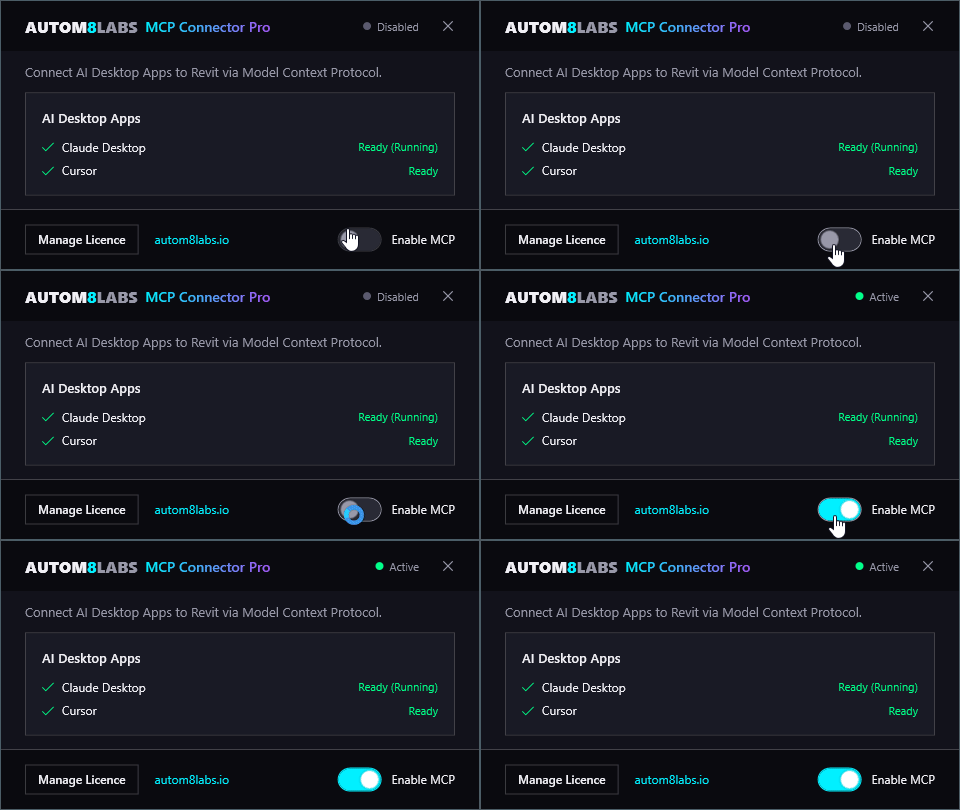
After installation, click the MCP Connector button in the Add-Ins tab to open the connector dialog. Input your licence key and then toggle Enable MCP to start the connection.
The dialog shows the status of detected AI applications:
- Ready (Running) - The AI application is detected and the MCP server is active
- Not Detected - The AI application is not currently running
Configuration
MCP Connector for Revit includes one-click auto-configuration for supported AI applications. Click the MCP Connector for Revit button in the Add-Ins tab to open the configuration dialog.
Claude Desktop
Click Configure Claude Desktop to automatically update your Claude Desktop configuration. The config file is located at:
%APPDATA%\Claude\claude_desktop_config.json
The Microsoft Store build does not read %APPDATA%\Claude. Windows redirects that folder into a sandboxed package location, so auto-configuration writes a valid config the Store app never sees, and no tools appear. The redirected file lives here:
%LOCALAPPDATA%\Packages\Claude_pzs8sxrjxfjjc\LocalCache\Roaming\Claude\claude_desktop_config.json
Recommended fix: uninstall the Store version and install Claude Desktop from claude.ai/download (the standalone installer), which uses the standard path. Then click Configure Claude Desktop again and restart.
Alternative: copy claude_desktop_config.json from %APPDATA%\Claude\ into the package folder above, then fully quit Claude from the system tray and reopen it.
ChatGPT Desktop
Click Configure ChatGPT Desktop to automatically update your ChatGPT Desktop configuration. ChatGPT appears in the dialog when it is installed on your machine. The config file is located at:
%USERPROFILE%\.codex\config.toml
This file is shared with the Codex CLI, so configuring ChatGPT Desktop makes the Revit tools available in Codex CLI as well. After configuring, fully quit ChatGPT and reopen it. With Revit open and a model loaded, a quick test is to ask ChatGPT to "ping Revit".
Use Work, not Chat. ChatGPT Desktop loads MCP servers from this config file in its Work area only - regular Chat conversations cannot see the Revit tools. If ChatGPT replies that the Revit MCP is not connected, check you are in Work first, then start a fresh conversation - the MCP connection is per-conversation and drops after sitting idle.
Cursor
Click Configure Cursor to automatically update your Cursor MCP configuration. The config file is located at:
%USERPROFILE%\.cursor\mcp.json
Claude Code & other MCP clients
MCP Connector for Revit exposes a standard MCP stdio server, so it also works with Claude Code and any other MCP-compatible client. Point your client at the MCP Connector for Revit server command shown in the connector dialog.
After configuring, you must restart your AI application (Claude Desktop, ChatGPT Desktop or Cursor) for the changes to take effect.
Claude Desktop Settings
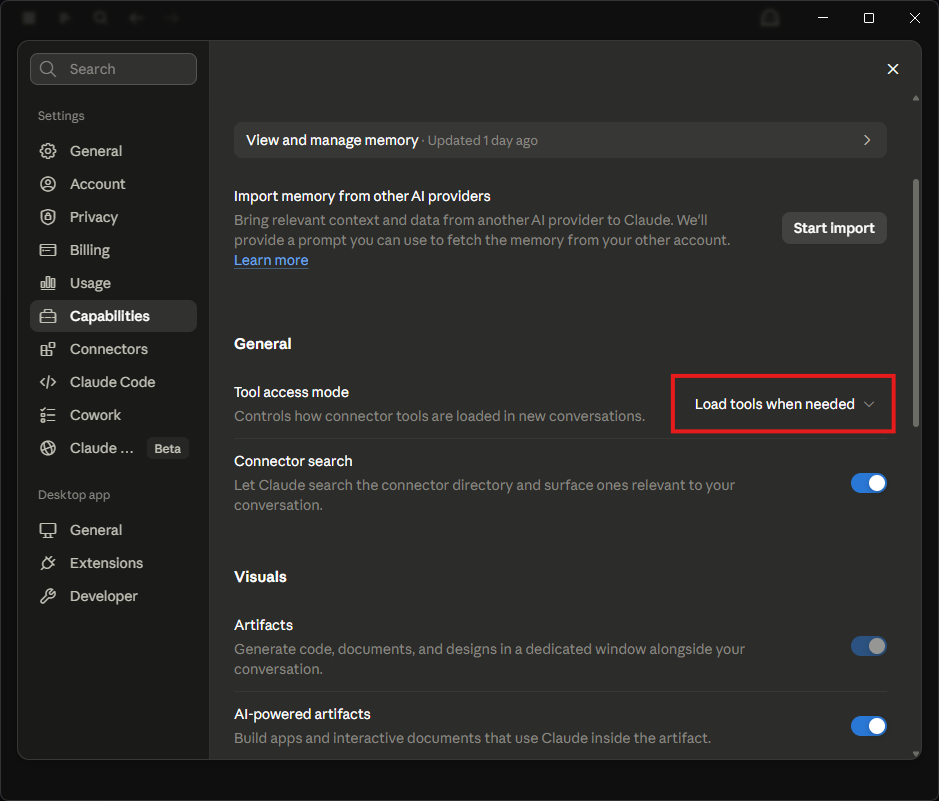
MCP Connector for Revit exposes 200+ tools. In Claude Desktop, enable Load tools when needed so tools are loaded on demand rather than all at once.
Use Chat, not Cowork
Claude Desktop has a mode selector at the bottom of the message box: Chat and Cowork. MCP connectors run in Chat conversations. In Cowork, your Revit requests will not reach the connector and Claude behaves as if Revit is not connected - even though the connector is configured correctly. Before you start, check the selector is set to Chat.
Note this is the opposite way round to ChatGPT Desktop, where the Revit tools are available in Work rather than regular Chat.

Operator Skill
MCP Connector for Revit ships with a free operator skill - a plain text playbook Claude reads before touching your model. It teaches Claude to use the connector efficiently: read in bulk instead of one element at a time, verify answers with counts, batch edits in one call, and say so instead of guessing when something cannot be done. The result is fewer calls, fewer dead chats, and far less of your usage allowance burned on a single question.
Install in Claude Desktop:
- Download the skill: revit-connector.zip
- In Claude Desktop, go to Settings > Skills > Add > Upload a skill and select the zip.
- That is it - Claude picks the skill up automatically in new chats. If you ever find it has not, mention it in your prompt, for example "Follow the revit-connector skill".
Using Claude Code or Cursor instead? Install steps for both are in the mcp-connector-skills repository, which also hosts free skills for the rest of the MCP Connector family.

Pro Tool Packs
MCP Connector for Revit adds 200+ MCP tools across 11 packs, including the 37 free read-only tools. Every tool name shown is the exact identifier exposed to your AI client. Under each description is an example prompt showing how to ask for it in natural language - click any prompt to copy it, paste it into your AI client, and adjust the names and numbers to suit your model.
Annotation Pack
Place and manage dimensions, tags, and text across one view or many - then audit them for clashes.
| Tool | Example prompt |
|---|---|
| Align or distribute tags, text notes, and dimensions in the active view to the selection bounds. | |
align_annotations | Align the selected tags so they line up with the left edge of the selection |
| Auto-create linear dimension strings for orthogonal grids across plan and elevation views, with segment and overall dimensions. | |
auto_dimension_grids | Auto dimension the grids in all floor plans and elevations with a -2000mm offset and include the overall dimensions |
| Auto-create vertical dimension strings for levels in elevation views, placed on either side and excluding interior elevations. | |
auto_dimension_levels | Dimension the levels on all elevations on the left side with a -3000mm offset |
| Set out windows and doors along exterior facade walls with plan dimension strings - to each opening's structural jambs (or centrelines), plus the wall ends and an optional overall span. | |
auto_dimension_openings | Set out the windows and doors along the facade walls in the Level 1 plan with an overall span |
| Dimension each room from its two longest walls - a width and a length string, inside or outside the room, breaking out the doors, windows, and openings by their jambs, with an optional overall total. Angled walls ignored. | |
auto_dimension_rooms | Dimension every room on Level 1 with width and length strings placed inside each room |
| Detect overlapping dimensions, tags, and text notes, and optionally auto-reposition clashing tags to resolve overlaps. | |
check_annotation_clashes | Check all floor plans for overlapping tags and dimensions and auto-fix the clashes |
| Create linear dimensions in a view between element references or between two explicit points. | |
create_dimensions | Create a dimension between grids 1 and 2 in the active view |
| Create a text note type by duplicating an existing one and setting its graphics - font, size, bold/italic/underline, width factor, colour, and background. | |
create_text_style | Create a 3.5mm Arial text style called Notes Red with red text, duplicated from the type named 2.5mm Arial |
| Report elements of given categories that are visible in a view but have no tag there - a QA pre-check before issuing drawings, with an optional check for elements no dimension references. | |
find_untagged_elements | Check Level 1 for doors, windows and rooms that have no tag before we issue |
| List dimension types in the document, optionally filtered by style, returning ID, name, and style type. | |
get_dimension_types | List all the linear dimension types in this model |
| Delete dimensions, tags, and text notes from one or more views, with session-only scoping and dry-run preview. | |
remove_annotations_in_view | Remove all the annotations this session created in the active view - dry run first |
| Delete tags whose displayed text is blank - the tag-all leftovers where the tagged parameter is empty - from one view or many, with dry-run preview and the tagged element reported for each. | |
remove_empty_tags | Find and delete empty tags across all floor plans - dry run first |
| Tag every instance of selected categories - rooms, doors, windows, walls, equipment, and more - across one or more views. | |
tag_elements_in_view | Tag all the doors and windows in every floor plan, skipping anything already tagged |
| Show, hide, or toggle grid bubble heads per end and per view, addressed by screen position or grid end label. | |
toggle_grid_bubbles | Hide the grid bubbles at the bottom of the vertical grids in the active view |
Views & Sheets Pack
Build out the documentation set - create views and sheets, place and align viewports, manage templates, scope boxes, and sheet sets.
| Tool | Example prompt |
|---|---|
| Adjust viewport title-line length to match the title text width or a fixed length across sheets. | |
adjust_viewport_title_line | Set the viewport title line length to 60mm on sheets A101 to A116 |
| Align viewport positions across target sheets to match a chosen reference sheet. | |
align_viewports | Align the viewports on sheets A102 to A110 to match sheet A101 |
| Audit RVT link display across views - which views show a link By Linked View or Custom, and which view from the linked model is displayed. (Revit 2024+) | |
analyze_linked_view_usage | Which views show the structural link By Linked View or with a custom setting? |
| Diagnose why elements are not visible in a view, checking categories, filters, phases, view range, and more. Select the elements in a view where they show (the default 3D view works well), or pass IDs from get_elements. | |
analyze_visibility | I have selected a door in the 3D view - why is it not showing in the Level 1 floor plan? |
| Apply a scope box to specified views so their crop follows the box. | |
apply_scope_box | Apply the Block A scope box to all the Level 1 and Level 2 floor plans |
| Apply or remove a view template across specified views, view types, or name-matched views. | |
apply_view_template | Apply the Architectural Plan template to every floor plan with WIP in the name |
| Set parameters across multiple sheets using literals, formulas, view-derived values, and scale calculations. | |
batch_fill_sheet_parameters | On sheets A101 to A116 set Drawn By to JG, Checked By to AB, and Sheet Issue Date to today in dd/MM/yy format |
| Capture the active or named view as a PNG image so a vision-capable AI can inspect the model. | |
capture_view | Capture the active view as an image and tell me what you can see |
| Compare view templates and report where their settings differ - scale, detail level, hidden categories, overrides, filters, and controlled parameters - grouped by view type, with common vs only-in breakdowns. | |
compare_view_templates | Compare all my floor plan view templates and show me where they are inconsistent |
| Copy view filters and their graphic overrides from a source view to target views. | |
copy_view_filter | Copy the view filters from the Level 1 plan to all the other floor plans |
| Copy scale, template, detail level, display style, discipline, phase, and crop from one view to others. | |
copy_view_setup | Copy the scale, detail level, and crop settings from the Level 1 plan to the Level 2 and Level 3 plans |
| Generate the standard view set - 3D, detail sections, part list, and per-category schedules - for an assembly, optionally on an assembly sheet. | |
create_assembly_views | Create the standard view set and an assembly sheet for the selected assembly |
| Create multiple sheets in bulk with auto-incrementing numbers, prefixes, suffixes, and zero-padding. | |
create_batch_sheets | Create 10 sheets numbered A201 to A210 called Working Sheet using the A1 title block |
| Create front, back, left, right, and top section views oriented to selected elements. | |
create_element_sections | Create front and left section views through the selected wall at 1:20 |
| Create interior elevations, 3D views, plans, and RCPs for selected rooms, optionally laying them out on sheets. | |
create_room_elevations | Create four interior elevations for every room on Level 1 at 1:20 and place each room's views on its own sheet in a 2x2 grid |
| Create a scope box by duplicating an existing one (optionally offset and renamed), or at exact dimensions from an origin and width/depth/height or min/max corners. | |
create_scope_box | Create a scope box called Block B by copying Block A and offsetting it 20000mm in X |
| Auto-create longitudinal and transverse section views centred on each selected room. | |
create_section_by_room | Create longitudinal and transverse sections through the Meeting Room |
| Create one or more sheets with a title block, optionally placing views at given positions. | |
create_sheets | Create sheet A301 called Details using the A1 title block |
| Create sheets in bulk from a drawing-register .xlsx - sheet number, name, title block, and optional view and scale per row - in one pass, with a dryRun preview. | |
create_sheets_from_excel | Create sheets from the drawing register at C:\Project\Register.xlsx - dry run first |
| Create a named rule-based view filter from categories and parameter rules (equals, contains, greater, less, has value...), combined with AND or OR, optionally applied to views with visibility and graphic overrides. | |
create_view_filter | Create a view filter called Fire Rated for walls where Fire Rating has a value and colour them red in the active view |
| Create a named view template from an existing view - captures its visibility, filters, scale, and detail level - and optionally assign it to views. | |
create_view_template | Create a view template called Working Plan from the Level 1 plan and assign it to all floor plans |
| Create floor plans, reflected ceiling plans, and 3D views with level, scope box, scale, and template options. | |
create_views | Create a floor plan and a ceiling plan for Level 3 at 1:50 |
| Delete sheets by name or number (or all except a keep-list), preserving the active sheet. | |
delete_sheets | Delete every sheet except A101 and A102 |
| Delete views, by default keeping views placed on sheets and the active view; templates and schedules optional. | |
delete_views | Delete all the views that are not placed on sheets - dry run first |
| Duplicate existing sheets, optionally copying their views onto the new sheets. | |
duplicate_sheets | Duplicate sheets A101 to A104 including the views on them |
| Duplicate one or more views - plain, with detailing, or as dependents - with up to 20 copies per view, name patterns, and a dry-run preview. | |
duplicate_views | Duplicate the Level 1 plan three times with detailing, named Level 1 - Study {n} |
| Find which views and sheets graphically show given elements, scanning sheet-placed views first, with view-type filters and a time budget for large models. | |
find_element_locations | Which views and sheets show these selected elements? |
| Search a view for model elements in its scope that are not displaying, and report why each is hidden - category visibility, filters, phases, worksets, view range, crop, and more. | |
find_hidden_elements | Find everything hidden in this view and explain why each one is hidden |
| Get current active view details | |
get_active_view | What view am I in right now? |
| Get visible elements in active view | |
get_current_view_elements | List the doors visible in the active view with their Mark values |
| List scope boxes with their extents and optionally the views each is applied to. | |
get_scope_boxes | List the scope boxes in the model and which views each one is applied to |
| List all sheets with viewport info | |
get_sheets | List all the sheets and the views placed on each one |
| List project, sheet, and title block parameters usable as naming placeholders in export tools. | |
get_title_block_info | What parameters are available on sheet A101 that I could use in export filenames? |
| List view filters applied to a view, with their visibility state, graphic overrides, and rules. | |
get_view_filters | What filters are applied to the Level 1 plan and what do they override? |
| Read a view template's settings: scale, detail level, display style, discipline, phase filter, view range, controlled vs not-controlled parameters, hidden categories, overrides, and applied filters. | |
get_view_template_settings | What settings does the 1:50 Plan view template control? |
| List view family types, levels, title blocks, scope boxes, and existing view names for the project. | |
get_view_types | List the view types, levels, and title blocks available in this project |
| List views (floor plans, sections, elevations, 3D, etc.) | |
get_views | List all the elevation views in the model |
| Hide, isolate, or reset element visibility | |
hide_isolate_elements | Isolate the selected elements in the active view |
| Rearrange existing viewports on a sheet using grid, row, column, or auto layouts to avoid overlaps. | |
layout_sheet_viewports | Rearrange the viewports on sheet A105 into a two column grid with 10mm spacing |
| Manage sheet sets: list, create, delete, rename, add or remove sheets, and export to PDF. | |
manage_sheet_sets | Create a sheet set called Planning Issue with sheets A101 to A110 and export it as a single PDF |
| Orient and zoom the active 3D view onto specified elements, setting a section box around them. Set orientToFace with a wall or face to rotate the section box square-on (parallel) to it, fitted around the element. | |
orient_view_to_elements | Zoom the 3D view onto the selected stair and put a section box around it |
| Apply graphic overrides (colour, line weight, transparency, halftone) to elements in a view, colour-code elements by a parameter's value with an auto legend, or clear overrides. | |
override_element_graphics | Colour the walls in the active view by their Fire Rating value and add a legend |
| Place views on sheets with auto-layout that sizes viewports to prevent overlaps. | |
place_views_on_sheets | Place all the room elevation views on sheets grouped by room, numbered sequentially from A201 rather than by room number |
| Clear a scope box from views or delete the scope box element from the model. | |
remove_scope_box | Remove the scope box from the Level 1 and Level 2 floor plans |
| Rename views by stripping copy/duplicate suffixes or rewriting from a per-view-type naming template. | |
rename_views | Strip the Copy suffixes from all view names - preview first |
| Renumber sheets with a prefix and a zero-padded incrementing sequence, ordered by current number or name. | |
renumber_sheets | Renumber all the sheets from A100 upwards in steps of 1, ordered by their current number |
| Renumber viewport detail numbers with zero-padding, ordered by position, name, or existing number. | |
renumber_viewport_detail_numbers | Renumber the detail numbers on sheets A101 to A116 by position, starting at 1 |
| Reset temporary hide/isolate state in the active view | |
reset_temporary_hide_isolate | Reset the temporary hide and isolate in this view |
| Switch active view by ID or name | |
set_active_view | Switch to the Level 2 floor plan |
| Assign a view template to many views at once, matched by view type, name substring, or explicit view IDs. | |
standardize_view_templates | Make sure every section view uses the Section view template |
| Clear the permanent per-view element hide override (Hide in View, Elements) so hidden elements show again - specific elementIds, or every hidden element in the view. | |
unhide_elements_in_view | Unhide everything that has been hidden in the active view |
| Update a view template in place - scale, detail level, display style, discipline, phase filter, hidden categories, filters, and which parameters it controls - applying instantly to every assigned view. | |
update_view_template | In the RCP template, hide Furniture and set the detail level to Fine |
Modelling Pack
Author core building geometry from coordinates and room boundaries - walls, grids, levels, floors, roofs, ceilings, finishes, and skirting - and read or edit the layer build-up of wall, floor, roof, and ceiling types.
| Tool | Example prompt |
|---|---|
| Auto-place rooms in every enclosed region on the given levels, skipping regions that already have a room. | |
auto_place_rooms | Place rooms in every enclosed region on Level 1 and Level 2, numbering from 101 |
| Copy an element by a translation vector, optionally producing multiple equally spaced copies. | |
copy_element | Copy the selected desk 5 times at 1800mm spacing along X |
| Create a ceiling from a closed polygon of boundary points on a chosen level and ceiling type. | |
create_ceiling | Create a ceiling on Level 1 over a 5000 x 4000mm rectangle at the origin using the Plain ceiling type |
| Create ceilings inside selected rooms from their boundaries, set at a height offset above each room's level. | |
create_ceilings_from_rooms | Create ceilings 2700mm above the floor in every room on Level 2 |
| Create a floor from a closed polygon of boundary points on a chosen level and floor type. | |
create_floor | Create an 8000 x 6000mm floor at the origin on Level 1 using the Generic 150mm type |
| Create horizontal and vertical grid lines with named labels, uniform or variable spacing, and a chosen origin. | |
create_grids | Create grids A to F at 6000mm spacing and grids 1 to 5 at 4500mm spacing |
| Create levels at given elevations, optionally auto-generating each level's floor plan view. | |
create_levels | Create Level 1 to Level 3 at 3000mm intervals and generate a floor plan for each |
| Assign mass floors to placed conceptual masses at chosen levels so area and volume schedules populate. | |
create_mass_floors | Create mass floors on every level for the selected mass |
| Create a footprint roof from a closed polygon of boundary points on a chosen level and roof type. | |
create_roof | Create a footprint roof on the Roof level over an 8000 x 6000mm rectangle at the origin |
| Create a Toposolid from a linked CAD survey - reads 3D contours and survey points, or numeric spot-height labels, straight from the DWG/DXF (with the survey's own units: m, mm, ft and more), positioned by matching the file to the link, with layer filtering and a dry-run placement check. Toposolid on Revit 2024+, topography surface on older versions. | |
create_toposolid_from_dwg | Create a toposolid from the linked topo survey DWG, reading the contours in metres |
| Create floor and wall finishes inside rooms from their boundaries, with optional joining to structural walls. | |
create_room_finishes | Create floor and wall finishes in rooms 101 to 116 using the Ceramic Tile floor and 12mm Plaster wall types, joined to the structure |
| Batch-create walls from centreline segments with a shared base level, top constraint, and wall type, plus per-wall type and height overrides and a dry-run preview. | |
create_walls | Draw a 6m by 4m room enclosure on Level 1 in the Generic - 100mm wall type, 3m high |
| Edit a wall, floor, roof, or ceiling type's layer build-up: resize layers, change materials, add or remove layers - core boundaries preserved, with a dry-run preview and the option to edit a duplicate of the type instead. | |
edit_compound_structure | Make the structural layer of the selected wall type 100mm and add two layers of 12.5mm plasterboard on the inside |
| Read the layer build-up of a wall, floor, roof, or ceiling type - function, material, thickness, core and structural layers - plus how many elements use the type. | |
get_compound_structure | Show me the build-up of the selected floor type |
| Get all grids | |
get_grids | List all the grids in the model |
| Get all levels with elevations | |
get_levels | List the levels with their elevations and element counts |
| Get room area summary grouped by level, department, or room name | |
get_room_areas | Give me the room areas grouped by level |
| Return a room's boundary loops and segments with start/end points, lengths, and bounding element details. | |
get_room_boundaries | Get the boundary of the Meeting Room with the length of each wall |
| Get rooms with area, volume, boundaries | |
get_rooms | List all the rooms on Level 1 with their areas |
| List available wall sweep types (cornices) for skirting, baseboards, and mouldings, with ID, name, and family. | |
get_wall_sweep_types | What wall sweep types do I have for skirting? |
| Place instances of a loaded family type at given points on a level, with optional rotation per placement - resolving the type by family and type name or ID. | |
place_family_instances | Place the Armchair type at these three points on Level 1, rotated 90 degrees |
| Place wall-sweep skirting along the base of room-bounding walls on the interior face, cut at openings. | |
place_skirting_in_rooms | Place skirting in every room on Level 1 using the Base Simple sweep type |
| Set the location line of walls - wall or core centreline, finish or core faces - controlling which face holds still when the type's thickness changes and how the wall flips. | |
set_wall_location_line | Change the selected walls' location line to finish face exterior |
| Ungroup model or detail group instances, releasing their members in place. | |
ungroup_elements | Ungroup every instance of the Furniture Layout group and delete the group type if it ends up empty |
Family Editor Pack
Author loadable families end to end without leaving the conversation - start from a template or an existing family, build the reference-plane rig, label it with parameters, flex it to prove it, model extrusions and revolves (tracing imported CAD drawings where you have them), then load the result straight into your project.
| Tool | Example prompt |
|---|---|
| Add a family parameter - length, area, volume, angle, number, integer, text, yes/no, or material - instance or type, with an optional formula and default value. | |
add_family_parameter | Add an instance length parameter called Seat Height with a default of 450mm |
| Capture the family session as an image - isometric, plan, or front elevation - to check the result after geometry changes. | |
capture_family_view | Show me the family in 3D so we can check the geometry |
| End the family editing session - save to the source file, save as a new path, or discard changes. | |
close_family | Save the family as Ply Chair.rfa in my Families folder and close it |
| Create a solid or void extrusion from closed profile loops, with holes, profile edges locked to reference planes, and top and base bound to length parameters so the solid flexes with the rig. | |
create_extrusion | Extrude the seat profile 25mm thick from 430mm, locked to the reference planes |
| Start a family editing session from a template - the template decides category and hosting behaviour, and an unmatched name returns the available templates. | |
create_family | Create a new Furniture family called Ply Chair |
| Dimension between two named reference planes, optionally labelled with a length parameter so the planes move when the parameter changes, or locked. | |
create_family_dimension | Dimension Left to Right and label it with the Width parameter |
| Create or refresh a clean embedded preview - reference planes and sketch clutter hidden - shown in Revit's family browser and Windows Explorer. | |
create_family_thumbnail | Give the family a clean thumbnail preview before we save |
| Create named reference planes at offsets from the family origin - the skeleton the parameters and geometry hang from. | |
create_reference_planes | Create Left and Right reference planes 300mm either side of the origin |
| Create a solid or void revolve from a radial profile about a vertical or inclined axis - the proper form for turned and splayed pieces. | |
create_revolve | Revolve the traced leg profile 360 degrees about its raked centreline |
| Flex the family - set test values, switch through every type, regenerate, and report exactly what breaks. All changes are rolled back. | |
flex_family | Flex Width at 600, 900 and 1200mm and tell me what breaks |
| Report the family session's structure - category, types, parameters, named reference planes, geometry inventory, and nested families. | |
get_family_info | What parameters, reference planes and geometry does this family have? |
| Import a DWG or DXF into a plan or elevation view of the family session as a tracing underlay - drawings sharing an origin line up across views. | |
import_cad_underlay | Import chair-elevation.dwg into the front view as a tracing underlay |
| Load the session family into the project, overwriting the loaded copy if one exists. | |
load_family_into_project | Load the family into the project and keep the session open |
| Start a family editing session from an existing family - a file path, or a family loaded in the active project. | |
open_family | Open the Single-Flush door family from this project for editing |
| Read the curves out of a CAD import or link, grouped by layer with coordinates in millimetres - lines, arcs, circles, and polylines - to drive extrusion and revolve profiles. | |
read_cad_geometry | Read the curves on the PROFILE layer so we can trace the revolve |
Data Pack
Read and write element parameters at scale, with full Excel round-trip and intelligent renumbering.
| Tool | Example prompt |
|---|---|
| Find elements by category and parameter rules, then write parameter values to every match. | |
batch_modify_by_filter | For all walls where Fire Rating equals 60, set Comments to Fire rated - dry run first |
| Set one parameter to the same value across many elements in a single transaction, reporting per-element results. | |
batch_set_parameters | Set Comments to Checked on all the selected elements |
| Swap many element instances to a different type in one transaction - by type ID or name, matched within each element's own family first - with per-element results and a dry-run preview. | |
change_element_type | Swap the selected doors to the 838 x 2038mm type - dry run first |
| Clear current selection | |
clear_selection | Clear my current selection |
| Export element parameters to an .xlsx file, one row per element, ready for editing and re-import. | |
export_parameters_to_excel | Export the door Mark, Level, and Fire Rating parameters to C:\Project\Doors.xlsx |
| Find and replace text parameter values across a category using exact, contains, starts/ends-with, or regex modes. | |
find_replace_parameter | Replace STORE with Storage in every room name |
| Get all categories | |
get_categories | List the model categories with element counts |
| Get detailed element info by ID | |
get_element_by_id | Get the details for element 123456 |
| Count elements by category | |
get_element_count | How many doors and windows are in the model? |
| Get all parameters for an element | |
get_element_parameters | Show me all the parameters on the selected door, including the type parameters |
| List the ElementIds behind an element set handle (ES-xxxx) returned by get_elements or search_elements; paginated. | |
get_element_set | Show me the first 50 elements in set ES-0001 |
| Query elements by category, family, type, level | |
get_elements | List all the doors on Level 1 with their parameters |
| Get loaded families by category | |
get_families | List the loaded door families and their types |
| Get types for a family | |
get_family_types | What types does the Single-Flush door family have? |
| Read a specific parameter value across all elements in a category | |
get_parameter_values_by_category | List the Mark value of every door in the model |
| List parameters on a category's elements with name, storage type, and instance/type level, for discovering valid names. | |
get_parameters_for_category | List all the parameters on walls, instance and type, with their storage types |
| Get currently selected elements | |
get_selected_elements | What do I have selected? |
| Write parameter values from an .xlsx file onto elements matched by an ElementId column, skipping blanks and read-only fields. | |
import_parameters_from_excel | Import the parameter values from C:\Project\Doors.xlsx back onto the elements - dry run first |
| Copy parameter values from a source element to target elements - all writable parameters or a named subset. | |
match_element_properties | Copy the Head Height and Comments values from the first selected door onto the rest of the selection |
| Recall, list, or delete selection sets | |
recall_selection_set | Recall the selection set called Fire Doors |
| Renumber elements by view reading order, selection, or path, with level/building prefixes and zero-padding. | |
renumber_elements | Renumber the doors on Level 1 in view reading order with prefix D- starting at 101 |
| Save current selection as a named set | |
save_selection_set | Save the current selection as Fire Doors |
| Search for elements by text across names, type names, family names, marks, and comments | |
search_elements | Search the model for anything named riser |
| Set selection by element IDs | |
select_elements | Select elements 123456 and 123789 |
| Set one parameter value on a single element, auto-detecting storage type and rejecting read-only parameters. | |
set_parameter | Set the Mark of element 123456 to D-101 |
Reporting Pack
Manage revisions and the drawing register, run quantity and finish takeoffs, compare elements, and produce analysis reports.
| Tool | Example prompt |
|---|---|
| Add one or more revisions to selected sheets, by sheet number, ID, or all sheets. | |
add_revision_to_sheets | Add revision P01 to sheets A101 to A116 |
| Read a company drawing register / issue sheet template (.xlsx) and detect its header row and column layout, ready for update_drawing_register. | |
analyze_drawing_register | Read my drawing register template at C:\Project\Register.xlsx and work out its column layout |
| Compare two or more elements side-by-side, showing parameter differences, matching values, and type variations. | |
compare_elements | Compare the two selected doors and show me the parameter differences |
| Create a new revision row in the Sheet Issues/Revisions table with description, date, issuer, visibility, and numbering sequence. | |
create_revision | Create a new revision dated today with the description Issued for Planning, issued by JG |
| Write sheet and revision data to an .xlsx drawing register - simple one-row-per-sheet list format, into a template workbook or a new workbook. | |
export_drawing_register | Export a drawing register for all the A-series sheets to C:\Project\Register.xlsx |
| Export model warnings to a CSV or JSON health-check report with descriptions, counts, severity, and affected element IDs. | |
export_warnings_report | Export all the model warnings to a CSV health report at C:\Project\Warnings.csv |
| Aggregate material volume and area across model elements for takeoff, filtered by category or material and grouped flexibly. | |
get_material_quantities | Total up the material volumes for walls and floors, grouped by material |
| Report revision settings and available numbering sequences to find the correct sequence ID before creating revisions. | |
get_revision_settings | What revision numbering sequences does this model use? |
| List all revisions in the document with sequence number, date, description, and issued status. | |
get_revisions | List all the revisions in the model with their dates |
| Report room finish data including wall, floor, and ceiling finishes, bounding elements, and contained furniture counts. | |
get_room_finishes | Report the wall, floor, and ceiling finishes for the rooms on Level 1 |
| Get schedule data as structured JSON | |
get_schedule_data | Show me the data in the Door Schedule |
| List all schedules | |
get_schedules | List all the schedules in this model |
| List sheets with their assigned revisions and current revision details, for drawing issue registers. | |
get_sheet_revisions | Which revisions are on sheets A101 to A116? |
| Remove a revision from selected sheets, optionally deleting associated revision clouds and the revision itself. | |
remove_revision_from_sheets | Remove revision P01 from sheet A105 and delete its revision clouds |
| Fill a matrix-style drawing issue sheet (one row per drawing, one column per revision with date headers) from sheet and revision data, using your company's own .xlsx template - the AI maps the columns, no fixed layout assumed. | |
update_drawing_register | Update my drawing issue sheet at C:\Project\Issue Sheet.xlsx in place with the current sheet and revision information, overwriting the template |
Model Management Pack
Audit, purge, compact, and maintain model health - plus worksharing, links, design options, and file operations.
| Tool | Example prompt |
|---|---|
| Move model elements onto a target workset by explicit IDs, category, level, or current selection; creates the workset if new. | |
assign_elements_to_worksets | Move all the furniture on Level 2 onto the FF&E workset |
| Run a full model health audit across every section, including rooms, families, and CAD imports: warnings, element counts by category, unplaced rooms, unused families, imported CAD, and file metrics. | |
audit_model_health | Run a full model health audit across every section, including rooms, families, and CAD imports |
| Link every CAD file (DWG, DXF, DGN) in a folder into the model with shared import settings. | |
batch_link_cad | Link every DWG in C:\Project\Surveys into the model in black and white, origin to origin |
| Math calculations | |
calculate | Work out 14 risers at 175mm - what is the total rise? |
| Close the active document, optionally saving first and optionally exiting Revit afterwards. | |
close_document | Save and close this model |
| Save the model with compaction to reduce file size, reporting before and after sizes; optionally save the compacted copy elsewhere. | |
compact_model | Compact the model and tell me the file size before and after |
| Create a 3D view per workset, isolating each workset's visibility, in workshared models. | |
create_workset_views | Create a 3D view for each workset so I can review them |
| Delete targeted leftovers that a standard purge does not catch - empty elevation tags, imported line patterns, unreferenced scope boxes, unused reference planes, unplaced legends, and more - dry run by default. | |
deep_purge | Dry-run a deep purge of unused reference planes, empty tags and leftover scope boxes |
| Delete unplaced, unenclosed, or redundant rooms, areas, or MEP spaces. | |
delete_unplaced_rooms_areas_spaces | Delete all the unplaced and redundant rooms - dry run first |
| Convert a non-workshared model to workshared, creating a grids/levels workset and a default workset. | |
enable_worksharing | Enable worksharing with a Shared Levels and Grids workset and save as central at C:\Project\Central.rvt |
| List every design option set in the model, showing each set's options and which is primary. | |
get_design_options | List the design option sets and which option is primary in each |
| Get document title, path, project info, phases | |
get_document_info | Get the document information |
| Get all document warnings with severity filter | |
get_document_warnings | Show me all the warnings in this model grouped by type |
| Report worksharing history for elements - creator, current owner, last user to change, and workset - with per-user tallies. Workshared documents only. | |
get_element_history | Who created these walls, and who last changed them? |
| Get linked RVT, CAD, IFC files | |
get_linked_files | What files are linked into this model? |
| Get project phases | |
get_phases | List the phases in this project |
| Get project unit settings | |
get_project_units | What units is this project using? |
| Get Revit version, username, memory usage | |
get_session_info | What Revit version am I running, and is there a document open? |
| Get worksets (workshared docs) | |
get_worksets | List the worksets with how many elements are on each |
| Load, unload, reload, remove, or repath linked Revit models, in batches across multiple links. | |
manage_links | Unload the structural link and reload the MEP link |
| Create, rename, or delete worksets in a workshared model, supporting multiple operations in one call. | |
manage_worksets | Create worksets called Core, Shell, and Interiors |
| Open a model from cloud (ACC/BIM 360) or local/network path, with options to detach, audit, unload links, and guard against version upgrades. | |
open_model | Open C:\Project\Model.rvt detached and discard the worksets |
| Test connection to Revit | |
ping | Ping Revit |
| Delete all non-primary design options and their elements, preserving primary geometry with original IDs. | |
prune_design_options | Delete all the non-primary design options - dry run first |
| Purge unused families, types, view templates, filters, materials, patterns, and imported CAD in iterative passes; supports dry-run. | |
purge_unused | Purge all the unused elements from the model - show me a dry run first |
| Relinquish ownership of all worksets and elements without syncing, for detached models saved as a new central. | |
relinquish_all | Relinquish everything I own without syncing |
| Remove linked files (Revit links, CAD links, or both), unloading and deleting the link types and all their instances. | |
remove_links | Remove all the CAD links from the model but leave the Revit links in place |
| Delete view templates that no view references, filling the gap purge_unused leaves. | |
remove_unused_view_templates | Delete any view templates that no view is using - dry run first |
| Rename families and family types using search-and-replace rules, with scope, type-inclusion, case-sensitivity, and preview options. | |
rename_families | Rename every family containing OLD_ to use ARC_ instead - preview first |
| Save the active document to a new path, with options for maximum backups, compaction, clearing the transmitted flag, and disabling worksharing. | |
save_as | Save this model as C:\Project\Model_DETACHED.rvt with compaction |
| Switch linked Revit models' reference path between absolute and relative in bulk. | |
set_link_path_type | Switch all the Revit links to relative paths |
| Synchronise a workshared model with central and optionally relinquish all worksets, with comment and compaction options. | |
sync_and_relinquish | Sync with central, relinquish everything, and add the comment End of day |
| Undo the most recent operation(s) in Revit - the same as pressing Ctrl+Z - with multi-step support and redo. The safety net when a change was not what you wanted. | |
undo | Undo that last change |
Warnings Pack
Automated resolvers for Revit's most common warning types - fix every warning matching a pattern in a single call.
| Tool | Example prompt |
|---|---|
| Fix identical-instances-in-the-same-place warnings by deleting duplicates, keeping either the original or the newest element. | |
resolve_duplicate_instances | Resolve the identical instances warnings, keeping the original elements |
| Fix duplicate instance Mark warnings by clearing or renumbering marks, with filters, patterns, and batched processing. | |
resolve_duplicate_marks | Resolve the duplicate Mark warnings on doors by renumbering them |
| Fix duplicate Type Mark warnings by clearing or renumbering type marks, with configurable patterns and numbering scope. | |
resolve_duplicate_type_marks | Resolve the duplicate Type Mark warnings by clearing the values |
| Fix joined-but-do-not-intersect warnings by unjoining the highlighted elements. | |
resolve_joined_not_intersecting | Resolve the elements joined but do not intersect warnings |
| Fix multiple-areas-in-the-same-enclosed-region warnings by selecting or deleting redundant areas by a chosen rule. | |
resolve_multiple_areas_same_region | Fix the multiple areas in the same region warnings by keeping the original area in each and deleting the rest |
| Fix multiple-rooms-in-the-same-enclosed-region warnings by selecting or deleting redundant rooms by a chosen rule. | |
resolve_multiple_rooms_same_region | Fix the multiple rooms in the same region warnings, keeping the original room in each |
| Fix 'Area Boundary line is slightly off axis' warnings by snapping to clean angles. | |
resolve_off_axis_area_boundary | Fix the off axis area boundary line warnings |
| Fix 'Grid is slightly off axis' warnings by snapping grids to clean angles. | |
resolve_off_axis_grids | Snap the slightly off axis grids back to true |
| Fix 'Line is slightly off axis' warnings for model and detail lines. | |
resolve_off_axis_lines | Fix the off axis warnings on model and detail lines |
| Fix 'Reference Plane is slightly off axis' warnings. | |
resolve_off_axis_reference_planes | Fix the off axis reference plane warnings |
| Fix 'Room separation line is slightly off axis' warnings. | |
resolve_off_axis_room_separation | Fix the off axis room separation line warnings |
| Fix 'Line in Sketch is slightly off axis' warnings in floor, ceiling, and wall sketches. | |
resolve_off_axis_sketch_lines | Resolve the line in sketch is slightly off axis warnings |
| Fix 'slightly off axis' wall warnings by snapping walls to the nearest clean angle. | |
resolve_off_axis_walls | Resolve all the off axis walls in the model |
| Select and isolate elements that have warnings, optionally creating a dedicated 'Warnings Review' 3D view, filterable by warning type. | |
select_warning_elements | Isolate the elements with warnings in a 3D view |
Coordination Pack
Run clash detection between disciplines and linked models, manage MEP penetrations, and set up dedicated review views.
| Tool | Example prompt |
|---|---|
| Detect clashes between two sets of element categories and report each clashing pair with its location. | |
check_model_interferences | Check for clashes between structural framing and ducts in this model |
| Create or return a dedicated isometric 3D 'Clash Review' view and return its ID. | |
create_clash_review_view | Create a clash review view for the clashes you just found |
| Place rectangular or circular opening family instances at penetration locations, sized automatically. | |
create_mep_openings | Place opening families at the detected penetration groups, using my Rectangular Opening family for grouped services and my Circular Opening family for single round ones |
| Cut native rectangular openings directly into wall and floor hosts at penetration points, without placing a family. | |
cut_mep_openings | Cut openings directly into the walls at the penetration points, minimum 100 x 100mm |
| Detect MEP services from linked models penetrating walls, floors, ceilings, and roofs, grouping them into sized openings. | |
detect_mep_penetrations | Find every pipe and duct from the MEP link penetrating walls, with 50mm clearance, grouping services within 200mm of each other |
| Write clash results to a CSV file and return the row count and written path. | |
export_clash_report | Export the clash results to C:\Project\Clashes.csv |
| Return min, max, centre, and dimensions of element bounding boxes in millimetres, optionally view-specific. | |
get_bounding_boxes | What are the bounding box sizes of the selected elements in millimetres? |
| Find elements within a radius of a point or element, returning them sorted by distance with an optional category filter. | |
get_elements_by_proximity | Find everything within 500mm of the selected column |
Issue Pack
Export the model for sharing, handover, or coordination - PDF, DWG, IFC, NWC, images, and data, with parameter-based naming.
| Tool | Example prompt |
|---|---|
| Export views or sheets to DWG or DXF with layer mapping standards, line scaling, units, and property overrides. | |
export_dwg | Export sheets A101 to A105 to C:\Exports as DWG using the BS1192 layer standard |
| Export the model to IFC with full option coverage: version, property sets, mapping tables, and header metadata. | |
export_ifc | Export the model to IFC4 Reference View with base quantities to C:\Exports |
| Export the model to NWC for Navisworks with full option coverage, including scope, conversion, and faceting controls. | |
export_nwc | Export the Navisworks Export 3D view to NWC in C:\Exports |
| Export sheets to PDF with parameter-based naming, colour and quality controls, and an optional single combined file. | |
export_pdf | Export sheets A101 to A116 to C:\Exports as individual PDFs named with the sheet number and name |
| Export rooms with chosen parameters to CSV or JSON, filtered by level or phase; returns inline if no path is given. | |
export_room_data | Export the Level 1 rooms with name, number, and area to C:\Exports\Rooms.csv |
| Export a schedule view to a CSV file, optionally including column headers. | |
export_schedule | Export the Door Schedule to C:\Exports\Doors.csv with headers |
| Export a view to a PNG or JPG image at a chosen pixel size and quality. | |
export_view_image | Export the Level 1 plan as a 4000 pixel PNG to C:\Exports |
Selection Pack
Pin and unpin elements to lock down or release your selection.
| Tool | Example prompt |
|---|---|
| Pin the selected elements (or a passed elementIds set) so they can't be moved or accidentally deleted. Skips already-pinned, reports un-pinnable elements, and previews with dryRun. | |
pin_selection | Pin the selected grids so nobody can move them |
| Unpin the selected elements (or a passed elementIds set) so they can be moved or edited again. Previews with dryRun. | |
unpin_selection | Unpin the selected elements |
Troubleshooting
Connection Issues
If Claude Desktop, ChatGPT Desktop or Cursor cannot connect to Revit:
- Ensure Revit is running and has a document open
- Restart your AI application after configuring
- Check that the Bridge executable is not blocked by antivirus
- Try running the
pingtool to test connectivity - Claude Desktop: make sure the message box is set to Chat, not Cowork - connectors are not available in Cowork (see Claude Desktop Settings)
- ChatGPT Desktop: run your prompt in Work, not a regular Chat conversation - only Work loads MCP servers
- ChatGPT Desktop: if a conversation reports the Revit MCP is not connected, start a new conversation - the MCP session is per-conversation and drops after sitting idle
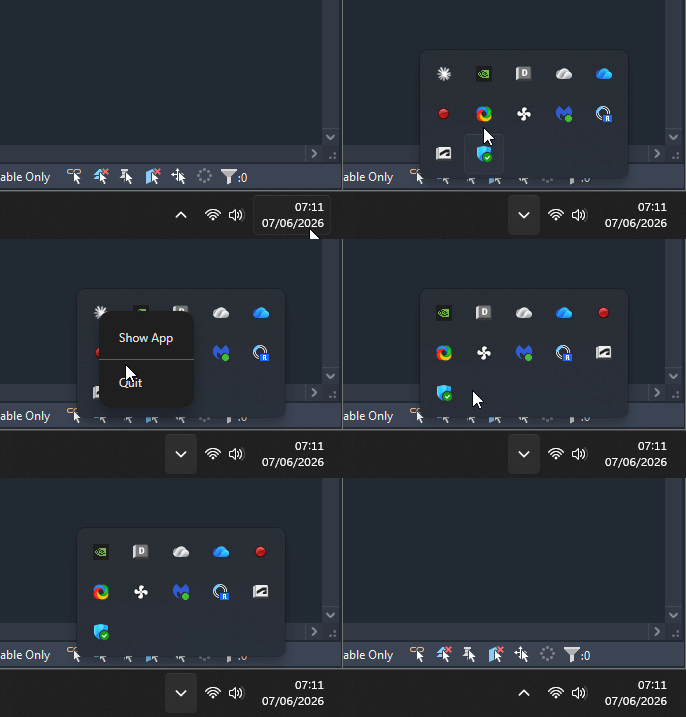
Claude Desktop may need to be restarted by closing it in the system tray, then reopening it. The same applies to ChatGPT Desktop - both apps only read their config files at launch.
Tools Not Appearing
If MCP tools are not visible in your AI application:
- Verify the configuration file was updated correctly
- Restart your AI application completely (not just refresh)
- Check the MCP server logs for errors
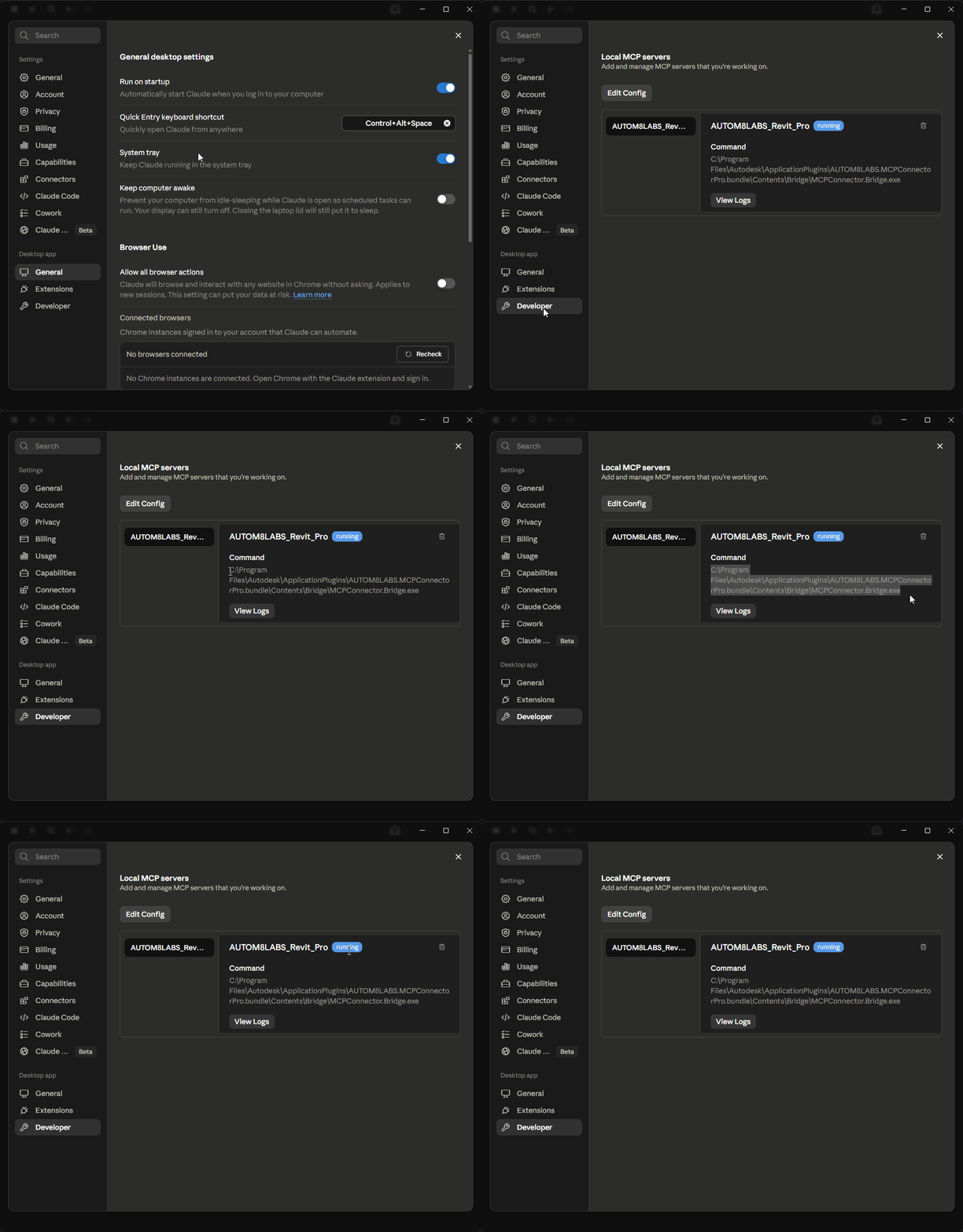
- Check the bridge is running in Claude Desktop
Frequently Asked Questions
MCP Connector for Revit works with the active document in Revit. Whichever project is in the foreground is what your AI assistant will interact with. To work with a different document, simply click on it in Revit to make it active before asking. If you run more than one Revit version at the same time, the connector stays with the Revit instance it first connected to - close that instance and it automatically reconnects to the other.
MCP Connector for Revit adds 200+ MCP tools across 11 packs - Annotation; Views & Sheets; Modelling; Family Editor; Data; Reporting; Model Management; Warnings; Coordination; Issue/export; and Selection. These include the 37 free read-only tools for querying and reading model data.
The Bridge automatically detects when Revit disconnects and will attempt to reconnect when you open a new Revit session.
The most common cause is having the Microsoft Store version of Claude Desktop installed. The Store build does not read the standard %APPDATA%\Claude config folder - Windows redirects it into a sandboxed package location that auto-configuration never writes to, so no tools load. Install the standalone build from claude.ai/download and re-run Configure Claude Desktop, or copy your config file into the redirected package folder. Otherwise, make sure Revit is running with a document open and that you fully quit and reopened Claude Desktop from the system tray after configuring.
Yes. When the ChatGPT Desktop app is installed, it appears in the connector dialog and Configure ChatGPT Desktop sets it up in one click. The configuration is written to %USERPROFILE%\.codex\config.toml, which ChatGPT shares with the Codex CLI - so Codex CLI picks up the Revit tools too. Fully quit ChatGPT and reopen it after configuring, then ask it to "ping Revit" with a model open to confirm the connection. Note that the Revit tools are available in ChatGPT's Work area, not in regular Chat, and the connection is per-conversation - if ChatGPT reports the Revit MCP is not connected, start a new conversation in Work.
Changelog
Bulk family placement from a spreadsheet, and shared licences
- New tool:
place_families_from_excel. Place family instances in bulk from an .xlsx or .csv coordinate table, one row per instance. X and Y are the only required columns; Z, Family, Type, Level and Rotation are optional, so one file can place a single family across a site or many different families in a single pass - Place in project coordinates or in shared survey coordinates, reading Easting and Northing straight from the file, with units in millimetres, centimetres, metres or feet
- New tool:
get_coordinate_system. Read the model's project base point, survey point and rotation from true north, and check whether shared coordinates are usable, before placing anything by Easting and Northing - Reads European spreadsheet exports directly: semicolon separators and decimal commas are detected automatically. Where a value is genuinely ambiguous the tool stops and names it rather than placing everything a hundred times out
- Write any spreadsheet column onto the placed instances as a parameter value, for example Mark or Comments
- Every instance is placed in a single transaction, so one undo straight afterwards removes the whole placement
- Floating licences. A licence can now be shared across a team as a pool of concurrent seats. A seat returns to the pool when that machine closes Revit, so there is no need to deactivate one machine before working on another
- New Licences In Use view under Manage Licence, listing the machines currently using the licence, when each took a seat, and when each was last seen
- Update notifications: the connector now tells you when a newer build is available
- Fixed: an AI client could be reported as configured when the application was not actually installed
Curtain wall dimensioning
- New tool:
auto_dimension_curtain_walls. Dimension curtain wall panels in elevation and section views - one chained string reading every panel, a separate dimension per segment, or a dimension across each individual panel, edge to edge - Measure gridline to gridline, or to the mullion faces for alternating mullion width and clear glass width
- Place strings on any side - top and bottom for panel widths, left and right for panel heights - with overall dimensions and wall-end terminations included
- Set how far per-panel dimensions sit from the panel edge, or leave them running through the middle
create_dimensionsnow resolves curtain grid line references, so passing grid line IDs directly works
Family Editor pack, 30 new tools, and multi-conversation connections
- New Family Editor pack: 15 tools for authoring loadable families end to end - create from a template or open an existing family, build a named reference-plane rig, label it with parameters, flex it to prove it, model extrusions and revolves, trace imported CAD drawings, generate clean thumbnails, and load the result into your project
- New tool:
place_family_instances. Place loaded family types at given points on a level, with per-placement rotation - New tools:
duplicate_views,find_element_locations, andfind_hidden_elementsin Views & Sheets - duplicate views in bulk, find every view and sheet that shows an element, and explain why elements are not displaying - New tool:
find_untagged_elements. QA pre-check for untagged doors, windows, rooms, and more before issuing drawings - New tools:
deep_purgeandget_element_historyin Model Management - targeted cleanup beyond a standard purge, and per-element worksharing history - New tool:
change_element_type. Swap many instances to a different type in one transaction, with a dry-run preview - New tools:
get_compound_structureandedit_compound_structurein Modelling - read and edit the layer build-up of wall, floor, roof, and ceiling types: resize the structural layer, swap materials, add or remove finish layers, all with a dry-run preview and the option to edit a duplicate of the type - New tools:
set_wall_location_lineandcreate_wallsin Modelling - change walls' location line (centrelines, finish faces, core faces) and batch-create walls from centreline segments - New tool:
undo. Post Revit's native Undo or Redo, up to 10 steps - revert an unwanted change straight from the chat - New tools:
get_view_template_settings,compare_view_templates, andupdate_view_templatein Views & Sheets - read what a template controls, find inconsistent settings across templates, and fix them in place - Connection reliability: the connector now serves multiple AI client connections at once - every new ChatGPT Desktop conversation connects instantly, and Claude Desktop and ChatGPT Desktop can drive the same Revit session side by side
- Documentation links across the installer and connector dialog now point at this docs page
Tool accuracy and safety patch
- Example prompts added to every tool in the reference tables - click any prompt to copy it
create_section_by_roomnow asks for specific rooms (or an explicit all-rooms confirmation) instead of silently sectioning every room in the modelcreate_sheetsreports an error listing the available title blocks when a requested title block ID does not resolve, instead of silently substituting the project's first title blockcheck_model_interferencesnow states clearly that clash detection runs within the current model - linked models are listed for context, not clash-testedget_session_infonow reports the Revit build number, username, and memory usage as documented
One product: free tier plus Pro licence
- The free and Pro editions are unified into a single product: the 37 free read-only tools work out of the box, and a Pro licence key unlocks the full 170+ tool set in place - no separate download, no reinstall
- New Buy Pro Licence and Activate Key buttons in the connection dialog; the dialog title and licence controls follow your tier
- One identity everywhere: the connector registers as
AUTOM8LABS_Revitin your AI apps. Upgrading migrates your settings and cleans up the oldAUTOM8LABS_Revit_Proentry from every AI app configuration automatically - Installed bundles from earlier editions (website Pro and App Store Pro) are removed automatically on upgrade
- Programs and Features entry renamed to "MCP Connector for Revit"
ChatGPT Desktop support and smarter AI app setup
- ChatGPT Desktop is now a fully supported AI app: the Enable MCP toggle configures it automatically alongside Claude Desktop and Cursor
- The setup dialog now shows only the AI apps detected on your machine
- The Microsoft Store build of Claude Desktop is configured automatically - no manual config copying
- More reliable first conversations: the connector now tells the AI it is operating a live Revit session, so requests run as tool calls instead of mock-ups
- Installer improvements: prompts to quit running AI apps before setup, and uninstalling now removes the connector's entries from every AI app configuration
Views, drawing registers, and warning resolvers - 15 new tools
- New tool:
create_view_filter. Create rule-based view filters from categories and parameter rules, and apply them to views with visibility and graphic overrides - New tool:
create_view_template. Capture an existing view's settings as a named view template and assign it to views - New tool:
override_element_graphics. Colour, line weight, transparency, and halftone overrides per view, plus colour-coding by parameter value with an auto legend - New tool:
analyze_linked_view_usage. Audit how RVT links display across views, and which linked view each one shows (Revit 2024+) - New tools:
analyze_drawing_register,update_drawing_register, andexport_drawing_register. Read your company's own drawing issue-sheet template, then fill it from live sheet and revision data - including non-destructive updates to an already-populated register - New tools: seven automated resolvers for 'slightly off axis' warnings, covering walls, grids, lines, reference planes, room separation lines, sketch lines, and area boundaries
- New tool:
create_toposolid_from_dwg. Build a toposolid straight from a linked CAD survey's contours or spot heights - Drawing register upgrades: composite document numbers, extra parameter columns, distribution block fill, and multi-worksheet templates
- Fixes across per-sheet revision numbering, linked-view analysis, and toposolid placement
Licensing platform and element sets
- New tool:
get_element_set. Page through the element IDs behind the compact element-set handles (ES-xxxx) that query tools return for large result sets - Query tools now return element-set handles for large result sets, and bulk tools accept them directly
- Moved to the shared AUTOM8LABS licensing platform for more reliable activation and seat management
- Clearer tool descriptions across the export tools
Fixes and new tools
- New tool:
create_sheets_from_excel. Build a whole set of sheets in one pass from an Excel drawing register, with sheet number, name, title block, and an optional view and scale per row - New tool:
unhide_elements_in_view. Reveal elements that are permanently hidden in a view, one at a time or all at once - Orient the active 3D view's section box square-on to a selected wall or face, fitted neatly around it
- Create scope boxes at exact dimensions, from an origin and size or from min and max corners
- Revision tools now fully support per-sheet revision numbering, not just per-project
- More reliable IFC export
- MEP opening tools now resolve their host wall or floor correctly when cutting or placing openings
- Faster model-health audit on large models
- Remove PDF, image, and point-cloud links, not just Revit and CAD links
- More accurate worksharing relinquish reporting, including what still needs a sync
- Smarter file-path handling so exports land where you expect
- Dry-run previews added to more bulk-modify tools
- Reliability fixes across sheet sets, section views, view capture, dimensioning, and room finishes
Coordination and polish
- Added the Coordination pack: clash detection, MEP penetration detection, openings, and dedicated clash review views
- Grew the tool set and refined how the packs are organised
- Reliability and performance improvements across the packs
Initial Release
- 200+ MCP tools across 11 packs, including the 37 free read-only tools
- Create, modify, audit, coordinate, and export
- Supports Claude Desktop, Cursor, and Claude Code