Transl8 Documentation
Complete guide to AI-powered translation of Revit models across 34 languages. Transl8 scans your model for all translatable text - rooms, sheets, schedules, keynotes, parameter values, and more - then translates everything in a single batch using an AEC-domain-aware AI engine with built-in architectural glossaries.
Supported Revit Versions
- Revit 2022
- Revit 2023
- Revit 2024
- Revit 2025
- Revit 2026
- Revit 2027
Installation
Make sure all running instances of Autodesk Revit are closed before starting the installation.
.exe file and follow the installation wizard. Select which Revit versions to install for and accept the licence agreement and privacy policy.What It Does
BIM and design teams routinely need to produce drawings in multiple languages - UK firms working in China, Italian studios delivering in the Middle East, Scandinavian offices producing documentation for Southeast Asian projects, or global organisations rolling out facilities across multiple regions. Currently this means days of manual work: finding every room name, sheet title, annotation, schedule header, and parameter value, then translating each one correctly using the right industry terminology. Transl8 automates the entire process with a single dialog.
Any Language to Any Language
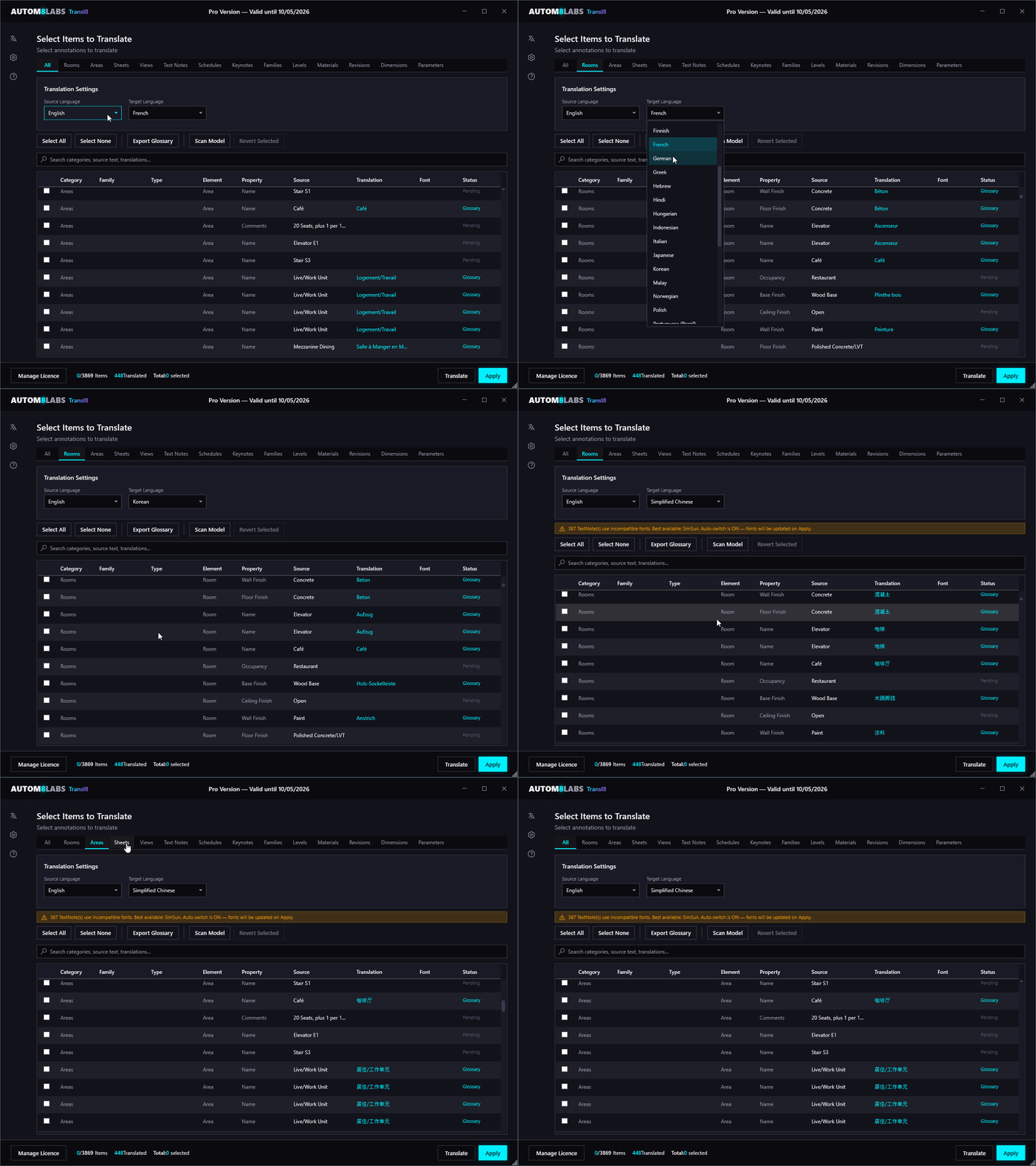
Transl8 is not English-centric. Any of the 34 supported languages can be used as either the source or target language. Translate Italian to Chinese, French to Arabic, Japanese to German, or any other combination. The AI translation engine handles all language pairs natively. Built-in AEC glossaries are available for 36 language pairs, with the AI system prompt providing AEC-domain intelligence for all other combinations.
You can preview translations in multiple target languages before committing any changes. Switch between Spanish, Polish, and Japanese freely - each translation is cached in the per-project database and recalled instantly. Only when you click Apply is the translated text written into the model.
Regional Language Variants
Languages with significant regional differences are supported as separate entries with dedicated glossaries and AI prompt tuning:
| Language | Code | Regional Differences |
|---|---|---|
| Spanish (Spain) | es | Aparcamiento, Ascensor, Aseo, Hormigón |
| Spanish (Latin America) | es-419 | Estacionamiento, Elevador, Baño, Concreto |
| Portuguese (Portugal) | pt | Casa de Banho, Rés-do-Chão, Betão, Pavimento |
| Portuguese (Brazil) | pt-BR | Banheiro, Térreo, Concreto, Tubulação |
| Simplified Chinese | zh-Hans | Mainland China (PRC) conventions, GB/T terminology |
| Traditional Chinese | zh-Hant | Taiwan/Hong Kong conventions |
AEC-Domain Intelligence
Generic translation tools produce incorrect results for architectural content. "Plant Room" gets translated as vegetation. "WC" gets a literal translation instead of the local equivalent. "Riser" becomes "something that rises" instead of a vertical services shaft. Transl8 uses an AI translation engine with AEC-specific system prompts and built-in glossaries that understand construction terminology, producing industry-standard translations that architects, engineers, and BIM teams actually use on real projects.
Four-Phase Translation Pipeline
Every translation request goes through four phases to maximise accuracy:
- Glossary lookup - project and built-in glossary terms are applied first (instant, deterministic)
- Translation memory - previously translated text is recalled from the per-project database (instant)
- AI batch translation - only new, untranslated text is sent to the AI translation engine in optimised batches
- Glossary override - after AI translation completes, glossary terms override any AI or memory results to ensure deterministic terminology for known terms. User-edited translations are never overridden.
Supported Element Types
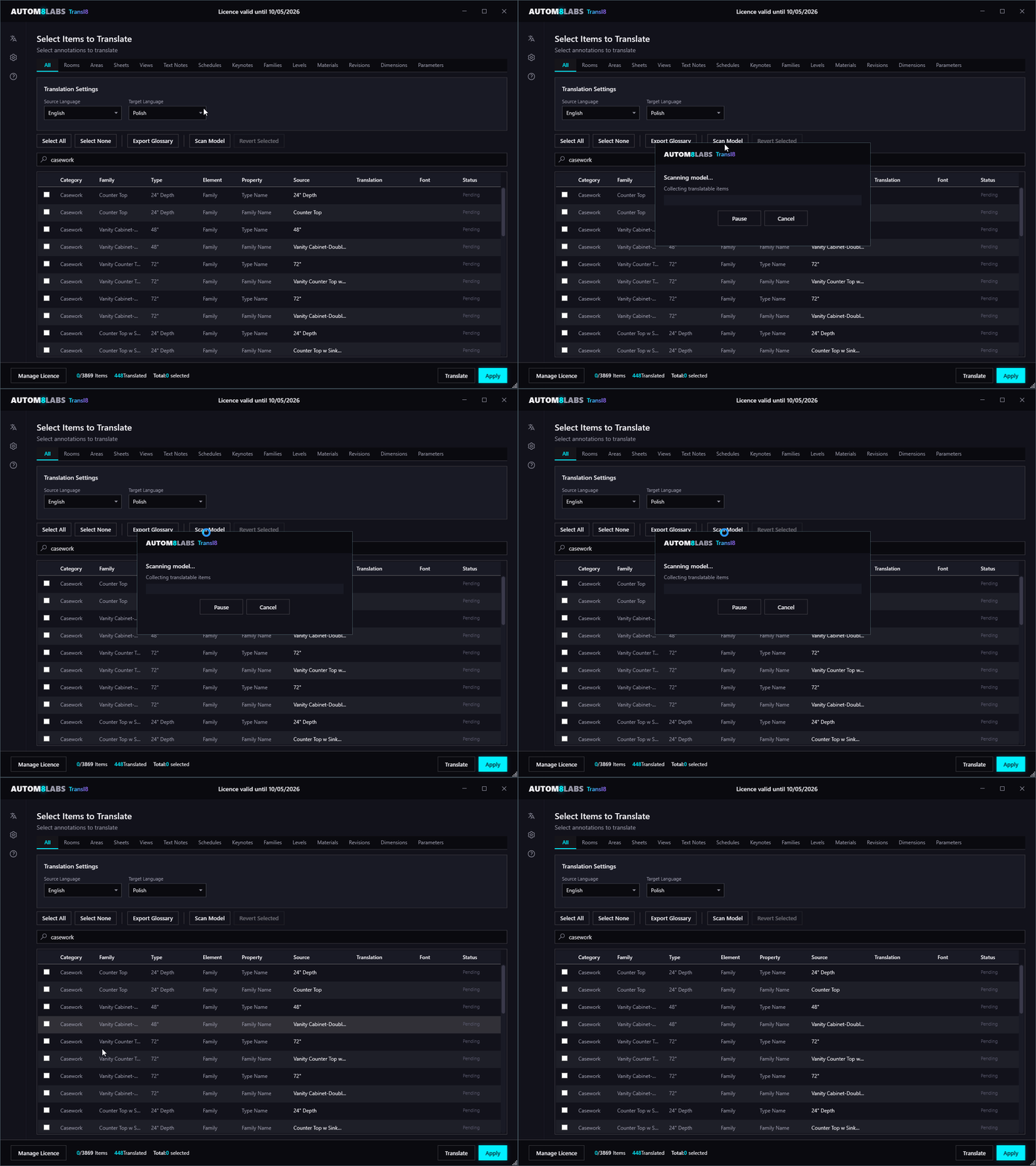
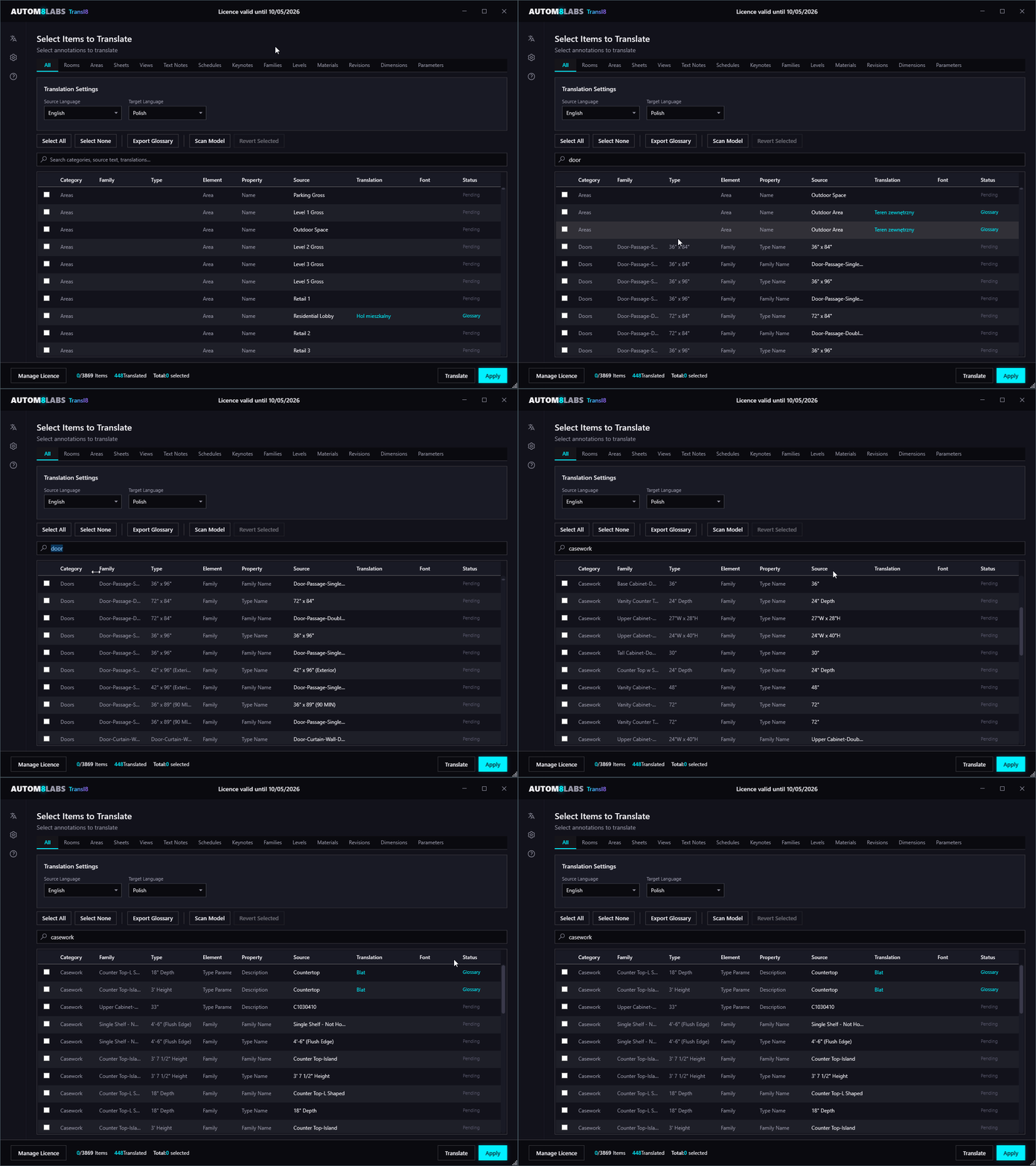
Transl8 scans fourteen categories of translatable content, accessible via the category tabs along the top of the main dialog. When "All Categories" is selected, items are sorted alphabetically by category.
| Category | What Gets Translated | Notes |
|---|---|---|
| Rooms | Room Name, Department, Occupancy, Comments, Finishes | Filters out unplaced rooms (Area = 0) |
| Areas | Area Name, Department, Comments | Area plan elements; also extracts Area Scheme names |
| Sheets & Title Blocks | Sheet Name, Revision Description, user parameters, title block label parameters | Excludes people's names and identifiers |
| Views | View Name, Title on Sheet | Excludes templates and sheet views |
| Text Notes | Full text content | Preserves formatting (bold, italic, underline) |
| Schedules | Schedule Name + column headings | Excludes titleblock revision and internal keynote schedules |
| Keynotes | Keynote text entries | Creates a translated copy; original never modified |
| Family Types | Type Name and Family Name | 21 targeted categories including Doors, Windows, Furniture, Plumbing, MEP |
| Levels | Level Name | Translates the text portion of level names (e.g. "Ground Floor", "Roof Plan"); pure-numeric names like "+3.500" or "0.000" are skipped because they're elevations |
| Materials | Name, Description, Comments, Keywords, Mark | Only materials actually used in the model |
| Revisions | Description, Date, Issued To, Issued By | Pure numeric dates skipped; text dates translated |
| Dimensions | Override text on dimension segments | Only dimensions with user-applied text overrides |
| Parameters | Shared/project parameter string values + Project Information | Scans 34 categories; excludes parameters covered by other extractors |
| Global Parameters | String-valued global parameters | Project-wide parameters with text values |
What Should Not Be Translated
Certain model content is intentionally excluded from translation because it serves as a reference identifier that must remain consistent across all language versions:
| Content | Reason |
|---|---|
| Grid names (A, B, 1, 2, 3) | Structural reference identifiers |
| Numeric-only level names (e.g. "+3.500", "0.000") | Elevation values, not translatable text - skipped automatically. Named levels ("Ground Floor", "Roof Plan") are translated via the Levels category |
| Sheet numbers | Document identifiers - must match across all language editions |
| Room numbers | Spatial identifiers - referenced in fire strategies and FM systems |
| Door/Window marks | Element identifiers - cross-referenced in schedules |
| Drawn By / Checked By / Approved By | People's names - not translatable |
| Element IDs and GUIDs | System identifiers |
| File paths | System references |
Translation Workflow
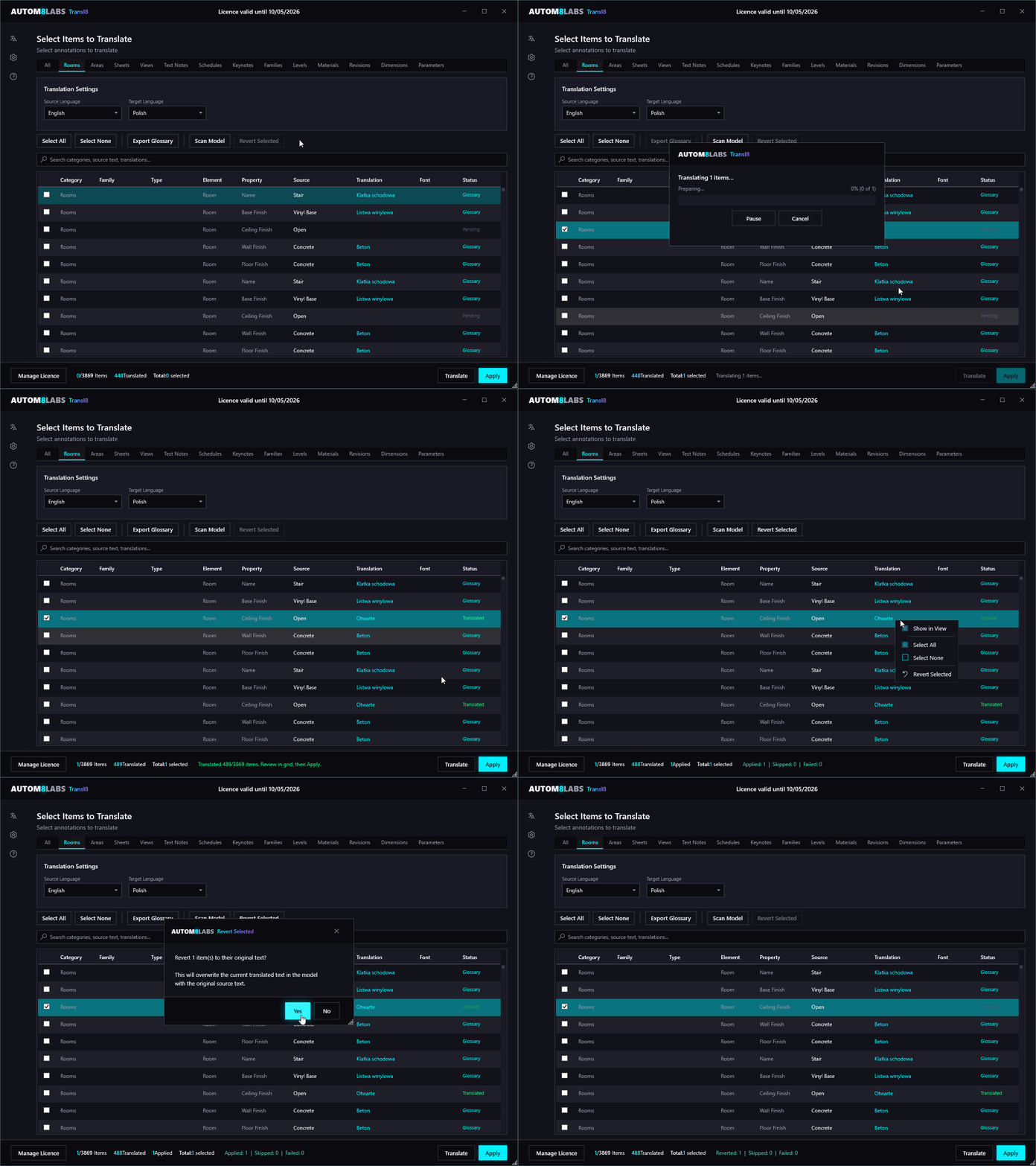
Translation Status Codes
| Status | Colour | Meaning |
|---|---|---|
| Pending | Grey | Not yet translated |
| Translated | Green | Translation complete (from AI, glossary, or memory) |
| Glossary | Cyan | Matched from the built-in or user glossary |
| Memory | Blue | Recalled from translation memory |
| Stale | Amber | Source text changed since last translation |
| Applied | Dark green | Successfully written back to the model |
| Edited | Purple | User manually edited the translation in the preview grid |
Glossary System
Built-In AEC Glossaries
Transl8 ships with 36 built-in AEC glossaries covering the most common language pairs in international practice. Glossaries are loaded automatically when the matching source-target pair is selected.
English Source Glossaries (33)
Each English-source glossary contains 549-551 AEC terms covering the target language. Supported targets include: Simplified Chinese, Traditional Chinese, Arabic, Japanese, Korean, French, German, Spanish (Spain), Spanish (Latin America), Portuguese (Portugal), Portuguese (Brazil), Italian, Swedish, Danish, Norwegian, Finnish, Dutch, Polish, Czech, Romanian, Hungarian, Greek, Turkish, Ukrainian, Croatian, Slovak, Bulgarian, Hebrew, Hindi, Thai, Vietnamese, Malay, and Indonesian.
Glossary Categories
Each glossary covers up to eleven categories:
- Architecture - Room names, circulation spaces, floor levels, specialist spaces
- Structure - Columns, beams, slabs, foundations, shear walls, reinforcement, precast elements
- MEP - HVAC systems, electrical distribution, fire protection, plumbing, air handling
- General - Drawing types (plans, sections, elevations), schedules, title block elements
- Healthcare - Treatment rooms, diagnostic suites, linear accelerator vaults, clean rooms
- Education - Classrooms, laboratories, lecture halls, libraries, sports facilities
- Hospitality - Guest rooms, lobbies, restaurants, conference centres
- Retail - Shop floors, stockrooms, fitting rooms, food courts
- Materials - Concrete, steel, timber, insulation, waterproofing, finishes, cladding
- Data Centre - Server rooms, cooling, UPS, cable management, access flooring
- NBS Specifications - Specification clause descriptions and headings
Translation priority follows a strict hierarchy: User edits > Glossary > AI > Memory. User-edited translations are never overridden. Glossary entries always take priority over AI and memory translations, ensuring critical AEC terms are translated consistently.
User Glossaries
Users can create project-specific or firm-wide glossaries for any language pair. User glossaries can be placed in:
%LocalAppData%\AUTOM8LABS\Transl8\Glossaries\- default user glossary folder- Any additional folders configured in Settings (network drives, project folders)
Glossaries are XLSX files - Excel preserves multi-line TextNote content via native cell line breaks, so glossaries round-trip cleanly through review and editing. The language pair is read from the Metadata sheet if present, or inferred from the filename (e.g. firm-glossary-en-zh-Hans.xlsx).
User glossary entries override built-in terms when there's a conflict. Glossaries are reloaded automatically whenever the Transl8 dialog is opened and on every model scan, and only files whose last-write timestamp has changed are reparsed so large glossary folders don't slow down re-scans.
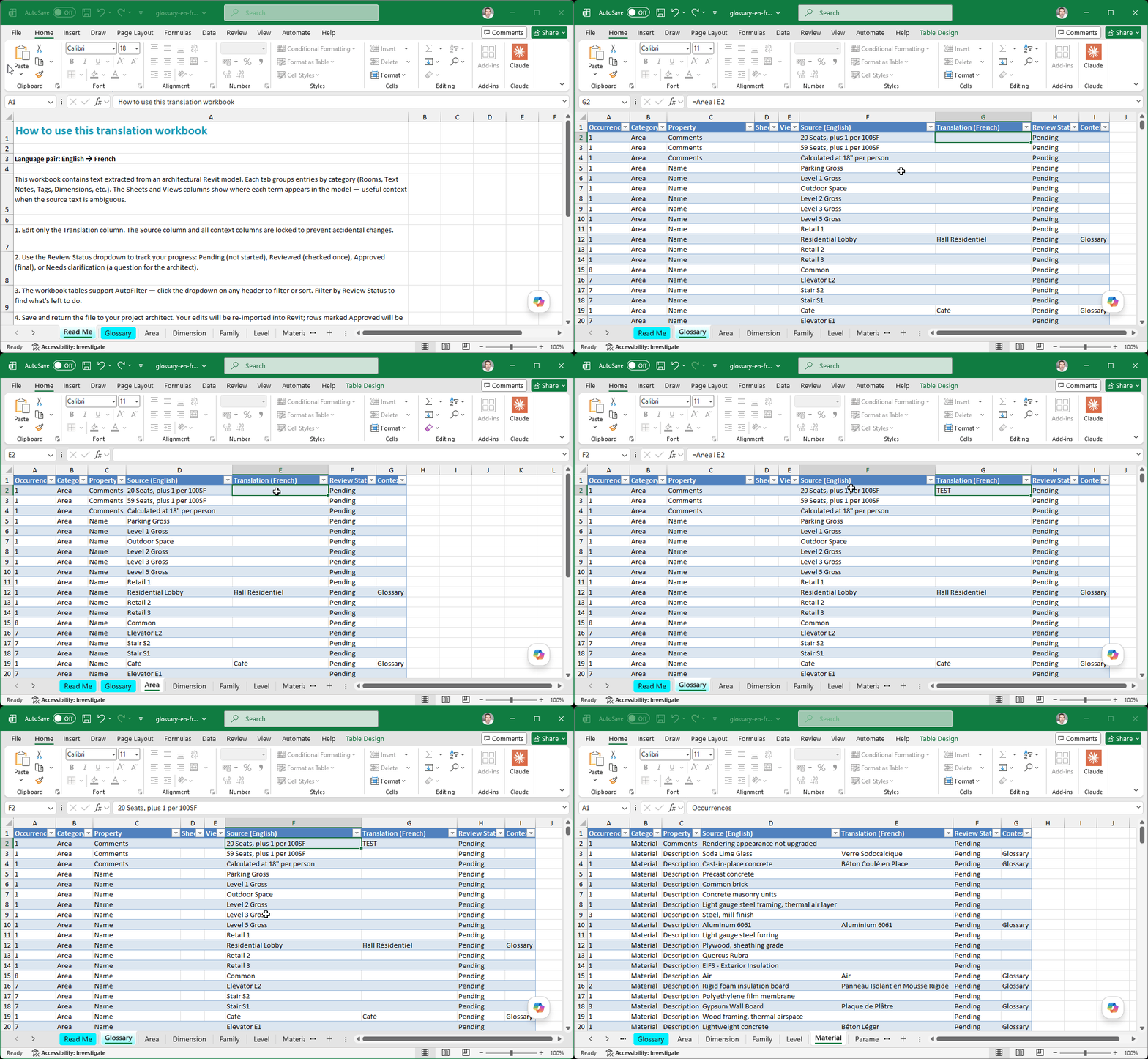
Exporting the Project Glossary
Use the Export Glossary button to save the current translations as a multi-sheet Excel (.xlsx) review workbook:
- Glossary sheet (master) - every translated term, deduplicated by category + property + source, with columns for Occurrences, Category, Property, Sheets, Views, Source, Translation, and Context
- One tab per category - separate sheets for Rooms, Sheets, Views, TextNotes, Schedules, Levels, Dimensions, etc. so reviewers can focus on one element type at a time
- Sheets / Views context - TextNote rows include the sheet and view names where each note appears (e.g. "S-101, S-102") so reviewers understand the context before editing. The TextNote tab is sorted by Sheet → View → Source so all "EXIT" notes on S-101 cluster together
- Metadata sheet - language pair and export timestamp
- Stable row order - identical source items appear on the same row number across every language export, so reviewers can place en→fr and en→zh files side-by-side and compare row-for-row
The exported workbook follows the same XLSX layout Transl8 reads as a user glossary. To feed reviewer edits back into the model, drop the edited file into the user glossary folder (%LocalAppData%\AUTOM8LABS\Transl8\Glossaries\ or any folder configured in Settings) - on the next scan, glossaries are reloaded automatically and reviewer terms take priority over AI and memory translations.
Common AEC Corrections
The AI system prompt includes explicit corrections for frequently mistranslated terms:
| English Term | Correct Translation | Common Mistake |
|---|---|---|
| Plant Room | Mechanical/services room | Vegetation room |
| WC | Local toilet/washroom equivalent | Literal "water closet" |
| Riser | Vertical services shaft | "Something that rises" |
| FFL | Finished Floor Level | Literal translation |
| DPC | Damp Proof Course | Literal translation |
| Soffit | Underside of element | Generic "bottom" |
| Cill / Sill | Window sill | Literal translation |
Translation Memory
Transl8 maintains a per-project translation memory. The storage location is determined automatically based on the model type:
| Model Type | Memory Location | Shared? |
|---|---|---|
| Local file | {ModelDir}\Transl8\{ModelName}.memory.json | N/A (single user) |
| Workshared (file server) | {CentralModelDir}\Transl8\{CentralModelName}.memory.json | Yes - all users share one cache |
| Cloud (ACC / BIM 360) | %LocalAppData%\AUTOM8LABS\Transl8\CloudProjects\{projectGuid}\{modelGuid}\memory.json | No - per-user, but stable across sessions |
| Unsaved model | %LocalAppData%\AUTOM8LABS\Transl8\Memory\_unsaved\{ModelName}.memory.json | N/A (save project to persist) |
Two files are written per model:
{ModelName}.memory.json- forward/reverse translation cache keyed by source text and target language{ModelName}.memory.applied.json- per-element audit trail with element IDs, property names, source text, applied translation, target language, translation source, and timestamp
The cache is created lazily on first write, so simply opening the dialog on a network drive does not create a Transl8 folder. Older databases named memory.db are automatically migrated to the new model-named layout on first scan.
For workshared models on a file server, the cache is placed next to the central model (not the local copy), so all team members with Transl8 share the same translation memory - Alice's translations are available to Bob immediately, no duplicate API calls.
For cloud models (ACC/BIM 360), the cache path is derived from the stable cloud project and model GUIDs, so it persists across sessions even if Revit clears the collaboration cache.
Previously translated text is automatically recalled on subsequent scans, so you never pay to translate the same text twice. The memory persists across sessions and is specific to each source-target language pair.
Multi-Language Translation
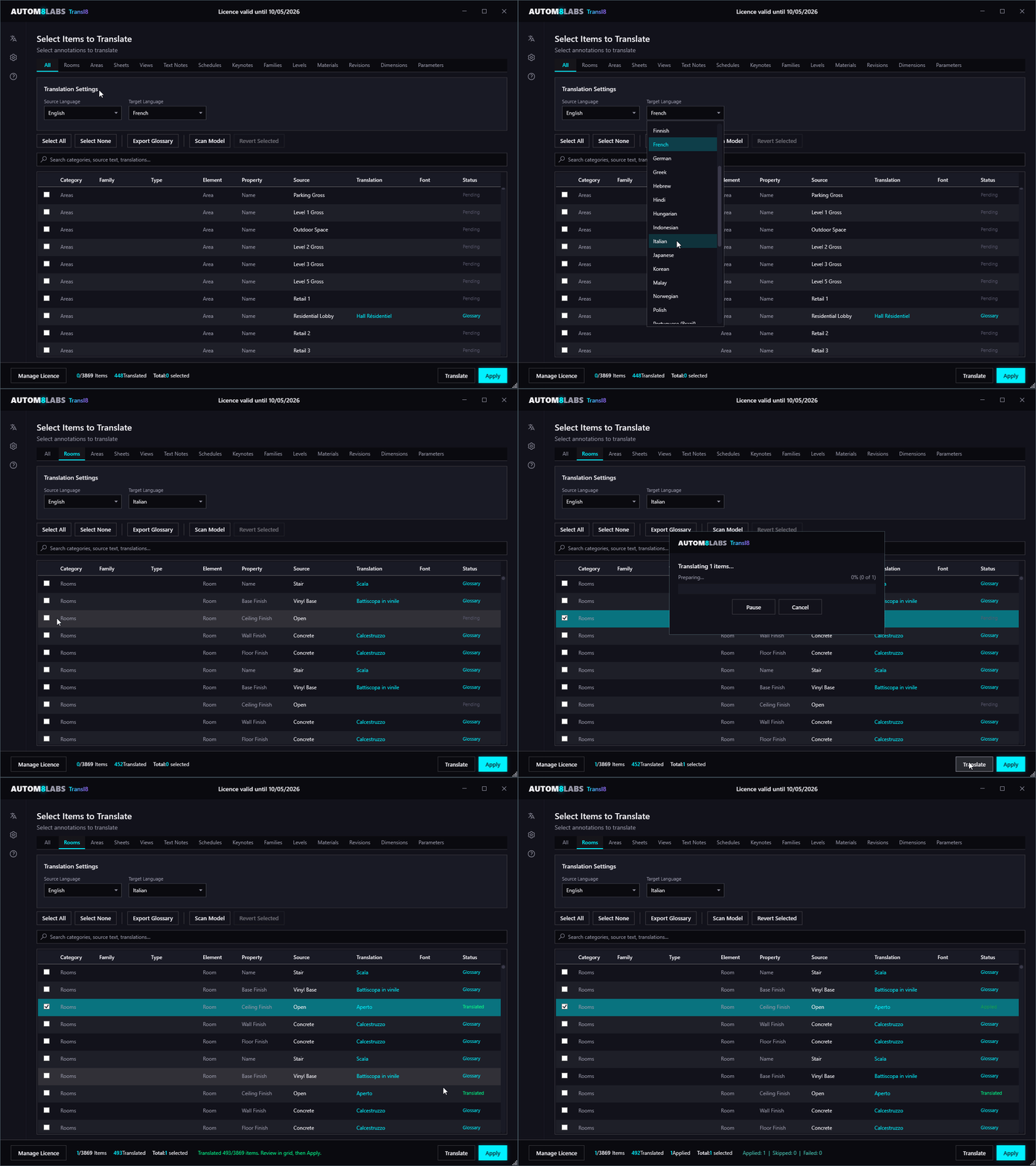
Transl8 treats the current model text as the source language. Translation is a two-step process: Translate (preview) and Apply (commit). This separation enables powerful multi-language workflows.
Preview multiple languages before committing:
- Open an English model and set target to Spanish - click Translate - translations cached in the database
- Switch target to Polish - click Translate - Polish translations cached alongside the Spanish ones
- Switch target to Japanese - click Translate - Japanese translations also cached
- Switch back to Spanish - translations recalled instantly from the database (no API call, no cost)
At this point the database holds translations for all three languages against the English source text. The model itself is unchanged - still in English. You can compare languages, review, edit, and only apply when you're satisfied.
Apply commits the language:
- Click Apply with Spanish selected - model text becomes Spanish
- Spanish is now the source language for any future translations
- If you later need French, Transl8 translates from Spanish (the current model text) to French
If you applied Spanish and want to undo it, Revert Selected restores the English text. If you then applied French, Revert would restore the Spanish text. Each Apply stores a snapshot of the pre-apply text for that element.
Storage Format
All Revit versions (2022-2027) use a single human-readable JSON format for translation memory. The JSON files can be inspected, diffed, and version-controlled alongside the project if needed.
If the project directory is read-only (e.g. a locked-down central model folder), memory creation fails silently and the dialog continues to work without the recall benefit - translations still complete, they just won't be cached for next time.
Font Validation
Revit displays placeholder boxes when the assigned font doesn't support the target language's character set. Before applying translations, Transl8 validates that the required fonts are installed:
| Language | Required Fonts | Fallback |
|---|---|---|
| Simplified Chinese | SimSun, Microsoft YaHei | Arial Unicode MS |
| Traditional Chinese | MingLiU, Microsoft JhengHei | Arial Unicode MS |
| Japanese | MS Gothic, Yu Gothic | Arial Unicode MS |
| Korean | Malgun Gothic, Batang | Arial Unicode MS |
| Arabic | Arial Unicode MS, Simplified Arabic | Arial Unicode MS |
| Thai | Leelawadee UI, Tahoma | Arial Unicode MS |
| Hindi | Nirmala UI, Mangal | Arial Unicode MS |
| European & Latin-script | Segoe UI, Arial | No validation needed |
If fonts are missing, a warning banner appears in the dialog with the recommended font to install. When auto font switch is enabled (default), Text Notes are automatically reassigned to a TextNoteType with the correct font.
Supported Languages
All 34 languages work as both source and target in any combination - giving 1,122 possible language pairs. Every English target pair has a dedicated AEC glossary with 549-551 terms.
| Language | Code | RTL | Glossary |
|---|---|---|---|
| English | en | No | Source language |
| Simplified Chinese | zh-Hans | No | 549 terms |
| Traditional Chinese | zh-Hant | No | 551 terms |
| Arabic | ar | Yes | 549 terms |
| Japanese | ja | No | 549 terms |
| Korean | ko | No | 551 terms |
| French | fr | No | 549 terms |
| German | de | No | 549 terms |
| Spanish (Spain) | es | No | 551 terms |
| Spanish (Latin America) | es-419 | No | 551 terms |
| Portuguese (Portugal) | pt | No | 551 terms |
| Portuguese (Brazil) | pt-BR | No | 551 terms |
| Italian | it | No | 549 terms |
| Vietnamese | vi | No | 551 terms |
| Thai | th | No | 551 terms |
| Hindi | hi | No | 551 terms |
| Danish | da | No | 551 terms |
| Dutch | nl | No | 551 terms |
| Swedish | sv | No | 551 terms |
| Norwegian | nb | No | 551 terms |
| Finnish | fi | No | 551 terms |
| Polish | pl | No | 551 terms |
| Czech | cs | No | 551 terms |
| Romanian | ro | No | 551 terms |
| Hungarian | hu | No | 551 terms |
| Greek | el | No | 551 terms |
| Turkish | tr | No | 551 terms |
| Ukrainian | uk | No | 551 terms |
| Croatian | hr | No | 551 terms |
| Slovak | sk | No | 551 terms |
| Bulgarian | bg | No | 551 terms |
| Hebrew | he | Yes | 551 terms |
| Malay | ms | No | 551 terms |
| Indonesian | id | No | 551 terms |
Keynote Translation
Keynotes in Revit are stored in an external text file, not in the model itself. Transl8 handles this differently from other element types:
- Scan - Reads the keynote table file referenced by the model and extracts all text entries
- Translate - Translates keynote text through the same four-phase pipeline
- Apply - Creates a new translated keynote file alongside the original (e.g.
Keynotes_NBS.txtbecomesKeynotes_NBS_sv.txt), then re-links the Revit model to the translated file. The original file is never modified.
Worksharing Support
Transl8 is designed for multi-user workshared environments:
- Element ownership - Before modifying any element, Transl8 checks ownership via
WorksharingUtils. Elements owned by another user are skipped automatically. - Detailed skip reporting - When elements are skipped, the results show a breakdown: how many were owned by other users (and which users), how many were deleted in the central model, etc.
- Shared translation memory - For workshared models on a file server, translation memory is stored next to the central model so all team members share one cache. Because the cache is a plain JSON file it is readable by any Revit version (2022-2027) opening the same model.
- Cloud model support - ACC and BIM 360 models use a stable local path derived from the cloud project and model GUIDs, so translation memory persists across sessions even if Revit clears the local collaboration cache.
Multi-User Workflow
When multiple team members have Transl8 installed and are working in the same workshared model:
- Each user's translations are cached in the shared translation memory
- When User B scans after User A has translated, User B sees those translations from memory instantly
- Elements owned by other users are skipped during Apply, with clear reporting of which users own which elements
- After syncing to central, all translations are visible to all users
Configuration
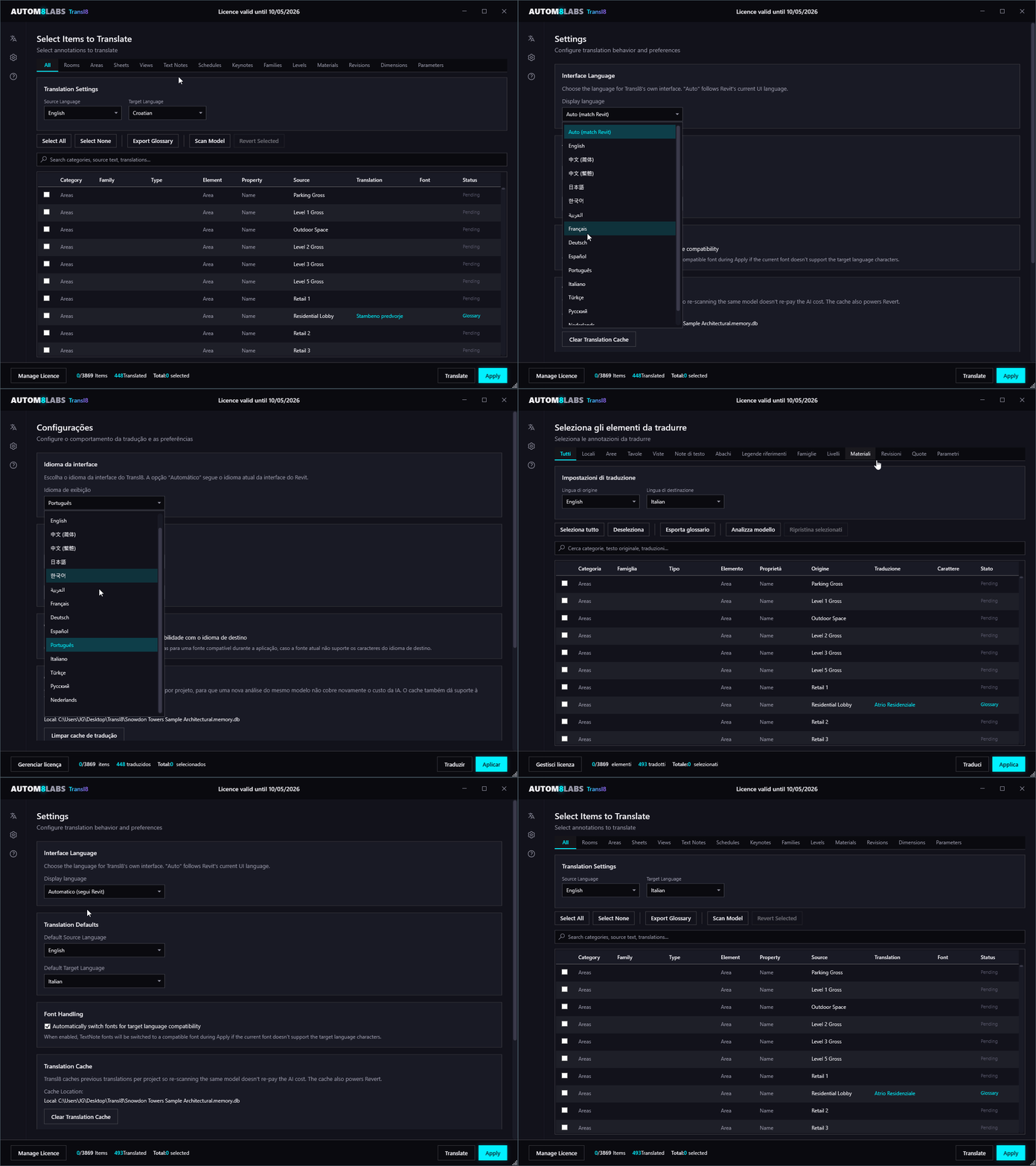
Settings
The Settings tab is grouped into the following sections:
- Interface Language - The dialog UI matches the Revit locale by default (open Revit in French and Transl8 opens in French). It can be switched independently of the translation source/target at any time, and the choice is remembered across sessions.
- Translation Defaults - Pick the default source and target language pre-selected when the dialog opens. Useful when you mostly work between the same two languages.
- Font Handling - Automatically switch fonts for target language compatibility. When enabled, TextNote fonts are swapped to a compatible font during Apply if the current font doesn't support the target language's characters (prevents the □□□ box-character rendering in Revit).
- Translation Cache - Shows the cache location for the active project (one cache file per Revit model) and provides a Clear Translation Cache button to wipe per-project memory if you want to re-translate from scratch.
- Glossary - Shows the default user glossary folder and lets you add additional folders (e.g. a network drive shared by the team, or a per-project folder). Use Add Folder, Remove Selected, and Open User Folder to manage where Transl8 looks for user/firm glossaries.
Usage Tips
Scan First, Review Second
Always review the preview grid before applying. Double-click any row to select the element in Revit and verify the context.
Use the Glossary
Add firm-specific terms to a user glossary before translating a large model. This ensures consistent terminology and deterministic results.
Check Fonts Before Applying
If the font warning banner appears, install the recommended font before applying translations to avoid placeholder boxes in Revit.
Memory Saves Money
The first translation costs the most. Subsequent runs recall from memory, so only new or changed text hits the API.
Same Text, One Translation
Transl8 deduplicates identical source text. If "Kitchen" appears in 50 rooms, it's translated once and applied to all 50.
Workshared Models
Make relevant worksets editable before translating. Elements owned by other users are automatically skipped with a detailed ownership report.
- Single undo. The entire apply operation is wrapped in a single Revit transaction. One Ctrl+Z reverts all translations.
- Save before applying. While single-undo is supported, saving beforehand gives you an extra safety net for large translation batches.
- Selection mode. Select elements in Revit before opening Transl8, then enable "Selected Elements Only" to translate just those items instead of the entire model.
- Glossary-driven review. Use Export Glossary to share a multi-sheet Excel workbook with reviewers. Save the edited file into the user glossary folder so reviewer terms are picked up automatically on the next scan, with priority over AI and memory translations.
- Regional variants matter. If you're working on a project in Brazil, select "Portuguese (Brazil)" not "Portuguese (Portugal)". The AEC terminology differences are significant.
- Preview multiple languages. Before applying, switch the target language and click Translate to cache translations for several languages. Switch between them freely - cached translations are recalled instantly.
- Keynote files. When translating keynotes, a new translated file is created alongside the original. The original is never modified. Reverting re-links back to the original file.
Licensing
Free Download
Transl8 is free to download and install. Without an active Pro licence you can:
- Open the dialog from the ribbon and explore the full UI in your preferred interface language
- Scan the model and browse all 14 element categories
- Inspect existing glossary matches and translation memory hits
- Configure source/target languages, default categories, font options, and glossary folders
The Translate action and applying translations to the model require a Pro licence.
Pro Licence
A Pro licence unlocks:
- Translate any number of items via the AI translation engine
- Apply translations back to the model in a single Revit transaction
- Export Glossary to a multi-sheet Excel review workbook
- Worksharing-aware Apply with detailed ownership reporting
- Priority email support
Pricing scales with team size - from single-seat studios to enterprise rollouts. Request a tailored quote.
Troubleshooting
Transl8 doesn't appear in Revit
If Transl8 is not visible under the Add-Ins tab:
- Ensure Revit was completely closed during installation
- Verify the installation folder contains the required files
- Try reinstalling Transl8 with administrator privileges
Translate button is disabled
The Translate button is gated behind an active Pro licence. Click Manage Licence at the bottom-left of the dialog to check your current licence status. If your licence has expired, your existing translation memory and glossaries remain intact - you only need to renew to translate new items.
Placeholder boxes after applying translations
Revit displays placeholder boxes when the assigned font doesn't support the target language's character set. Before applying:
- Watch for the font validation warning banner - it lists missing fonts with recommended replacements
- Install any flagged fonts, or enable Auto Font Switch in Settings to automatically swap to a font that supports the target script
- You can also set a Font Override in Settings to force a specific font instead of auto-detection
Glossary edits aren't taking effect
Glossaries are reloaded automatically when the dialog is opened and on every model scan. Only files whose last-write timestamp has changed are reparsed:
- After editing a glossary file, click Scan Model to force a refresh
- Verify the file is in
%LocalAppData%\AUTOM8LABS\Transl8\Glossaries\or any folder configured under Settings - Check the language pair matches - derived from the
Metadatasheet (XLSX) or filename (e.g.aec-en-fr.csv)
Translation memory isn't being created
If the project directory is read-only (a locked-down central model folder, for example), memory creation fails silently and the dialog continues to work without the recall benefit. Translations still complete, they just won't be cached for next time. To enable caching, ensure the project folder is writable, or set a Memory Folder Override in Settings to point at a writable location.
Elements skipped during Apply
On a workshared model, Transl8 automatically skips elements owned by another user instead of failing the whole apply. After Apply finishes, an ownership report lists which elements were skipped and who owns them. Ask the relevant teammates to relinquish those elements (or close the model) and re-run Apply for just the remaining items.
Log files
Transl8 writes detailed logs to:
%LocalAppData%\AUTOM8LABS\Transl8\Log\
Include these logs when contacting support so we can diagnose translation, font, or licence issues quickly.
Frequently Asked Questions
The entire Apply operation is wrapped in a single Revit transaction, so one Ctrl+Z reverts every translation back to the original text. You can also use Revert Selected to roll back specific items after the fact - the previous text is preserved alongside the translation in the grid.
Transl8 supports 34 target languages with regional variants where AEC terminology differs significantly - Spanish (Spain vs. Latin America), Portuguese (Portugal vs. Brazil), and Simplified vs. Traditional Chinese. See the Supported Languages table for the full list.
The AI translation engine is steered with AEC-specific instructions and 36 built-in glossaries containing 19,800+ industry terms. Common mistakes (Plant Room, WC, Riser, Plenum) are explicitly corrected. Glossary terms always take priority over the AI engine, so for any term you've defined, the translation is deterministic. You can drop in your own user glossaries to override built-in terms or add firm-specific terminology.
Yes. Make the relevant worksets editable before translating. Elements owned by another user are automatically skipped with a detailed ownership report so you know exactly what's outstanding. The translation memory cache lives in the project folder, so when one teammate translates an item, others see that translation instantly on their next scan.
Every translation is stored in a per-project translation memory database. Identical source text isn't re-translated - Transl8 deduplicates before hitting the API, so if "Kitchen" appears in 50 rooms it's translated once and applied to all 50. The memory file lives next to the project model as portable JSON, so it travels with the project and works across teammates and workstations.
Your existing translation memory, applied translations, and user glossaries are unaffected - the data lives in your model and on your machine/network. Without an active licence, the Translate and Apply actions are disabled, but you can still open the dialog, browse the grid, and inspect prior translations. Renew the licence at any time to resume translating.
Changelog
Licence system updated
Update check, stability and performance improvements
- In-app Update check notifies you when a new version is available
- General stability and performance improvements
Revert to Source, broader parameter coverage, multi-user safety
- New Revert to Source action walks the full translation history and restores the original source text
- Custom shared and project string parameters on Rooms and Areas now detected during scan
- Concurrent translation on workshared models, with atomic writes and cross-process locking so simultaneous applies merge cleanly
- Revert to Source enabled immediately after Apply, no need to reopen the dialog
- Clear Memory confirmation warns that clearing also removes the original-source recovery chain
Initial Release
- AI-powered translation across 14 element categories
- 34 target languages with regional variants (Spanish ES/LATAM, Portuguese PT/BR, Simplified and Traditional Chinese)
- 36 built-in AEC glossaries covering the most common language pairs in international practice
- Drop-in user and firm glossaries (XLSX) that override AI and memory translations
- Per-project translation memory with stale-source detection, persisted as portable JSON
- Multi-sheet Export Glossary workbook with master, per-category, context, and metadata sheets
- Font validation with optional auto-switching to fonts that support the target script
- Single-undo Apply wrapped in a single Revit transaction, plus per-row Revert
- Multi-language UI that matches the Revit locale by default and is switchable independently of the translation source/target
- Support for Autodesk Revit 2022 through 2027